

Creating a Placement
Placements allow you to control which videobot or widget appears on different pages of your website based on URL patterns. Instead of hardcoding a specific videobot on each page, you define rules that automatically match URLs and display the appropriate content.
Key Features
- URL-based targeting: Show different content on different pages using pattern matching
- Multiple content strategies: Direct display, time-based scheduling, or A/B testing
- Priority-based rules: Rules are evaluated in order, and the first match wins
- Easy embedding: Simple JavaScript snippet for your website
Getting Started
To access the Placements feature:
- Navigate to your dashboard
- Click on Placements in the sidebar menu
- You'll see a list of all your existing placements (if any)
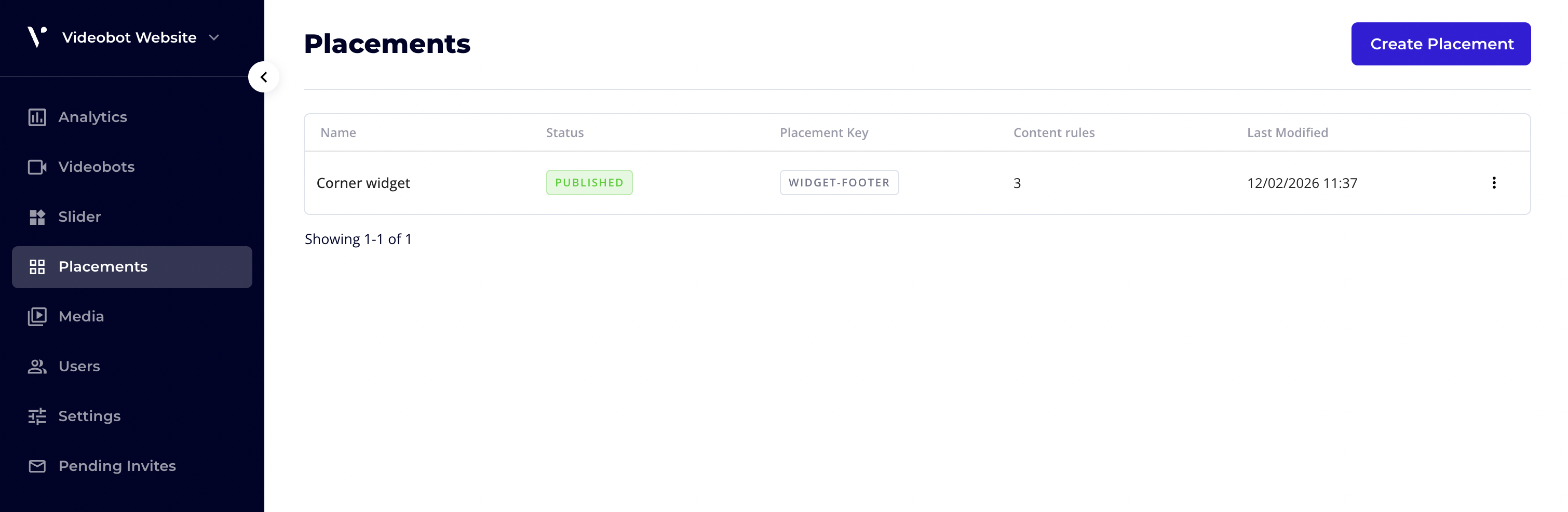
From here, you can create new placements or edit existing ones.
Step 1: Open the Create Modal
- On the Placements list page, click the Create New button
- A modal dialog will appear with two required fields
Step 2: Enter Placement Details
Name (Required)
- Enter a descriptive name for your placement
- Example: "Product Pages Bot", "Homepage Hero Widget"
Placement Key (Required)
- This is a unique identifier used in your website's HTML code
- As you type the name, a key is automatically generated
- The key must contain only lowercase letters, numbers, and hyphens
- Example:
product-pages-bot,homepage-hero
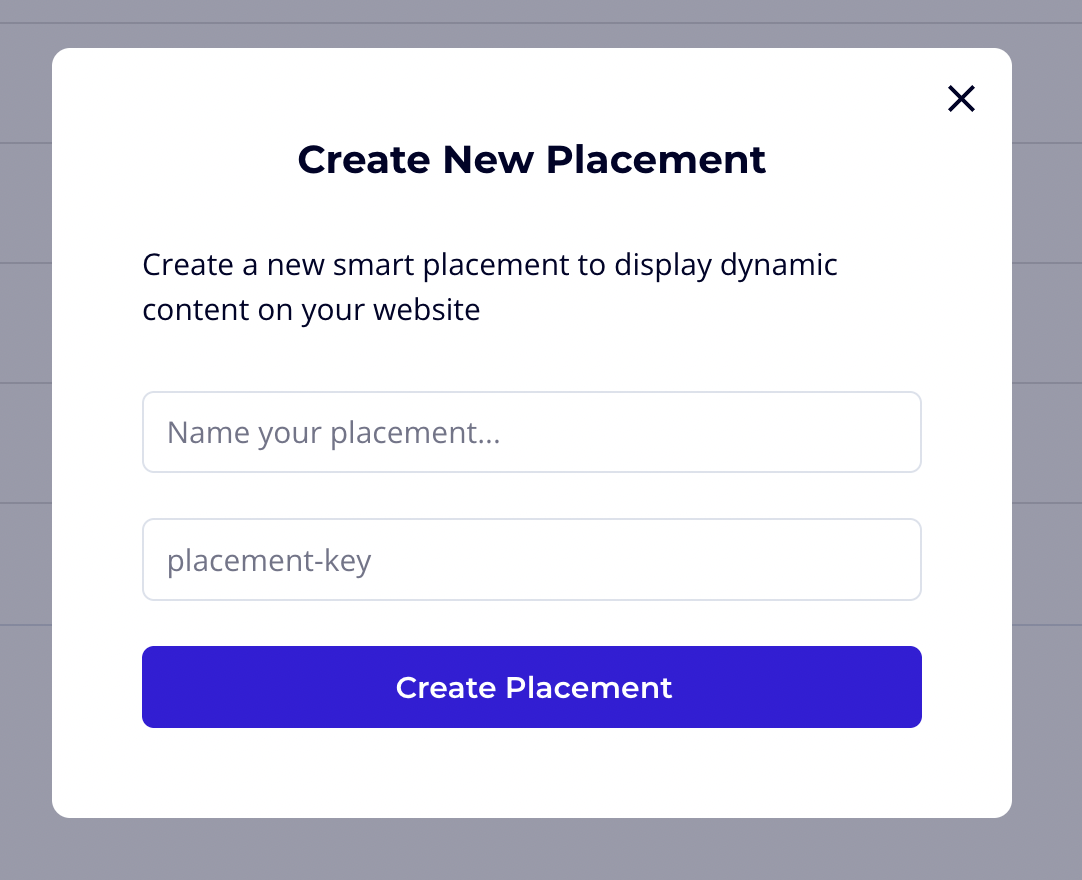
Note: The placement key cannot be changed after creation, so choose carefully.
Step 3: Create the Placement
- Click Create to save your new placement
- You'll be automatically redirected to the placement editor
The Basic Info Tab
After creating a placement, you'll land on the Basic Info tab of the placement editor. This tab displays the core information about your placement and allows you to make changes.
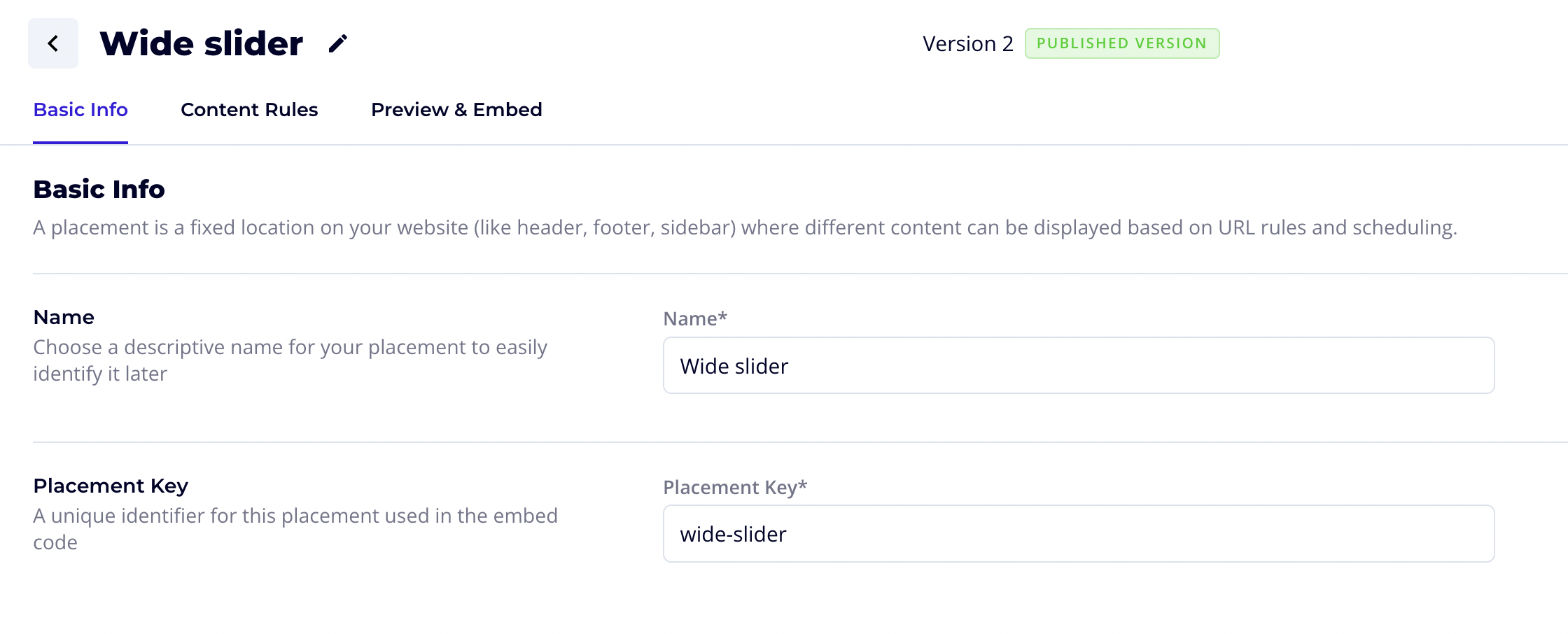
The placement editor has three main tabs:
- Basic Info: View and edit placement name and key
- Content Rules: Configure URL patterns and content display rules
- Preview & Embed: Get the embed code for your website
Basic Info Fields
| Field | Description |
|---|---|
| Name | The descriptive name for your placement. You can edit this at any time by clicking the pencil icon next to the title or updating the field. |
| Placement Key | The unique identifier used in your embed code. This cannot be changed after creation. |
Version and Status
At the top of the editor, you'll see:
- Version number: Tracks changes to your placement configuration
- Status badge: Shows whether the placement is in Draft or Published state
Once you've reviewed your basic info, proceed to the Content Rules tab to configure which content appears on which pages.