

Media Studio
Media Studio is a video editor in the dashboard. You put clips, images, cards, overlays, voice-overs and subtitles on one timeline, watch the result, and render it into a video in your Media Library. You can edit a video you already have, or start a new one from nothing, for example from a single image and a voice-over.
Note: Media Studio is being rolled out gradually. If you do not see Open in studio when you click a video in Media → Video, the feature is not enabled for your account yet. Contact your Customer success specialist.
Open Media Studio
Edit a video you already have
- Go to Media → Video and click the video.
- Choose Open in studio. Preview only plays the video.
A video that is still processing can be opened in the studio once it is ready.
If the video was itself made in Media Studio and the timeline has changed since, you get two choices:
- Open the latest version carries on from where the timeline is now.
- Open the version that made this video shows the timeline exactly as it was rendered. It is read-only. Click Restore this version to make it the current timeline, or Go to the latest version to go back.
In the Videobot Builder, a video slide also has Edit in Media Studio under its video.
Start a new video
- Go to Media, open the Add media menu and choose Create new video.
- Choose the shape of the video:
- Landscape (16:9) for websites, embedded players and presentations.
- Portrait (9:16) for phones, widgets and stories.
The editor opens with an empty timeline. Drag a video or an image onto it to begin.
You can change the shape later with the Landscape / Portrait toggle in the editor header. Everything on the timeline is laid out in a frame of that shape. For an image of a different shape, Fit sets how it fills the frame. See Images.
The editor
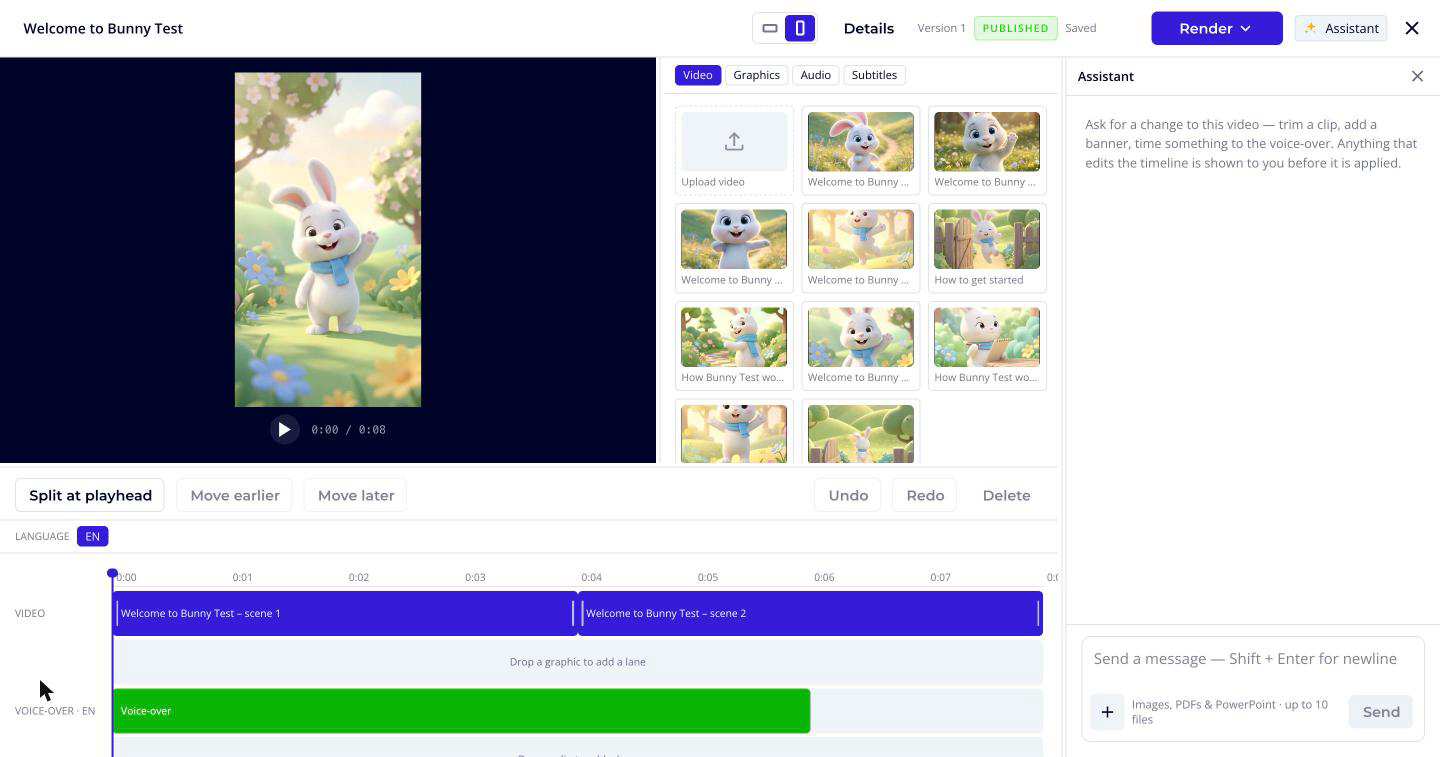
The editor has four areas:
- Preview: the video as it will look when rendered, with its graphics and the current subtitle shown on it.
- Browser: things you can add, under the tabs Video, Graphics, Audio and Subtitles.
- Timeline: the lanes of the video, all on one time ruler, so you can see what is on screen when. Click the timeline to move the playhead.
- Assistant: a chat on the right where you can ask for changes in your own words. See Assistant.
You can drag the borders between the areas to resize them.
To add something, drag it from the browser onto a lane of the timeline. On the Video lane, the timeline opens a gap where the item will land. You can also drag video and image files from your computer onto the timeline. They are uploaded to your Media Library.
Select a block on the timeline to edit it. Its settings appear under the timeline.
The header also has:
- The video's name. Click it to rename the video.
- Details, which opens the metadata of the media you opened: categories, tags, custom fields and external IDs. It is not shown for a new video. See Editing Media Metadata.
- Close, which closes the editor.
Clips
The Video lane holds the clips, images and cards that make up the picture, one after another.
- Add a clip: drag a video from the browser's Video tab onto the Video lane. Upload video in the same tab adds a new video from your computer.
- Trim: drag the start or end edge of a clip. The clip's settings show which part of the source video is used.
- Split at playhead: move the playhead to where you want to cut, and click Split at playhead. The clip under the playhead is cut in two.
- Reorder: drag a clip to another place on the lane, or select it and click Move earlier or Move later.
- Delete: select a block and click Delete.
Images
Drag an image from the Graphics tab onto the Video lane to show a still, or use Upload image to add a new one. Select the image to set:
- Length (seconds): how long the image is on screen. You can also drag its edges on the timeline.
- Fit: Fill the frame, Show all of it or Stretch to fill.
- Fit to voice-over: makes the image exactly as long as the voice-over. It appears when the video has a voice-over and the image is not already as long as it.
Cards
A card is a full-screen graphic on the Video lane, such as a title card at the start or a thank-you card at the end.
- Open the Graphics tab and drag Card onto the Video lane.
- Select the card and fill in:
- Brand line: shown small, above the rule.
- Title: the card's headline.
- Set its length in Length (seconds), or drag its edges on the timeline.
A card with nothing to show stops the video from rendering. Fill it in, or delete it.
Overlays
Overlays are graphics drawn over the picture for part of the video. They go on Graphics lanes above the Video lane.
- Open the Graphics tab and drag an overlay onto a Graphics lane, or onto Drop a graphic to add a lane to put it on a new lane.
- Select the overlay and fill in its text:
- Banner: a First line, such as a name, place or product, and an optional Second line, such as a title, date or price.
- Step list: the steps, in Items, one per line.
- Callout: a short Text.
- Drag the overlay along its lane to move it, and drag its edges to change when it appears and disappears.
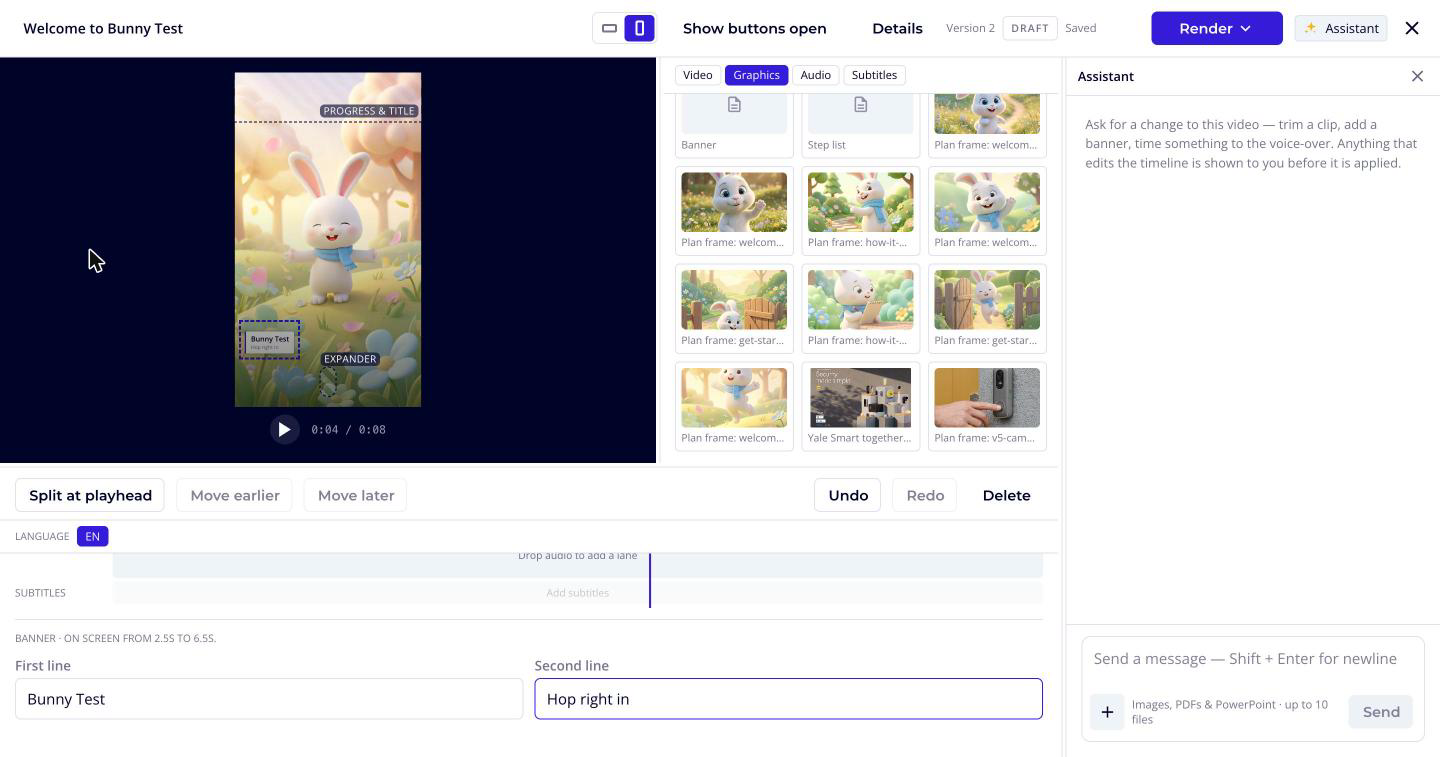
While an overlay is selected, the preview shows where the videobot's own controls sit over the video, such as the progress bar and title, so you can keep your graphics clear of them. Click Show buttons open to also see where the buttons appear when they are opened, and Hide buttons to hide them again.
Voice-over and audio
The Audio tab makes a voice-over from text:
- Open the Audio tab.
- Choose a Voice.
- Write what the voice-over should say in Script.
- Check the cost shown under the script, for example Uses 3 credits. The cost is shown before you create anything.
- Click Create voice-over.
The voice-over is put on its own audio lane at its real length. Select it to see its script. Select it and click Delete to remove it.
The timeline shows each audio track on its own lane, such as Original audio and Voice-over. The preview plays them together.
To make a video from a still image and a voice-over, put the image on the Video lane, create the voice-over, then select the image and click Fit to voice-over.
Subtitles
Subtitles are a lane of the timeline too. Click Add subtitles in the Subtitles lane, or open the Subtitles tab, to write, import or translate them. See Subtitles.
Saving and versions
There is no save button. Every change is saved as you work, and the status next to Render shows Saving… and Saved. Use Undo and Redo in the timeline toolbar to step back and forward through your changes.
The status also tells you whether the timeline matches the video:
- Published: this is the version that was last rendered. The video matches what you see.
- Draft: you have changes that are not in a rendered video yet, or the timeline has never been rendered.
Next to it, Version N tells you which version of the timeline you are on.
If the video is changed somewhere else while you are editing, the status reads Not saving. Reopen the video to carry on.
The Render menu also has:
- Go back to version N, which discards your changes since the last render and returns to the version that was last rendered.
- Start over from the original, which discards every cut, graphic and audio track and returns to the file as it was uploaded. Videos you have already rendered are not affected.
Preview renders
Before you publish, you can render a quick preview of the whole video:
- Click Render → Render a preview.
- When it is ready, the preview opens in a player in the editor.
A preview is low resolution. It is kept for 7 days and is not added to your Media Library. Click Download MP4 to save a copy. To watch it again later, choose Render → Watch the last preview.
While a render runs, the Render button is replaced by Rendering… and the current step, such as Queued, Encoding or Uploading. You can keep editing while it runs. Only one render of a video runs at a time.
Render and publish
Render & publish makes the finished video and puts it in your Media Library.
- Click Render → Render & publish.
- Choose where the render goes:
- Replace an existing video puts the render in place of a video you already have. When you opened Media Studio from a video, that video is already selected. Click Change… to choose another one. The video keeps its name, and the dialog tells you how many videobots use it. Every one of them plays the new render once it is ready.
- Create a new video adds the render to your Media Library as a separate video. Give it a Name. This is what the video is called in the Media Library and in your videobots.
- Click Render and replace or Render.
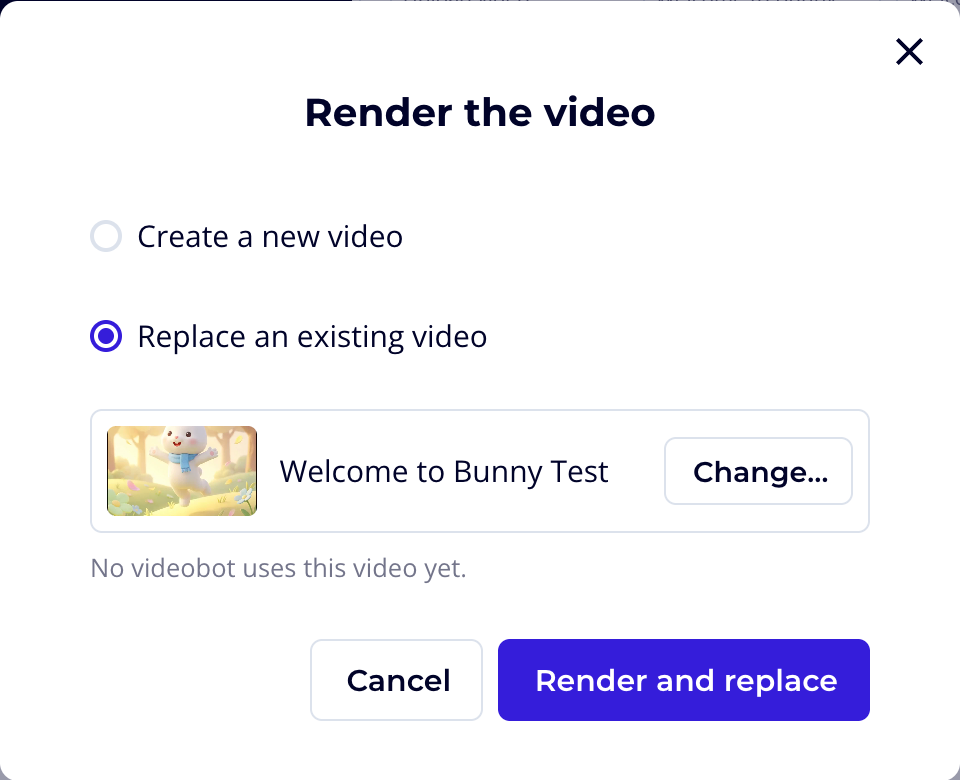
If you create a new video and videobots use the video you started from, you are then asked Update the videobots using this video? Tick the videobots that should switch to the new video, and choose How to update them:
- Save as draft: each videobot gets the new video in its draft. Visitors keep seeing the current video until someone publishes the videobot.
- Publish now: visitors see the new video as soon as it is ready.
The videobots you did not tick keep the video they have. The switch happens when the render is ready, even if you close the editor. Videobots that use the video as a thumbnail or logo, deactivated videobots and videobots you cannot edit are not updated.
When the render finishes, a message tells you how many videobots were updated.
Tip: Replace when you are correcting or updating a video. Create a new video when you want to keep the original as it is.
If only the subtitles have changed since the last render, the Render menu also offers Update subtitles on the video, which updates them without rendering again. See Subtitles.
Assistant
The Assistant column lets you ask for a change to the video in your own words, such as trimming a clip, adding a banner or timing something to the voice-over. Anything that edits the timeline is shown to you before it is applied, and Undo puts it back. Use Collapse assistant to hide the column.