

Managing Blueprints and Derived Bots
After a blueprint is in use, you manage its status, review the bots it has produced, and create bots manually. This page covers the blueprint lifecycle, the Usage tab, manual bot creation, and common issues.
Blueprint Status
A blueprint is always in one of three states:
| Status | Meaning |
|---|---|
| Draft | Work in progress. The blueprint can be selected in a placement, but the placement cannot be saved until the blueprint is published. |
| Published | Ready for use. The blueprint can be used in a placement and creates derived bots automatically. |
| Deactivated | The blueprint does not create new bots, and cannot be newly selected in a placement. |
To change the status, open the blueprint's row menu on the Blueprints list page:
- Publish sets the blueprint to Published.
- Draft returns it to Draft.
- Deactivate sets it to Deactivated.
Publishing re-validates the blueprint's content, so a blueprint with an invalid body cannot go live.
Note: Moving an in-use blueprint out of Published stops it from creating new derived bots. Bots it already produced keep working, and the placement shows a warning that the blueprint is not published.
The Usage Tab
The Usage tab lists the derived bots this blueprint has produced. Use it to confirm that pages are generating bots as expected and to open an individual bot.
Each derived bot is a normal videobot. You can open it to review its slides and analytics.
Creating a Bot from a Blueprint Manually
There are two routes to create a bot from a blueprint: a placement creates them automatically per page, or you create one manually from the Blueprints list. Manual creation does not need a placement.
- On the Blueprints list, open the blueprint's row menu and choose Create bot.
- In the Create bot from blueprint dialog, set:
| Field | Description |
|---|---|
| Blueprint | The blueprint to use. Prefilled when you start from a blueprint. |
| Bot name | A name for the bot. Leave empty to name it after the blueprint. If the blueprint's name template uses extractions, set a name here, as there is no URL to fill them in. |
| Tags | The instance tags for picking each slot's media, what a live page visit would normally supply through extractions. Leave empty to fill each slot using its required tags alone. |
As you add tags, the dialog shows which slots they fill, the same readout as the blueprint's Preview tab.
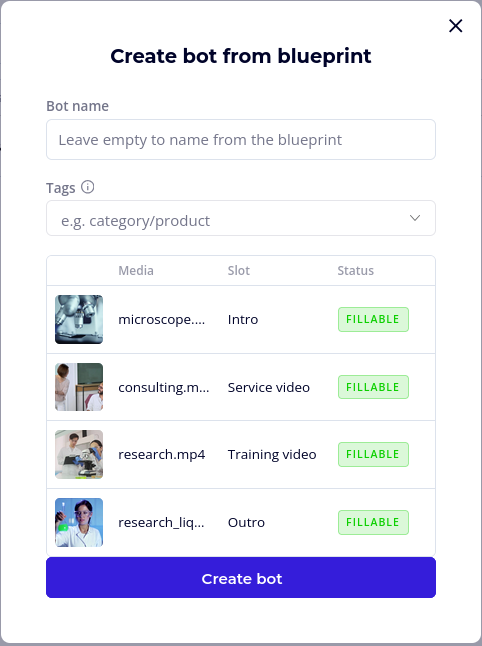
- Click Create bot.
Note: A bot created this way is saved as a Draft. Review it and publish it yourself. This differs from placement-created bots, which are published and served automatically. Manual creation is also more forgiving: a slot with no matching media does not block creation, it is left empty in the draft for you to fill in the editor.
Deleting
Remove in the row menu deletes the blueprint. Existing derived bots are not deleted, but new bots can no longer be created from it. A name can be reused after the blueprint that used it is deleted.
Troubleshooting
The Blueprint Is Not Selectable in a Placement
- Deactivated blueprints cannot be newly selected; they appear in the picker only if they were already the saved selection.
- Draft blueprints appear in the picker marked (Draft). You can select one, but the placement cannot be saved until the blueprint is published.
- Confirm you are editing a Blueprint content rule, not a Direct, Scheduled, or A/B Test rule.
A Slot Shows as Not Fillable
- There is no media tagged to match the slot's required tags plus the instance tags.
- Tag the right media in your media library, then resolve the preview again.
- Check that the instance tags from your extractions match the tags on your media. Matching is not case sensitive, and extra whitespace is ignored, but the tag text itself must match exactly.
- In the placement editor, a blueprint with unfillable slots shows a warning in the Instance tags section, and the placement cannot be saved until every slot can be filled.
A Bot Does Not Appear on a New Page
- The first visit to a new page creates the bot in the background. Allow a short delay, then reload.
- Confirm the blueprint and the placement are both Published.
- Use the placement's Test URL to confirm the page matches the rule and produces the expected tags.
- Confirm at least one media item matches each required slot, otherwise creation cannot complete.
- If a derived bot already exists for the page's tags but has been unpublished, the page keeps showing the fallback and no new bot is created. Publish the existing bot, or delete it so a fresh one can be created.
The Wrong Media Appears
- Review the slot's required and optional tags, and the When multiple match setting. Pick the most recently added and Pick alphabetically break ties differently.
- Check that your extractions produce the tag values you expect, using the Test URL field.
Content Is Out of Date Across Many Bots
- An existing derived bot is never regenerated automatically. To refresh a page's bot, delete the derived bot; the next visit to the page creates a fresh one from the updated blueprint.