Media Library
The Media Library page lets you manage all uploaded and generated media assets—videos, images, and files—in one place. You can upload, organize, search, and manage your media with an intuitive interface similar to a standard file manager.
🗂️ Media Types
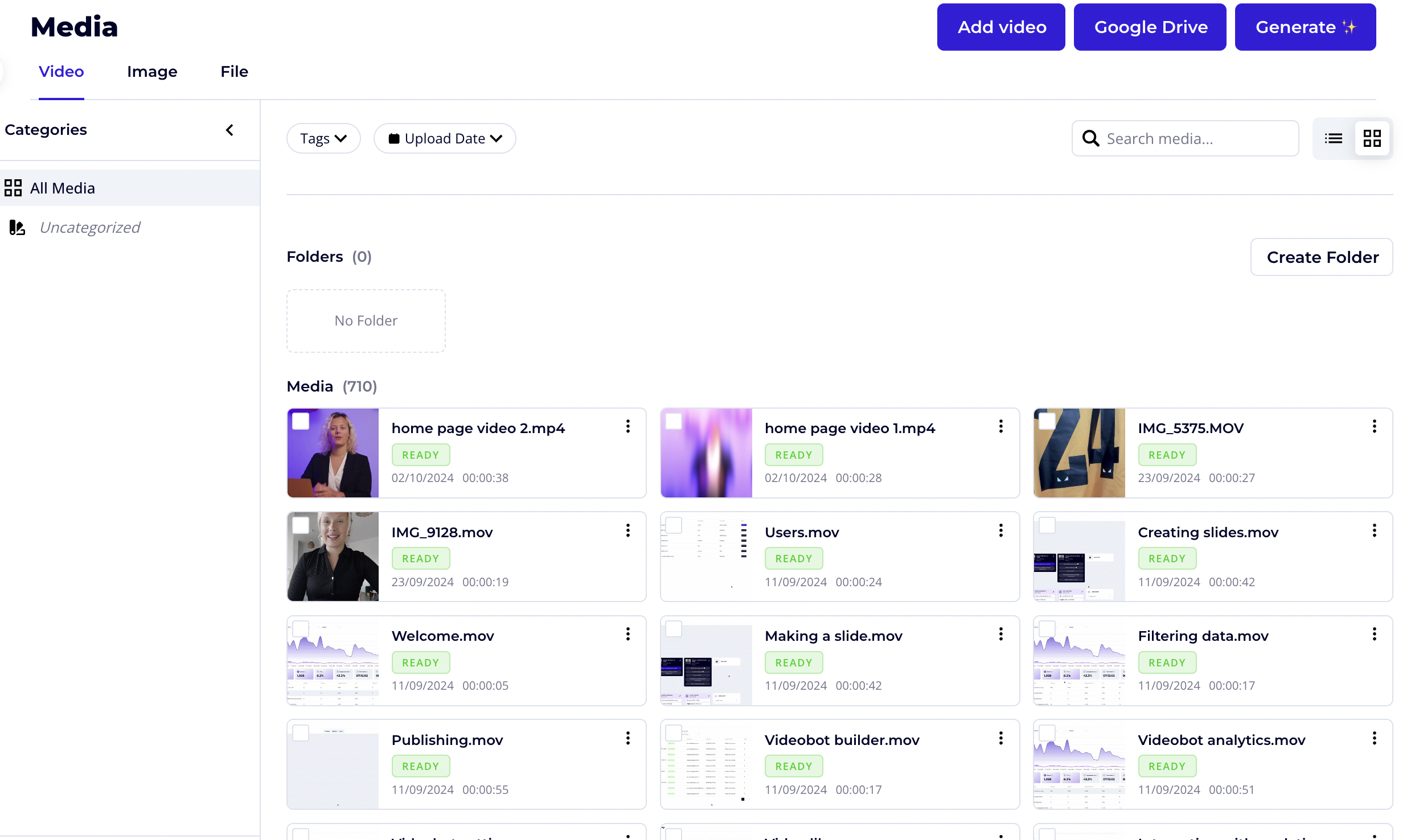
At the top of the page, switch between different media types:
- Video: Displays all video assets.
- Image: Shows uploaded images.
- File: Lists other supported file types.
Each tab filters the view to the selected media type.

📚 Categories (Left Sidebar)
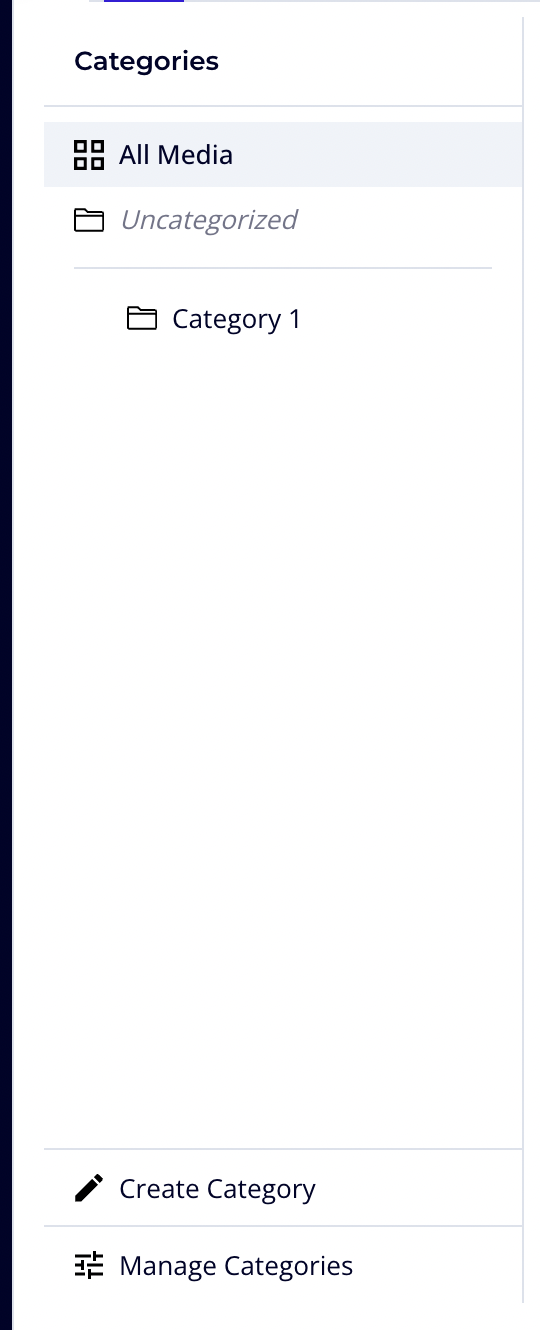
Use the left sidebar for category-based navigation:
- All Media: Shows all media items.
- Uncategorized: Displays media not assigned to any category.
- Custom Categories: User-created categories appear here.
- Create Category: Add a new category.
- Manage Categories: Edit, rename, or delete categories.
Note: Categories are for high-level grouping and are independent from folders.
🗄️ Folders
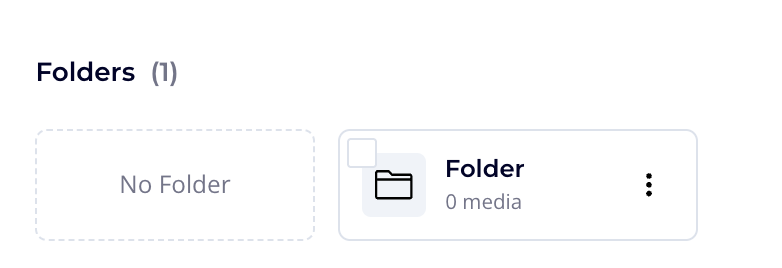
Folders help organize media within the selected category.
- No Folder: Shows media not assigned to any folder.
- Folders List: Displays all folders and the number of items in each.
- Create Folder: Add a new folder.
Notes:
- Folders cannot be nested.
- Folders are optional—media can exist without a folder.
No Folder: Shows media that is not assigned to any folder.
Folders list: Displays all existing folders and the number of media items inside each.
Create Folder: Creates a new folder.
Notes:
Folders cannot be nested inside other folders.
Folders are optional. Media can exist without being assigned to a folder.
🖼️ Media Grid
The main area displays media items in a grid or list view. Each media card shows:
- Thumbnail preview
- Media name
- Status (Processing, Ready, Error)
- Upload/creation date
- Duration (for videos)
Media Statuses
- Processing: Media is being processed and not yet available.
- Ready: Media is available for use.
- Error: Processing failed; media cannot be used until resolved.
✅ Selecting Media
Use the checkbox on each media card to select one or multiple items. Selected media can be moved, deleted, or assigned to folders or categories (depending on available actions).
🔍 Search and Filters
- Search bar: Search media by name.
- Tags filter: Filter by assigned tags.
- View toggle: Switch between grid and list view.
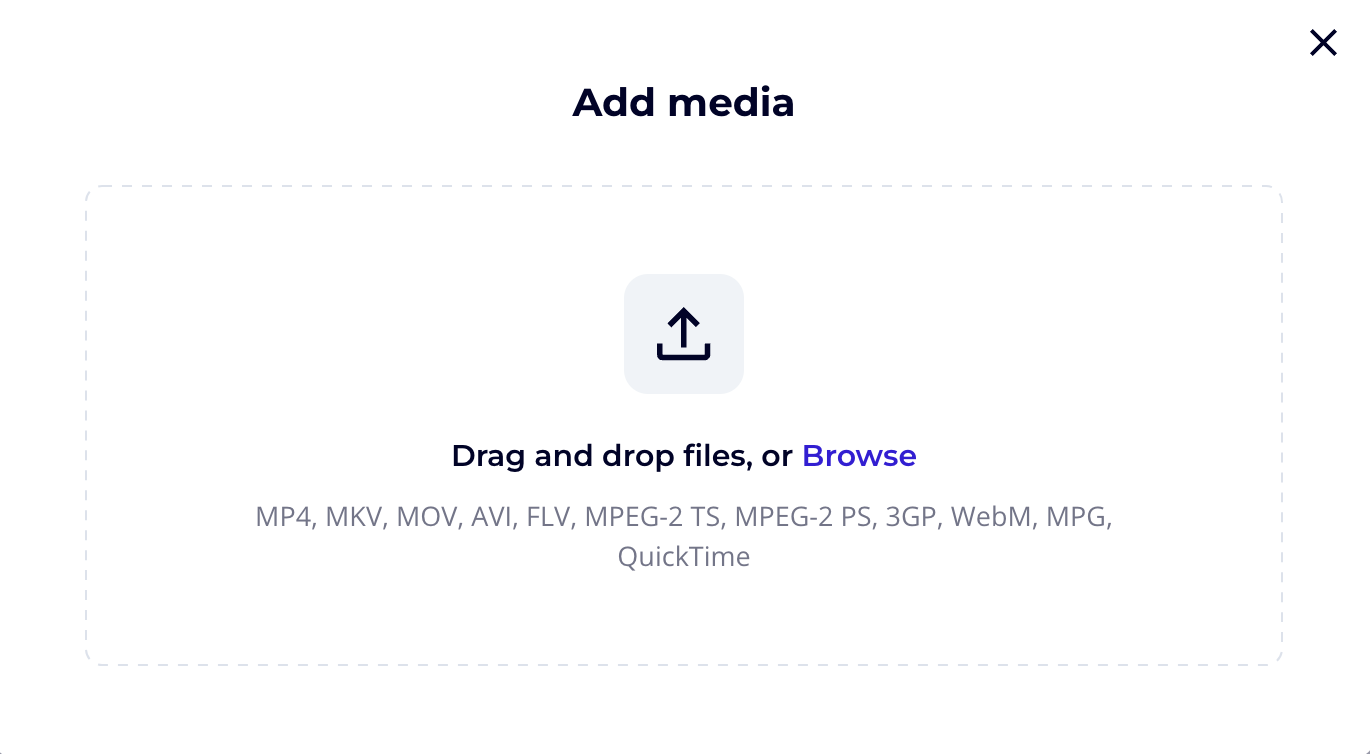
⬆️ Uploading Media
To upload media:
- Click the Add media button (upper right corner).
- Drag and drop your files.
- Check supported formats in the upload window.
- The file will show a process status while uploading, and a green READY status when done.
📝 Subtitles
You can add subtitles to your videos in the Video Library. Videobot supports subtitles in .vtt format. Create subtitles using a separate service, then upload them here.
How to Add Subtitles
- Click the three dots next to the video file.
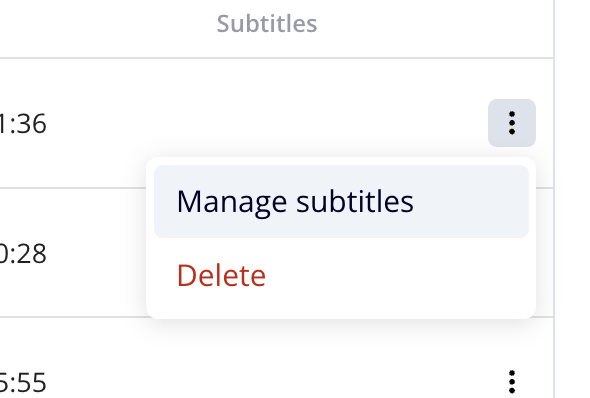
- Choose Manage subtitles.
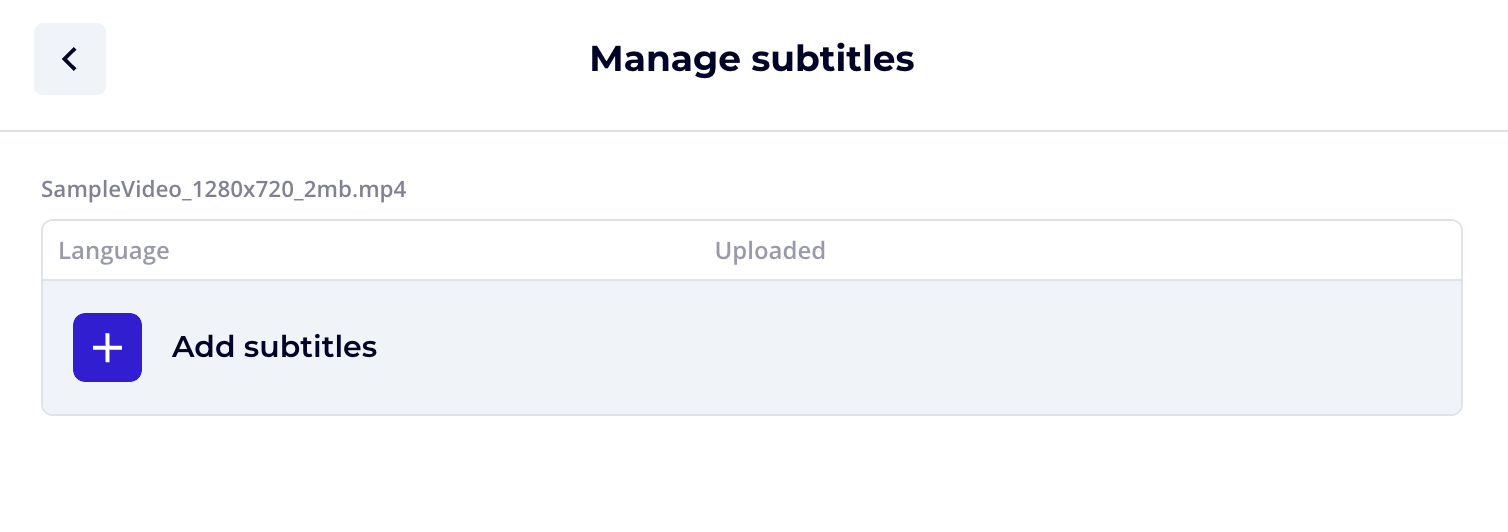
- Click Add subtitles.
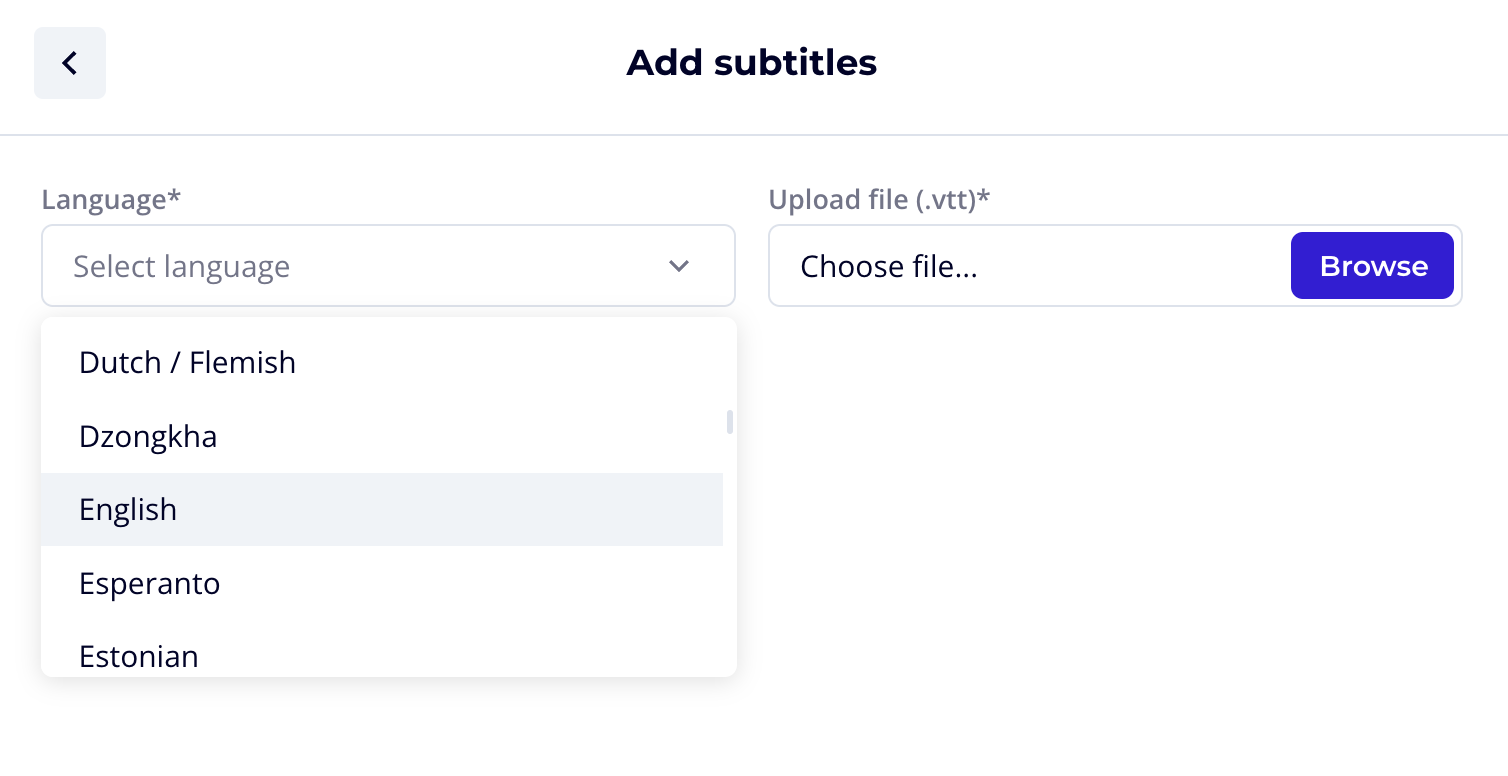
- Select the language and upload the .vtt file.
- Click Save.
Activating Captions for a Videobot
- Go to Videobots → open the videobot.
- Go to Settings → Captions → Enable.
- Choose the default language for subtitles across the bot.

See the Videobot Builder → Content section for using subtitles in multiple languages within a single videobot.
💡 Tip
You can also upload videos under the Videobots section. For large numbers of videos, we recommend uploading them all in the Video Library first. This makes them easier to find using the search functionality when building your videobot.
✏️ Editing Media Metadata
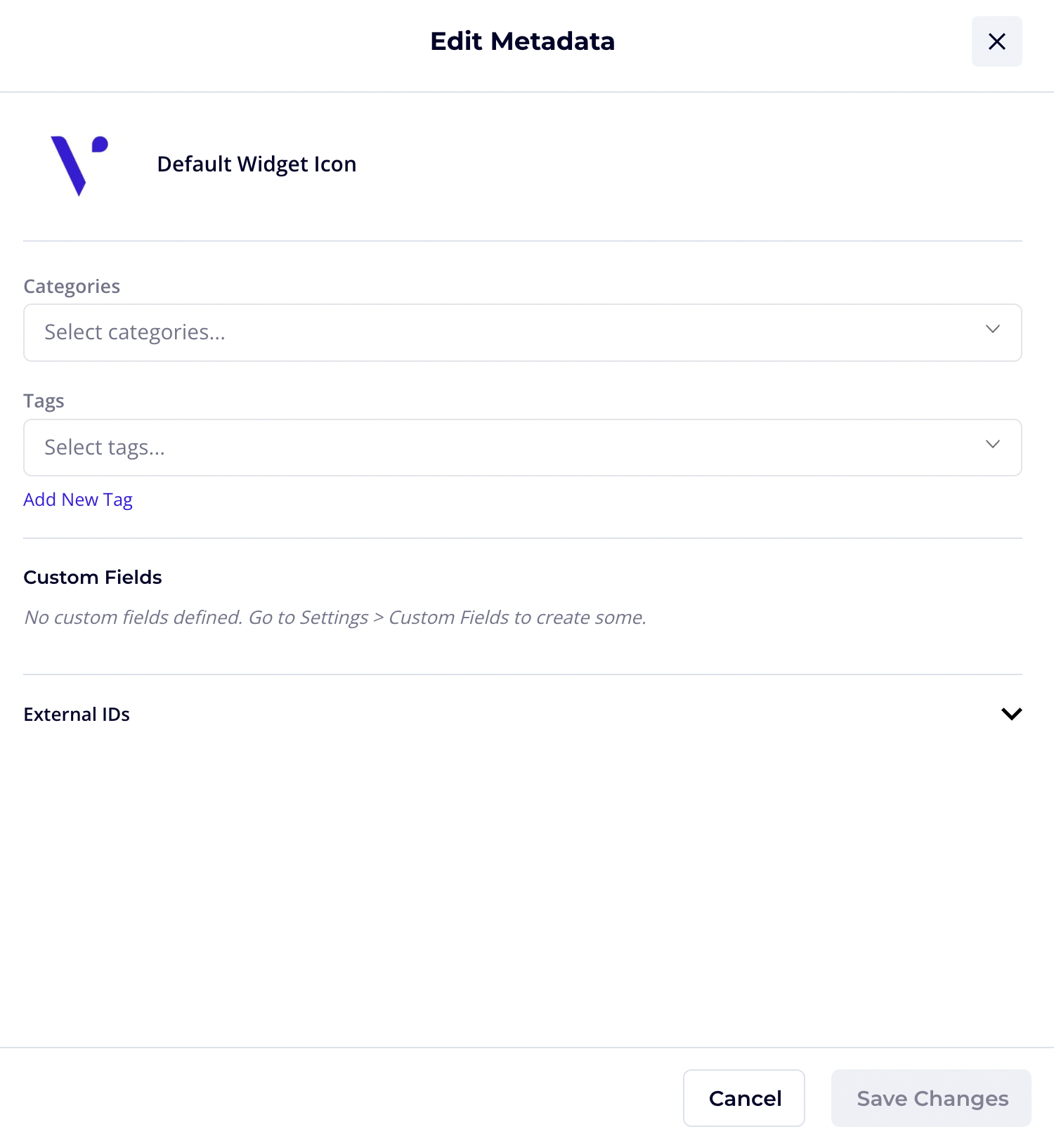
When you click on a media item in the Media Library, the Edit Metadata panel opens. This panel allows you to view and manage all metadata associated with the selected media asset. Changes made here help organize, filter, and integrate media across the platform.
Media Preview and Name
At the top of the panel, you can see:
- A thumbnail preview of the media
- The media file name
This section is informational and helps confirm you are editing the correct asset.
Categories
Use the Categories field to assign the media to one or more categories:
- Categories help group media at a high level.
- A media item can belong to multiple categories.
- Click the × icon next to a category to remove it.
- If no category is assigned, the media will appear under Uncategorized in the Media Library.
Tags
Tags are used for more granular organization and filtering:
- Add one or multiple tags to a media item.
- Tags can be reused across different media assets.
- Click Add New Tag to create and assign a new tag.
- Remove a tag by clicking the × icon next to it.
- Tags are especially useful for search and advanced filtering.
Custom Fields
Custom fields allow you to attach additional structured information to media items.
If no custom fields exist, you will see a message prompting you to create them:
Go to Settings → Custom Fields to create some.
Once created, custom fields will appear here and can be filled in per media item.
External IDs
The External IDs section allows you to associate the media with identifiers from external systems. This section can be expanded or collapsed.