

Publishing and Embedding
Once you've configured your placement and content rules, you're ready to publish and embed it on your website.
Publishing Your Placement
Placements have two statuses:
- Draft: Work in progress, not active on your website
- Published: Active and serving content
How to Publish
- Complete your placement configuration
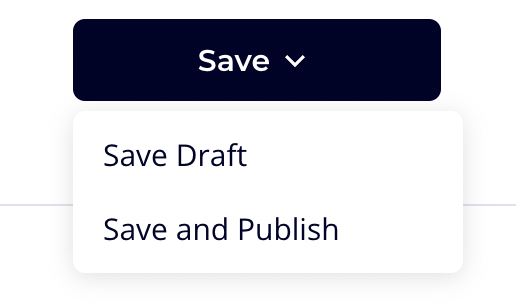
- Click the Save dropdown in the top-right corner
- Choose one of:
- Save Draft: Save changes without publishing
- Save and Publish: Save changes and make them live
Before Publishing
Ensure:
- All content rules have valid URL patterns
- All content selectors have content assigned
- Any schedule conflicts have been resolved with priorities
- You've tested your URL patterns
Embedding on Your Website
After publishing, embed your placement on your website with two code snippets.
Step 1: Add the JavaScript Configuration
Navigate to the Preview & Embed tab to get your embed code.
Add this script to your website's <head> or before the closing </body> tag:
html
<script type="module">
  import VideobotPlacement from 'https://videobot.com/embed/placement.mjs';

  VideobotPlacement.configure({
    accountId: 'your-account-id',
    placements: {
      "your_placement_key": "your-placement-key"
    }
  });
</script>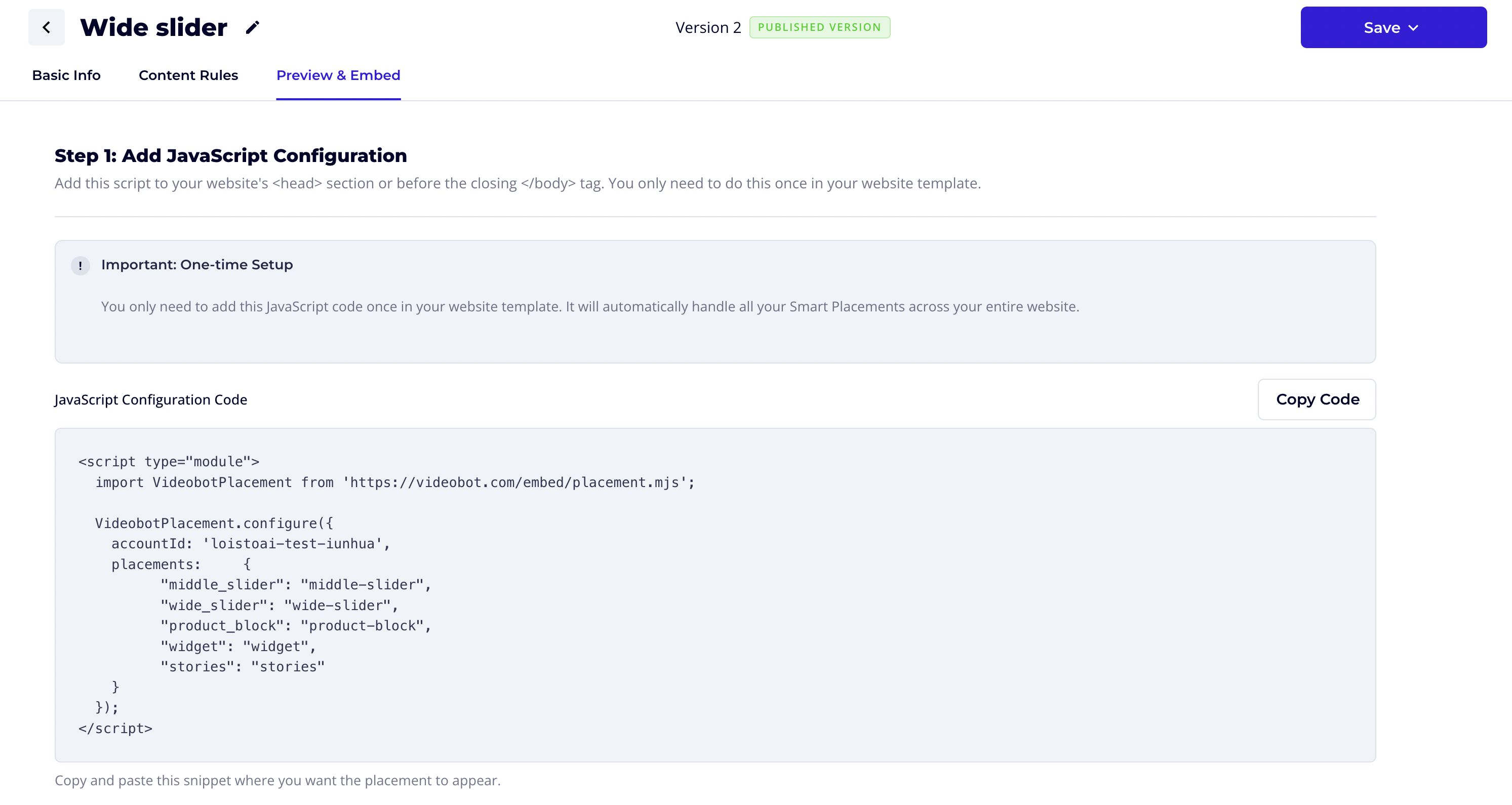
Note: Placement keys are converted from hyphens to underscores in the configuration. For example,
product-pagesbecomesproduct_pages.
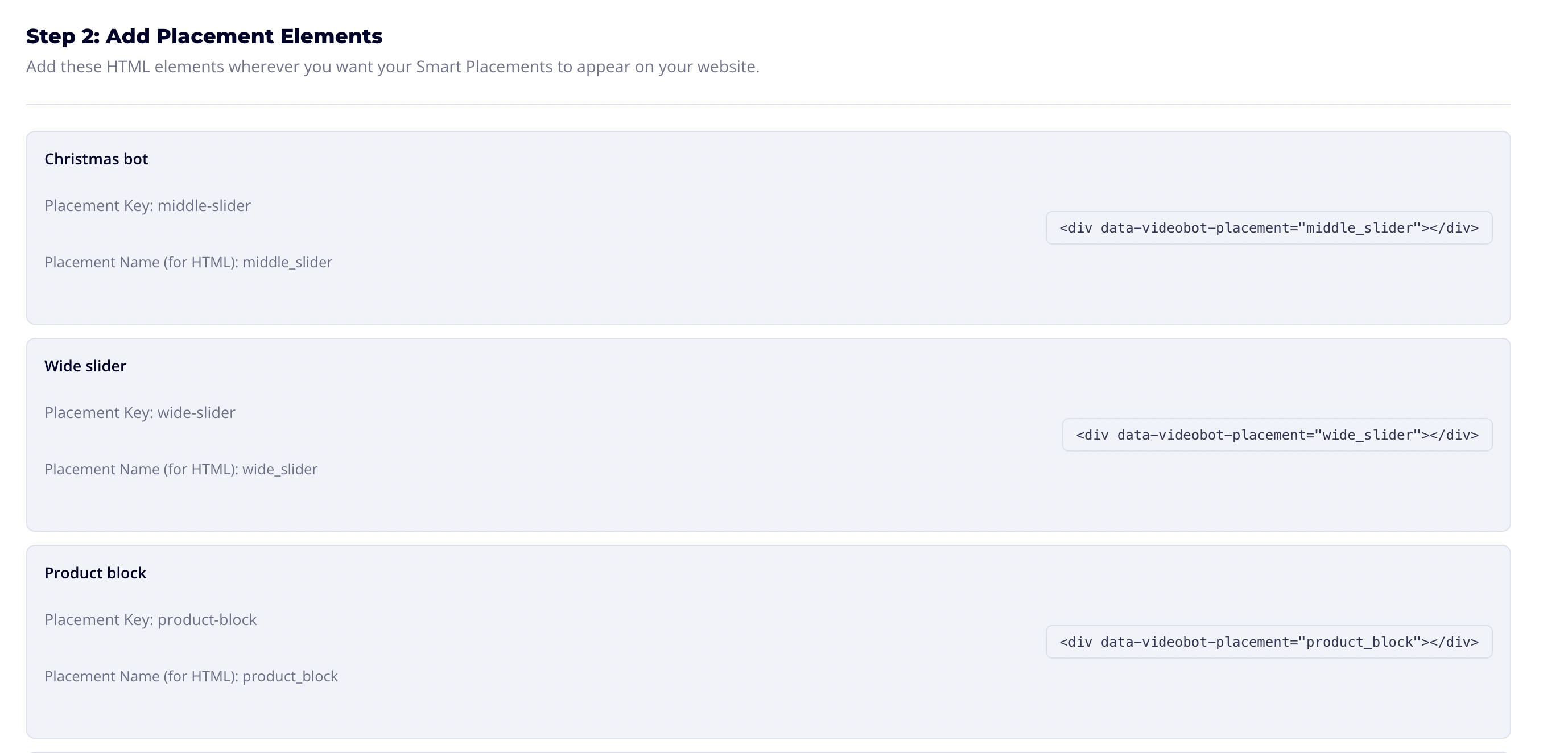
Step 2: Add HTML Elements
Place HTML elements where you want content to appear:
html
<div data-videobot-placement="your_placement_key"></div>The placement system will:
- Check the current page URL
- Find matching content rules
- Load and display the appropriate content in the
<div>
Multiple Placements
You can have multiple placements on the same page:
html
<script type="module">
  import VideobotPlacement from 'https://videobot.com/embed/placement.mjs';

  VideobotPlacement.configure({
    accountId: 'your-account-id',
    placements: {
      "header_bot": "header-bot",
      "product_assistant": "product-assistant",
      "checkout_helper": "checkout-helper"
    }
  });
</script>

<!-- Place these elements where you want each placement to appear -->
<div data-videobot-placement="header_bot"></div>
<div data-videobot-placement="product_assistant"></div>
<div data-videobot-placement="checkout_helper"></div>
Best Practices
Rule Organization
- Order matters: Rules are evaluated top-to-bottom; put more specific rules first
- Use descriptive names: Make rules easy to identify at a glance
- Group related rules: Keep similar URL patterns together
URL Pattern Tips
- Start specific, then broaden: Create specific rules first, then add catch-all rules at the bottom
- Use prefix for sections:
/products/is simpler than complex wildcards - Test thoroughly: Always test patterns with real URLs before publishing
- Document your patterns: Use clear rule names that explain what they match
A/B Testing Guidelines
- Run tests for enough time: Ensure statistical significance
- Change one variable: Test content, not multiple changes at once
- Monitor results: Check analytics to determine winners
- Start with 50/50 splits: Equal distribution provides clean data
Scheduling Tips
- Plan for time zones: Consider when your audience is active
- Set fallbacks: Always have default content for unscheduled times
- Resolve conflicts early: Don't leave priority issues until publishing
- Test transitions: Verify content changes correctly at scheduled times
Performance
- Use fewer rules when possible: Fewer rules means faster matching
- Avoid complex regex: Simple patterns are faster to evaluate
- Limit exclusions: Each exclusion adds processing time
Troubleshooting
Content Not Appearing
- Check publication status: Ensure the placement is published
- Verify the URL pattern: Use the Test URL feature to confirm matching
- Check the console: Look for JavaScript errors in browser dev tools
- Verify content is published: Only published bots/widgets can be displayed
Wrong Content Appearing
- Check rule order: Remember, first match wins
- Review exclusions: Ensure you haven't accidentally excluded the URL
- Check schedules: Verify current time matches the schedule entry
- Review A/B allocation: If using A/B testing, different visitors see different content
Schedule Conflicts
- Open the schedule entry: The conflict warning shows which entries overlap
- Set different priorities: Higher numbers = higher priority
- Consider restructuring: Adjust date/time ranges to avoid overlap