

Creating Product Feeds
Product feeds are configured at the account level and can be used across multiple Videobots. This guide walks you through creating and configuring a product feed.
Accessing Product Feeds
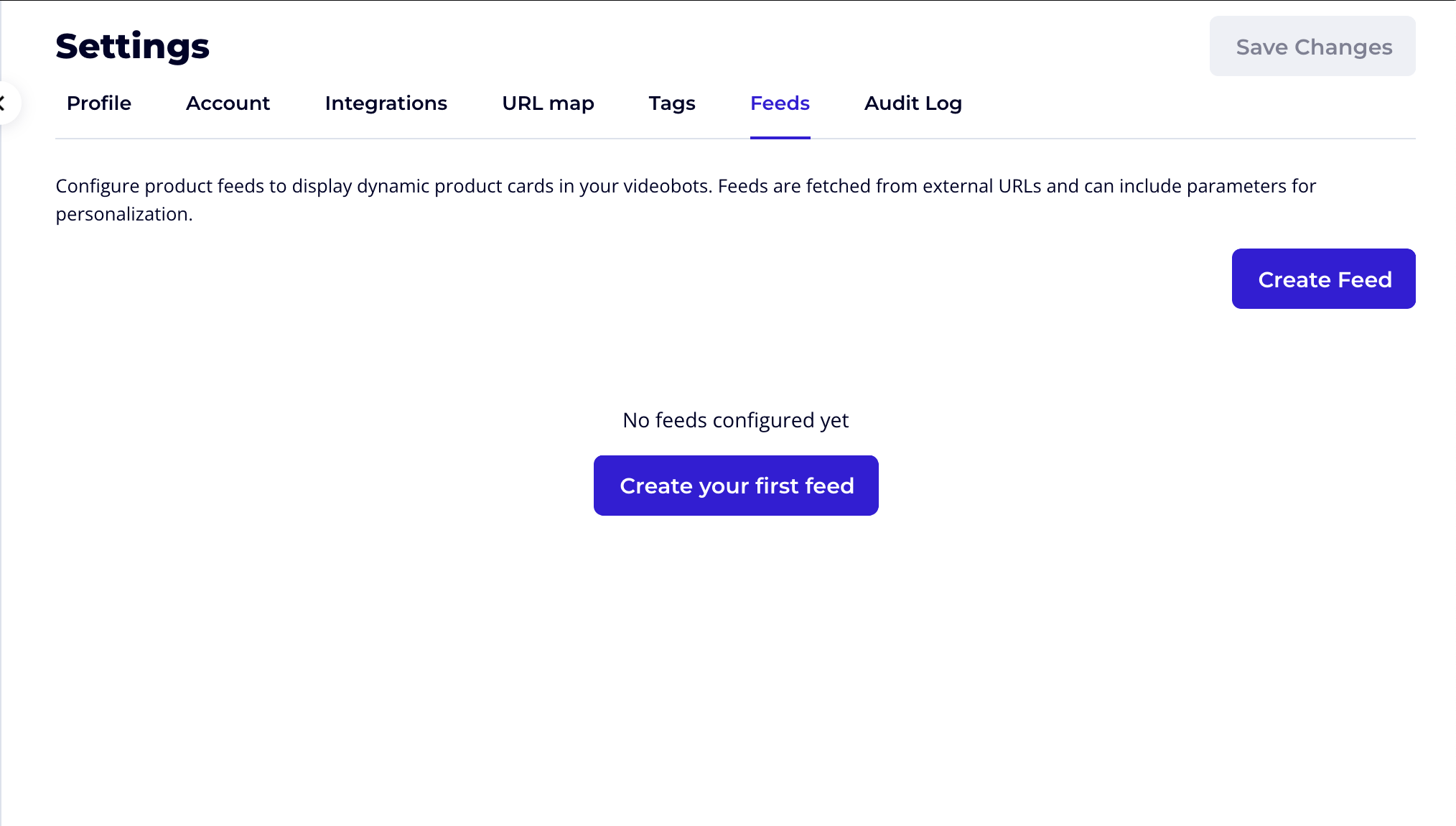
- Navigate to Settings
- Select the Feeds tab
- Click Create Feed to create a new feed
Basic Configuration
Feed Name
Give your feed a descriptive name that helps identify its purpose:
- "Homepage Featured Products"
- "Category Recommendations"
- "User Personalized Feed"
Feed URL
Enter the HTTPS URL where your product data is hosted. The URL must:
- Start with
https://(orhttp://for testing) - Return valid JSON data
- Be accessible from the Videobot servers
https://api.yourstore.com/products/featured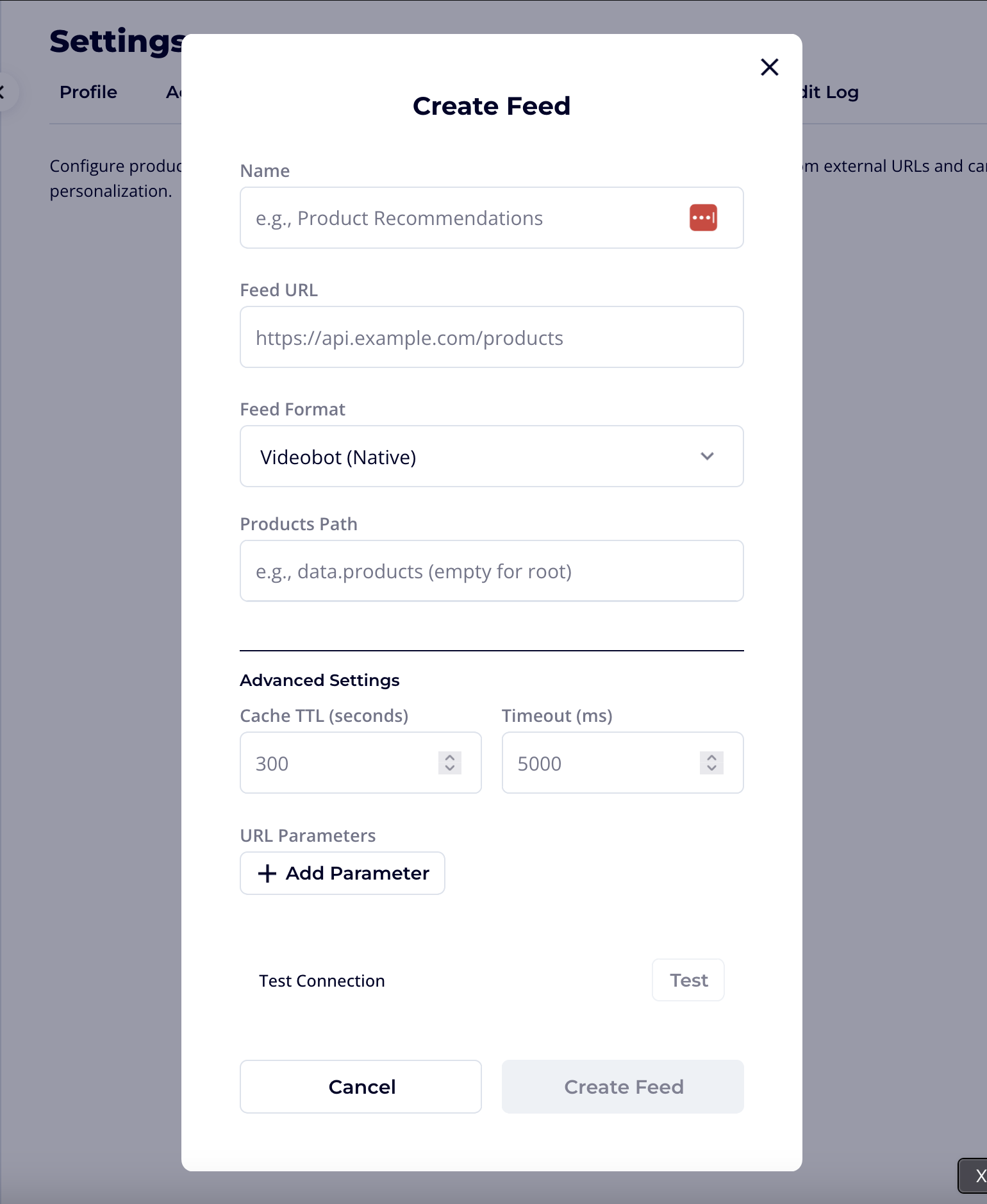
Feed Format
Choose how your feed data should be interpreted:
Videobot (Native Format)
Use this when your feed follows the standard Videobot product format:
{
  "products": [
    {
      "id": "string",
      "title": "string",
      "image": "https://...",
      "description": "HTML string",
      "url": "https://..."
    }
  ]
}
Custom Format
Use this when your feed has a different structure. You'll need to configure:
- Products Path: Where to find the products array
- Field Mapping: How to map your fields to Videobot fields
See Field Mapping for detailed configuration.
Advanced Settings
Click Advanced Settings to access additional options.
Products Path
If your products are nested in the JSON response, specify the path using dot notation:
| Your Feed Structure | Products Path |
|---|---|
{ "products": [...] } | products (default) |
{ "data": { "items": [...] } } | data.items |
{ "response": { "catalog": [...] } } | response.catalog |
[...] (root array) | Leave empty |
Cache TTL
How long to cache the feed response (in seconds):
- Minimum: 60 seconds
- Maximum: 3600 seconds (1 hour)
- Default: 300 seconds (5 minutes)
Lower values show more current data but increase API calls to your server.
Timeout
Maximum time to wait for the feed response (in milliseconds):
- Minimum: 1000ms (1 second)
- Maximum: 10000ms (10 seconds)
- Default: 5000ms (5 seconds)
URL Parameters
Add query parameters that will be appended to your feed URL.
Static Parameters
Values that are fixed for this feed configuration:
| Parameter | Value |
|---|---|
category | electronics |
limit | 10 |
Results in: https://api.example.com/products?category=electronics&limit=10
Testing Your Feed
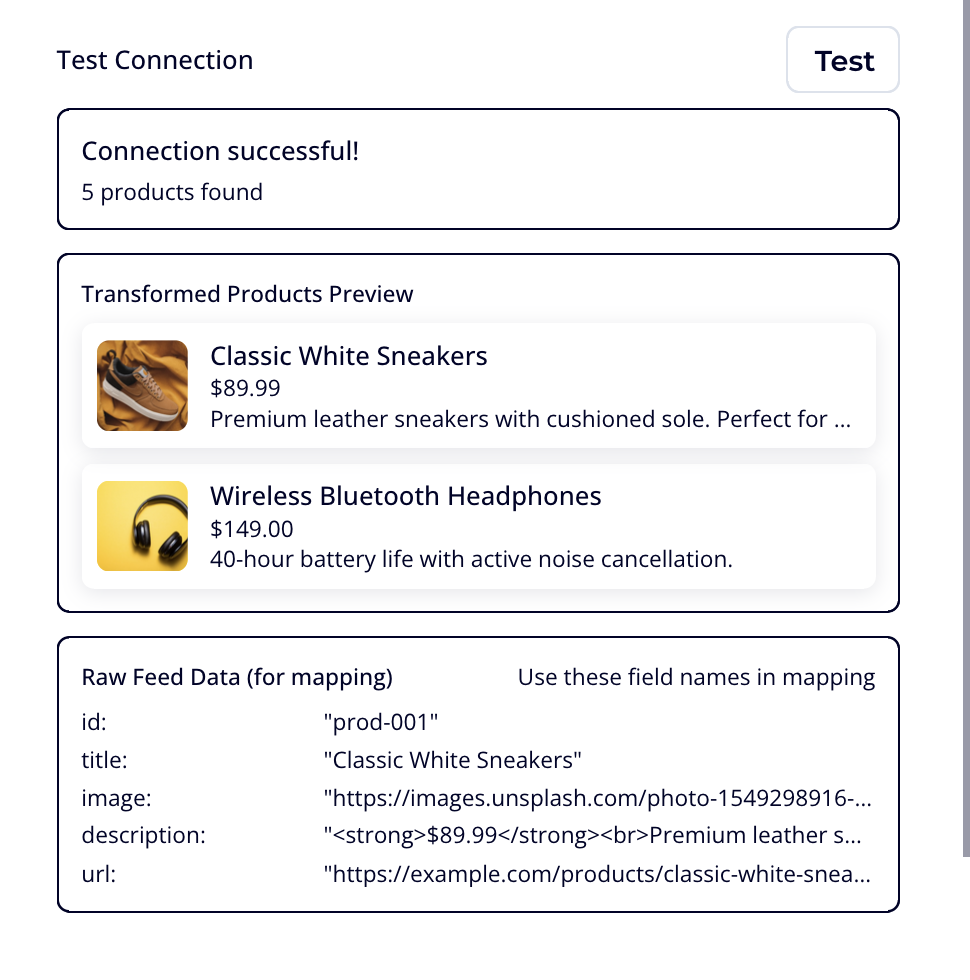
Before saving, test your feed connection to verify everything works:
- Click Test Connection
- Review the results:
- Success: Shows transformed product preview
- Error: Displays what went wrong
Troubleshooting Test Failures
| Error | Solution |
|---|---|
| Connection timeout | Check URL accessibility, increase timeout |
| Invalid JSON | Verify your API returns valid JSON |
| No products found | Check products path configuration |
| Missing required fields | Configure field mapping for custom feeds |
The test also shows raw data from your feed, which helps identify the correct field paths for custom mapping.
Saving the Feed
Once testing succeeds:
- Click Save to create the feed
- The feed appears in your feeds list
- You can now use it in Product Cards
Managing Feeds
From the feeds list, you can:
- Edit: Update any feed configuration
- Delete: Remove feeds no longer in use
- View: See feed details and usage
WARNING
Deleting a feed will affect all Videobots using product cards linked to that feed.