

Configuring Content Rules
After setting up your placement's basic information, navigate to the Content Rules tab to define which content appears on which pages of your website.
Content rules define which content appears based on URL patterns. Each placement can have multiple rules, evaluated in priority order (top to bottom).
The Content Rules Tab
From the placement editor, click on the Content Rules tab to access the rule configuration interface.
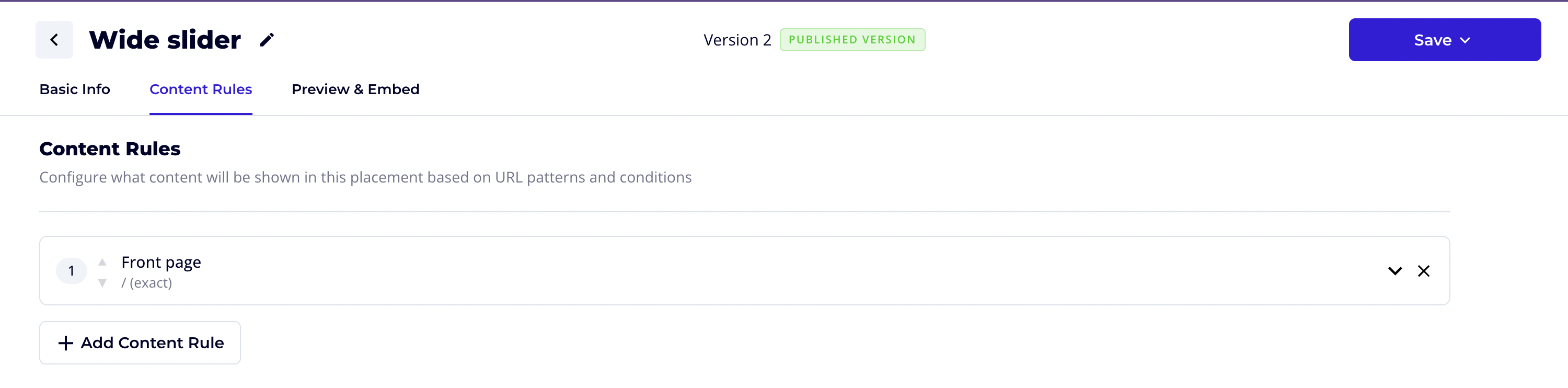
The Content Rules tab displays:
- A description: "Configure what content will be shown in this placement based on URL patterns and conditions"
- A list of existing content rules (if any)
- The + Add Content Rule button to create new rules
Understanding the Rules List
Each rule in the list shows:
| Element | Description |
|---|---|
| Priority number | The order in which rules are evaluated (1 is first). Use the up/down arrows to reorder. |
| Rule name | The descriptive name you gave the rule |
| Pattern summary | Shows the URL pattern and match type (e.g., "/ (exact)") |
| Expand/collapse icon | Click to view or hide the full rule configuration |
| Delete icon (×) | Remove the rule from the placement |
Adding a New Rule
- Click + Add Content Rule
- The rule editor will expand, showing all configuration options
Rule Configuration
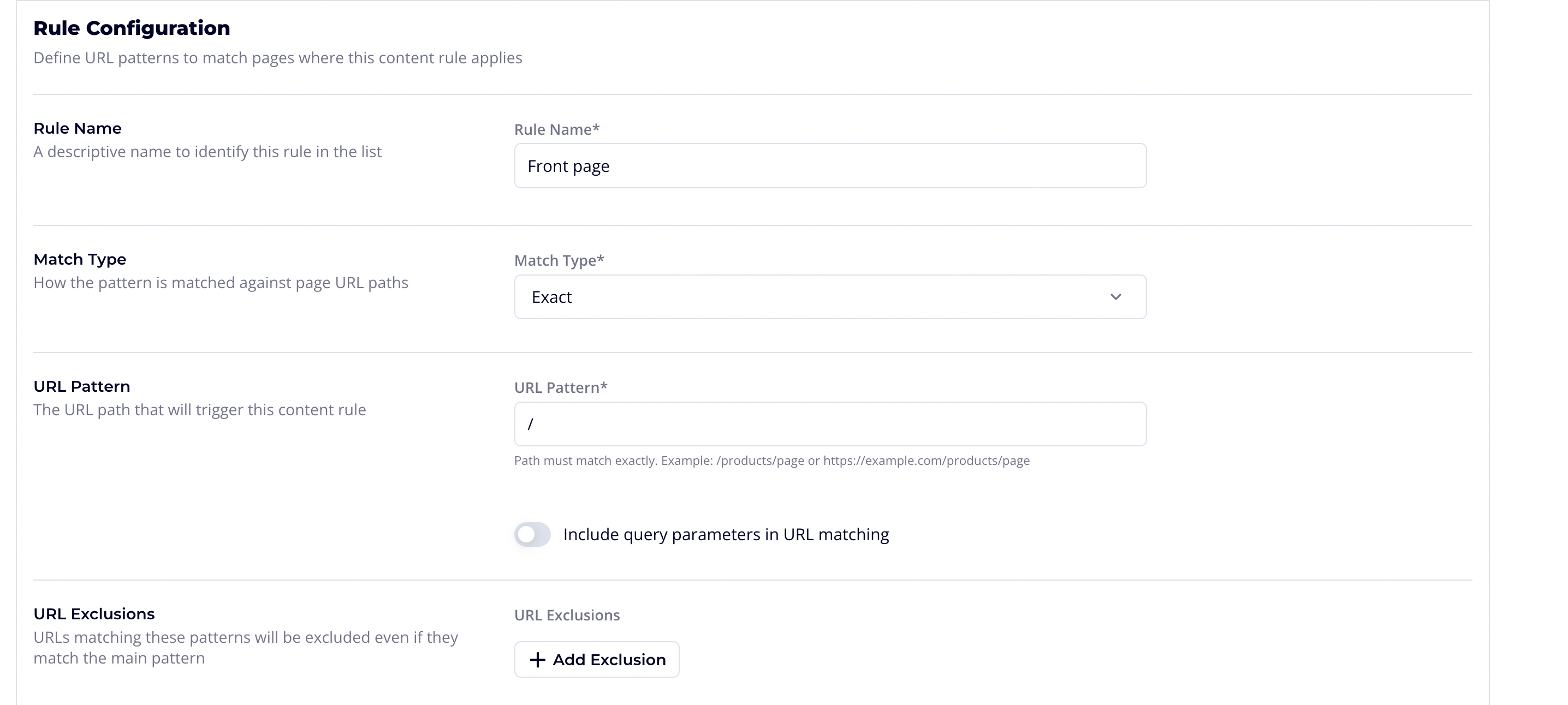
The Rule Configuration section allows you to define URL patterns to match pages where this content rule applies.
Rule Configuration Fields
Rule Name (Required)
- A descriptive name to identify this rule in the list
- Example: "Product Category Pages", "Checkout Flow", "Front page"
Match Type (Required)
- How the pattern is matched against page URL paths
- Options: Exact, Prefix, Wildcard, or Regex
URL Pattern (Required)
- The URL path that will trigger this content rule
- Example:
/products/pageorhttps://example.com/products/page
URL Pattern Matching
URL pattern matching determines which pages trigger your content. There are four match types available:
1. Exact Match
Matches the URL path exactly as specified.
| Field | Description |
|---|---|
| Pattern | The exact URL path to match |
| Example | /products/shoes |
| Matches | https://yoursite.com/products/shoes |
| Does Not Match | https://yoursite.com/products/shoes/red |
Include Query Parameters (Optional)
- When enabled, each query parameter you list in the pattern (key and value) must be present on the visitor's URL
- Pattern
/search?q=testmatches URLs containingq=test. Extra params on the visitor's URL (e.g.&page=2) are ignored
UTM tags and other query parameters
By default, all query parameters are ignored. This includes UTM tags (?utm_source=newsletter, ?utm_campaign=spring), click identifiers (?fbclid=…, ?gclid=…), and any other key-value pairs in the URL. Your rules fire the same way whether visitors arrive at a clean URL or with any combination of query params. This applies to all match types.
To target visitors arriving with specific query parameters (such as a campaign UTM), use Exact match and turn Include Query Parameters on:
| Goal | Match type | Include Query Parameters | URL pattern |
|---|---|---|---|
| Fire on the homepage regardless of query params | Exact | Off | / |
| Fire only for newsletter traffic | Exact | On | /?utm_source=newsletter |
Note:
- Only the params you list in the pattern must match. Extra params on the visitor's URL (e.g.
utm_campaign, tracking IDs) are ignored.- Values are case-sensitive.
newsletterandNewsletterare different, so standardize UTM values across your campaigns.- Query parameter targeting works only with Exact match. Prefix, Wildcard, and Regex always ignore query params.
2. Prefix Match
Matches any URL that starts with the specified pattern.
| Field | Description |
|---|---|
| Pattern | The URL prefix to match |
| Example | /products/ |
| Matches | /products/shoes, /products/shoes/red, /products/123 |
| Does Not Match | /product/shoes (different path) |
This is useful for matching entire sections of your website.
3. Wildcard Match
Uses glob-style patterns with special characters:
*matches any sequence of characters?matches a single character
| Field | Description |
|---|---|
| Pattern | A glob-style pattern |
| Example | /products/*/reviews |
| Matches | /products/shoes/reviews, /products/123/reviews |
| Does Not Match | /products/reviews (missing middle segment) |
More Examples:
/blog/202?/*matches/blog/2024/my-post,/blog/2025/another-post/api/v*/usersmatches/api/v1/users,/api/v2/users
4. Regular Expression (Regex)
Uses full regular expression syntax for complex matching.
| Field | Description |
|---|---|
| Pattern | A valid regex pattern |
| Example | ^/products/[0-9]+$ |
| Matches | /products/123, /products/456789 |
| Does Not Match | /products/shoes (not numeric) |
Regex Examples:
^/blog/\d{4}/\d{2}/- Matches blog posts with date structure^/(en|fr|de)/products- Matches products in multiple languages.*\.(html|htm)$- Matches URLs ending in .html or .htm
Tip: The pattern is validated in real-time. Invalid regex patterns will show an error message.
URL Exclusions
Below the URL Pattern field, you'll find the URL Exclusions section. URLs matching these patterns will be excluded even if they match the main pattern.
Adding an Exclusion
- In the Rule Configuration section, find URL Exclusions
- Click + Add Exclusion
- Configure the exclusion pattern:
- Pattern: The URL pattern to exclude
- Match Type: Choose Exact, Prefix, Wildcard, or Regex
- Include Query Parameters: (For Exact match only)
Exclusion Examples
Main Pattern: /products/* (Prefix) Exclusion: /products/sale (Exact)
This setup matches all product pages except the sale page.
Parameter Conditions
Parameter conditions allows further refining when a rule applies based on custom key-value pairs passed from website. After a URL pattern matches, all parameter conditions must also be satisfied (AND logic) for the rule to activate.
This is useful for personalizing content based on user attributes, page context, or any custom data site provides, such as user type, subscription tier, language preference, or product category.
How Parameters Work
Website sends parameters as key-value pairs along with the page URL to the Videobot backend, using the Placement API. The backend evaluates the parameter conditions against the received values and returns the matching placement content to the client browser.
Adding a Condition
In the Rule Configuration section, find Parameter Conditions
Click + Add Condition
Configure the condition:
Field Description Parameter Name The key to check (e.g., user_type, country, plan). Must start with a letter or underscore, and may contain letters, numbers, underscores, and dots. Operator The comparison to perform (Available Operators) Value The value to compare against. Not required for Exists/Not Exists operators.
Available Operators
| Operator | Description | Example Value | Matches Parameter |
|---|---|---|---|
| Equals | Exact match | premium | premium |
| Not Equals | Must not match | guest | member, registered |
| Contains | Substring match | pro | pro_user, product |
| Does Not Contain | Must not contain substring | test | production, live |
| Starts With | Begins with value | pro | pro, pro_plus |
| Ends With | Ends with value | _annual | basic_annual, pro_annual |
| Greater Than | Numeric comparison | 100 | 150, 200 |
| Less Than | Numeric comparison | 50 | 10, 49 |
| In | Matches any value in a list | ["DE", "FR", "ES"] | DE, FR, ES |
| Not In | Must not match any value in a list | ["DE", "FR", "ES"] | FI, SE |
| Matches Regex | Regular expression match | ^v[0-9]+ | v1, v23 |
| Exists | Parameter key is present | N/A | (any value) |
| Not Exists | Parameter key is not present | N/A | (key not sent) |
Limits
| Constraint | Limit |
|---|---|
| Maximum parameters per request | 20 |
| Parameter key max length | 64 characters |
| Parameter value max length | 256 characters |
| Maximum items in an In/Not In list | 20 |
| Total parameter payload size | 4 KB |
Parameters that exceed limits are ignored.
How Conditions Are Evaluated
- All conditions on a rule must pass for the rule to match (AND logic)
- Conditions are evaluated after URL pattern matching and exclusions
- If the parameter key is not present in the request, all operators except Exists and Not Exists evaluate to false
- Greater Than and Less Than perform numeric comparison - both the parameter value and the condition value must be valid numbers
Examples
Show premium content to paying users:
| Parameter Name | Operator | Value |
|---|---|---|
| subscription | Equals | premium |
Target users in specific countries:
| Parameter Name | Operator | Value |
|---|---|---|
| country | In | ["DE", "FR", "ES"] |
Combine multiple conditions (AND logic):
| Parameter Name | Operator | Value |
|---|---|---|
| user_type | Not Equals | guest |
| cart_value | Greater Than | 50 |
This rule only matches when the user is not a guest and their cart value is above 50.
Testing Your URL Pattern
Before saving your rule, test it with real URLs and parameters:
- Find the Test URL field in the rule editor
- Enter a full URL (e.g.,
https://videobot.com) - To test parameter conditions, click + Add Parameter and enter a key-value pair (e.g.,
plan=enterprise) - See instant feedback:
- Green checkmark: URL and parameters match the rule
- Red X: URL or parameters do not match

Tester considers the main pattern, exclusions, and parameter conditions.

Content Types
After configuring URL matching, choose what content to display. There are four content types:
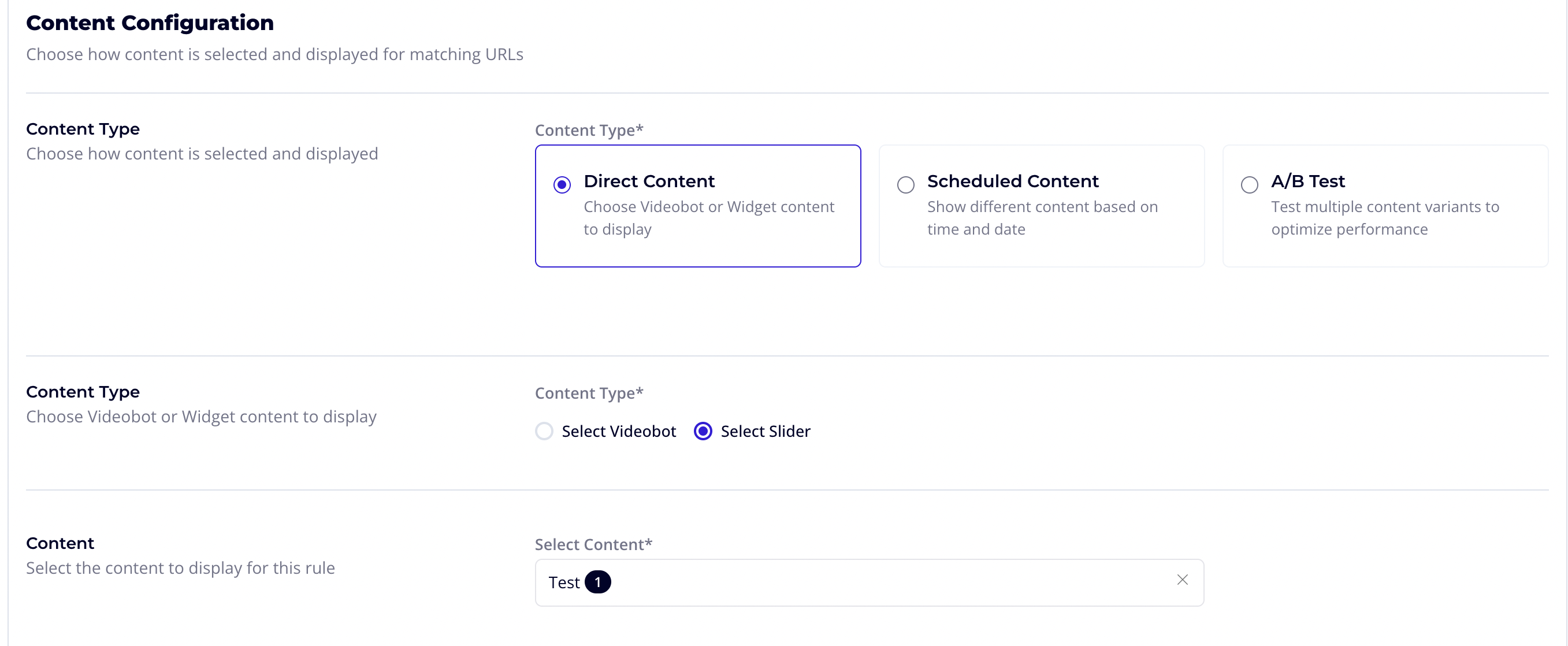
Direct Content
Display a single videobot or widget directly.
When to use: When you always want the same content on matching pages.
Configuration
Select Direct as the content type
Choose the content type:
- Videobot: An interactive video bot
- Widget: A static widget component
For Videobots, select the display type:
- Widget: Appears as a floating widget on the page
- Iframe: Embeds as an inline iframe element
Select the specific content from the dropdown
- Only published videobots/widgets appear in the list
- Use the search box to filter by name
Scheduled Content
Display different content based on time schedules. Perfect for promotional campaigns, seasonal content, or time-sensitive messaging.
When to use: When you need different content at different times.
The Calendar Interface
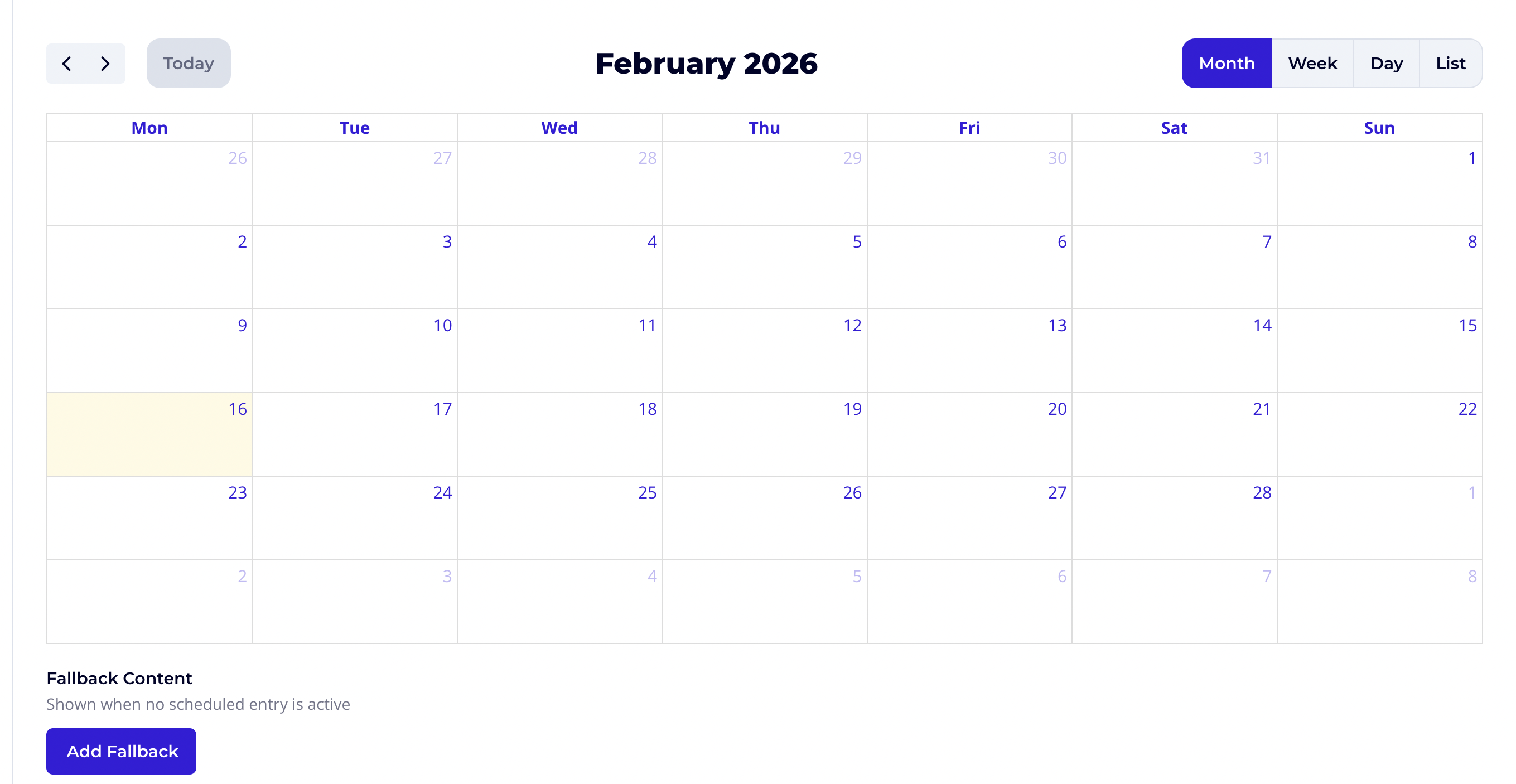
The scheduler uses a full calendar interface with multiple views:
- Month: See an overview of all scheduled entries
- Week: Detailed view of one week
- Day: Detailed view of a single day
- List: Agenda-style list of upcoming events
Creating a Schedule Entry
- Select Schedule as the content type
- Click on a time slot in the calendar or click Add Event
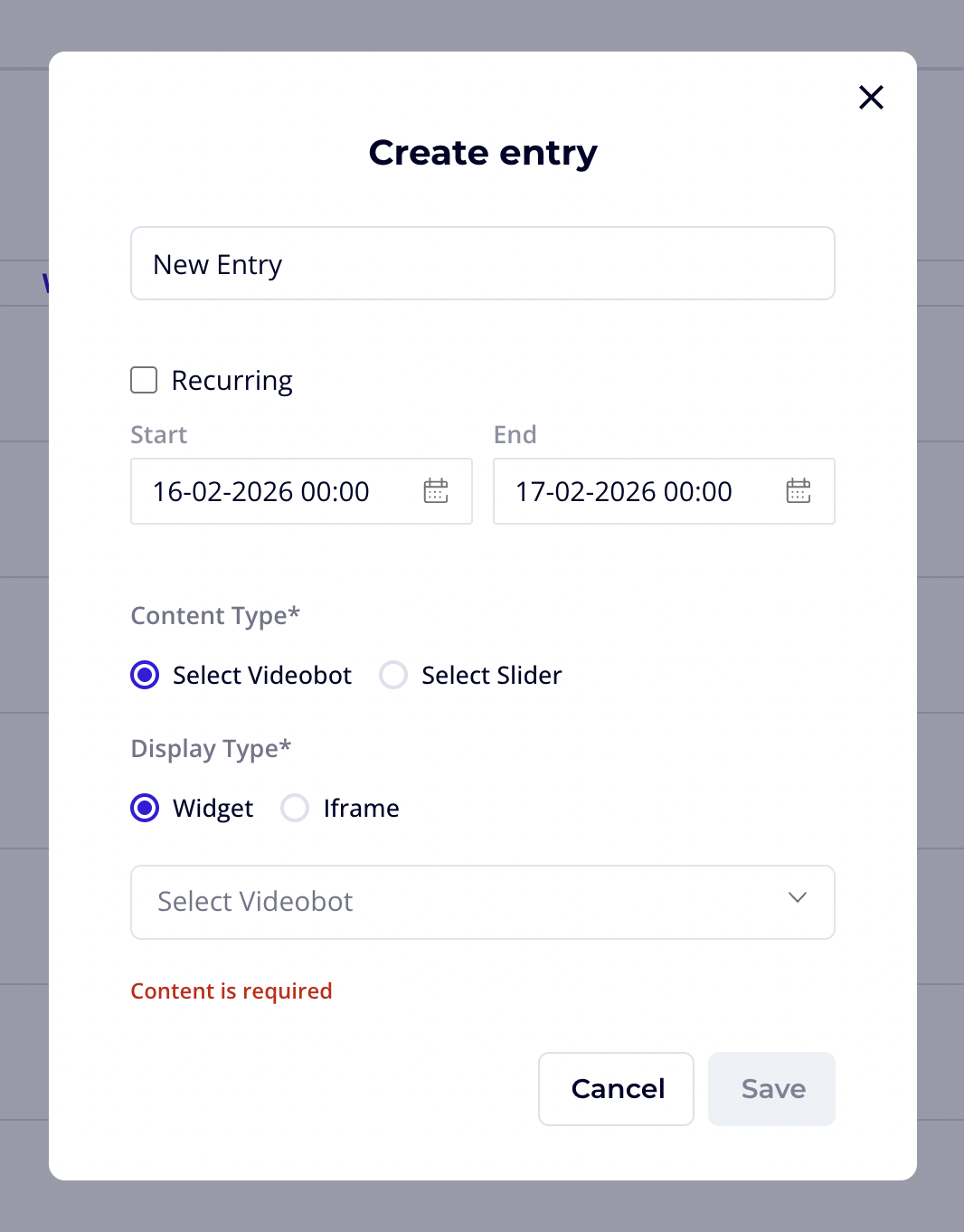
- Fill in the schedule entry form:
Basic Information:
| Field | Description |
|---|---|
| Title | A name for this schedule entry (e.g., "Summer Sale Bot") |
| All Day | Toggle for full-day events (hides time selection) |
| Start Date | When the entry begins |
| End Date | When the entry ends |
| Start Time | Time of day to start (if not all-day) |
| End Time | Time of day to end (if not all-day) |
Recurring Events:
- Toggle Recurring to make the entry repeat
- Select which days of the week it should recur
- The entry will repeat on selected days within the date range
Content Selection:
| Field | Description |
|---|---|
| Content Type | Videobot or Widget |
| Display Type | Widget or Iframe (for videobots) |
| Content | Select the specific bot/widget to display |
Handling Schedule Conflicts
When two schedule entries overlap, you must assign priorities:

- The system automatically detects overlapping entries
- A warning appears showing which entries conflict
- Assign a priority number to each conflicting entry
- Higher numbers = higher priority (priority 10 beats priority 5)
- When schedules overlap, the higher-priority content displays
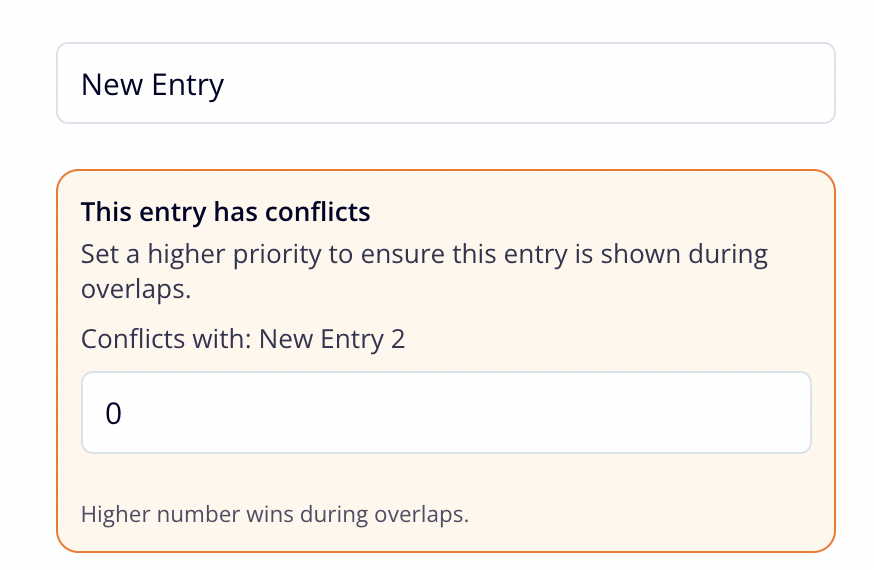
Important: You cannot save a placement with unresolved schedule conflicts.
Fallback Content
Set a default content to display when no schedule entry matches:
- Click Add Fallback Content below the calendar
- Configure it like Direct content
- This displays during any "gaps" in your schedule
A/B Test Content
Split traffic between multiple content variants to test which performs better.
When to use: When you want to compare different videobots or widgets.
Configuration
- Select A/B Test as the content type
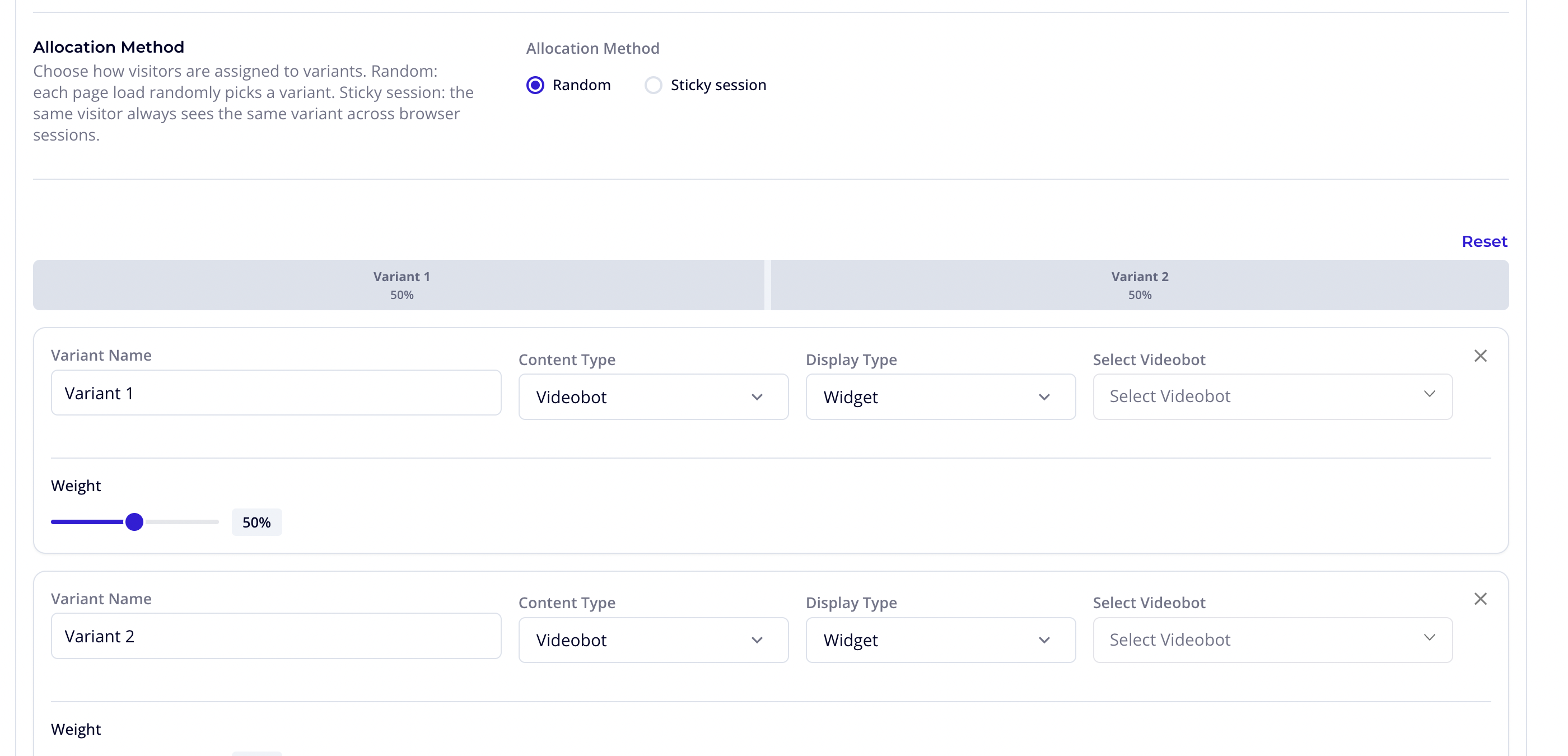
- Choose an allocation method:
- Random: Each visitor randomly receives a variant
- Sticky Session: Same variant for the visitor's entire session
Setting Up Variants
You need at least 2 variants. Each variant requires:
| Field | Description |
|---|---|
| Variant Name | A descriptive name (e.g., "Control", "New Design") |
| Content Type | Videobot or Widget |
| Display Type | Widget or Iframe (for videobots) |
| Content | The specific bot/widget for this variant |
| Weight | Traffic allocation (1-100) |
Traffic Allocation (Weights)
The weight bar shows how traffic is distributed:
- Each variant has a weight value (1-100)
- The percentage is calculated as:
(weight / total weights) x 100 - Drag the dividers between segments to adjust weights
- Click Reset to distribute weights equally
Example:
- Variant A: Weight 60 → 60% of traffic
- Variant B: Weight 40 → 40% of traffic
Blueprint
Instantiate a tag-driven blueprint from the URL. Instead of choosing one fixed videobot, you point the rule at a blueprint template and define extractions that read values from the page URL. Videobot then produces one derived bot per page, with media chosen to match each URL.
When to use: When many similar pages (products, categories, articles) should each get their own bot from a single template, without building each one by hand.
Using a blueprint in a rule has its own configuration (selecting the blueprint, display type, extractions, and an optional fallback). See Using Blueprints in Placements for the full setup, and Blueprints for how to build the template itself.
Once you've configured your content rules, proceed to publishing your placement.