

Avatar Studio
Avatar Studio turns a script into a talking-head video. You create a reusable presenter, an avatar, once. After that you write what they should say, and the avatar presents it. Finished videos go to your Media Library, ready to use in videobots and placements.
You find Avatar Studio in the dashboard navigation, below Media. In the media library you can also start a video with Create new avatar video on the Video tab.
Note: If you do not see Avatar Studio in the dashboard navigation, the feature is not enabled for your account yet. Contact your Customer success specialist.
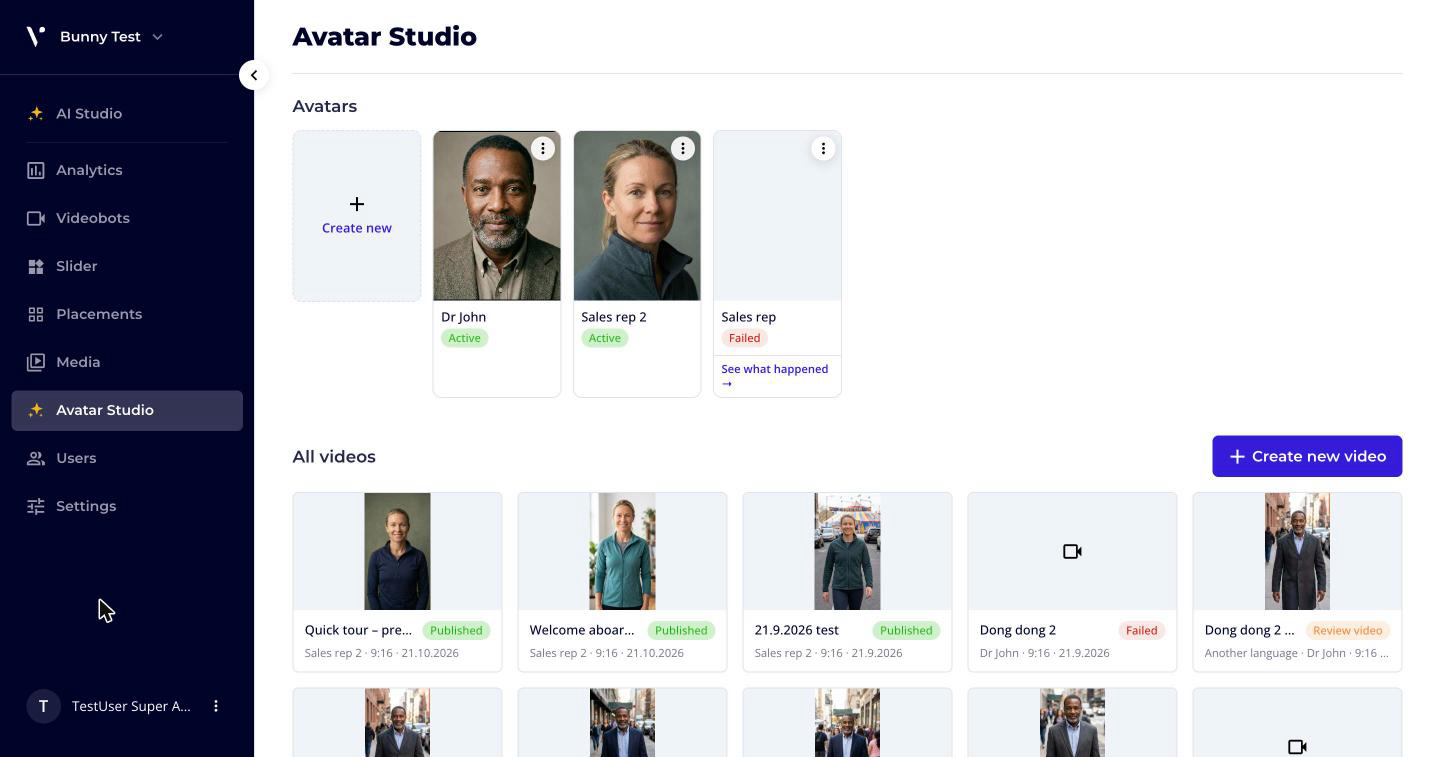
The studio lists your Avatars at the top and their videos below. Click an avatar to show only its videos, and Show all videos to see them all again.
Owners, Admins and Editors can create avatars and videos. Viewers can look at them.
Create an avatar
- Go to Avatar Studio and click Create new in the Avatars row (or Create your first avatar if you have none yet).
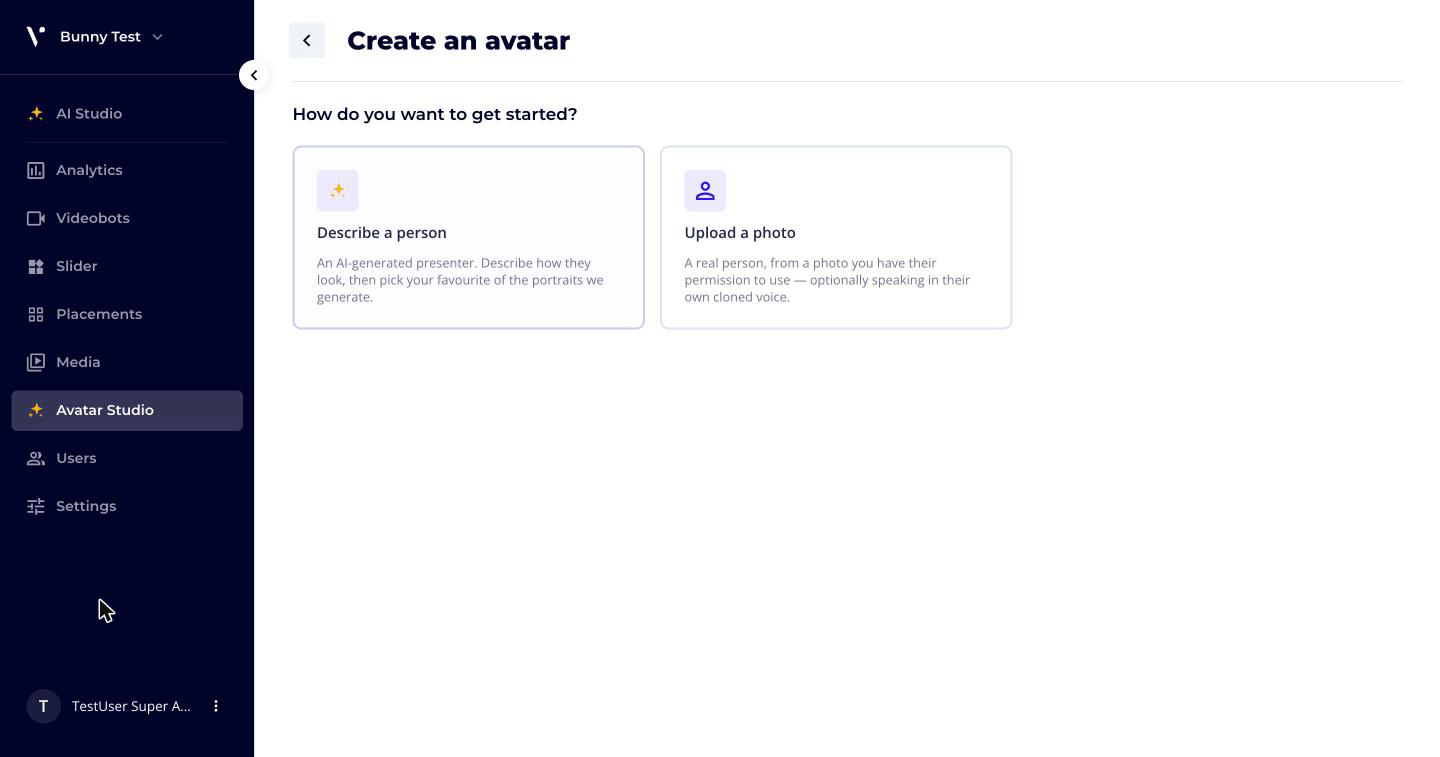
- Choose how to start:
- Describe a person: an AI-generated presenter. You describe how they look and pick your favourite of the portraits that are generated.
- Upload a photo: a real person, from a photo you have their permission to use, optionally speaking in their own cloned voice.
Describe a person
- Enter the Avatar name.
- Under What do they look like?, describe the presenter, for example "A warm, professional woman in her 40s, business-casual attire, neutral studio background".
- Choose a Voice.
- Click Generate portraits. This takes a minute or two. You can leave the page; the avatar waits for you in the studio with the status Needs approval.
- Pick the portrait you like and click Use this portrait. Every video of this avatar uses it. Not happy with any of them? Click Generate more, or Decide later.
The avatar is then Active and ready to present videos.
Upload a photo of a real person
- Photo: click Choose a photo. Use a clear, front-facing photo of one person, in good light, with the face unobstructed. JPEG, PNG or WebP, at least 256 px on the short edge and up to 40 MB.
- Who is this?: enter Their full name and an Avatar name. Presenter notes (optional) can describe attire, setting or tone. Tick the box to confirm you have the person's permission to create an AI presenter from their likeness.
- Voice: choose how they sound:
- Choose a voice: one of the standard AI voices. Ready straight away.
- Clone their voice: every video speaks in their own voice. This needs a short recording of them; see Clone their voice.
- Click Create avatar.
If voice cloning is not offered for your account, the page tells you why. Cloning is not available when your account's data-residency policy does not allow it.
Clone their voice
To clone a voice, the person records a consent statement. The recording is stored with the avatar as the record of their consent. Depending on the cloning option, the voice is cloned from the consent recording or from a separate voice sample.
- If several languages are offered, choose the Consent language.
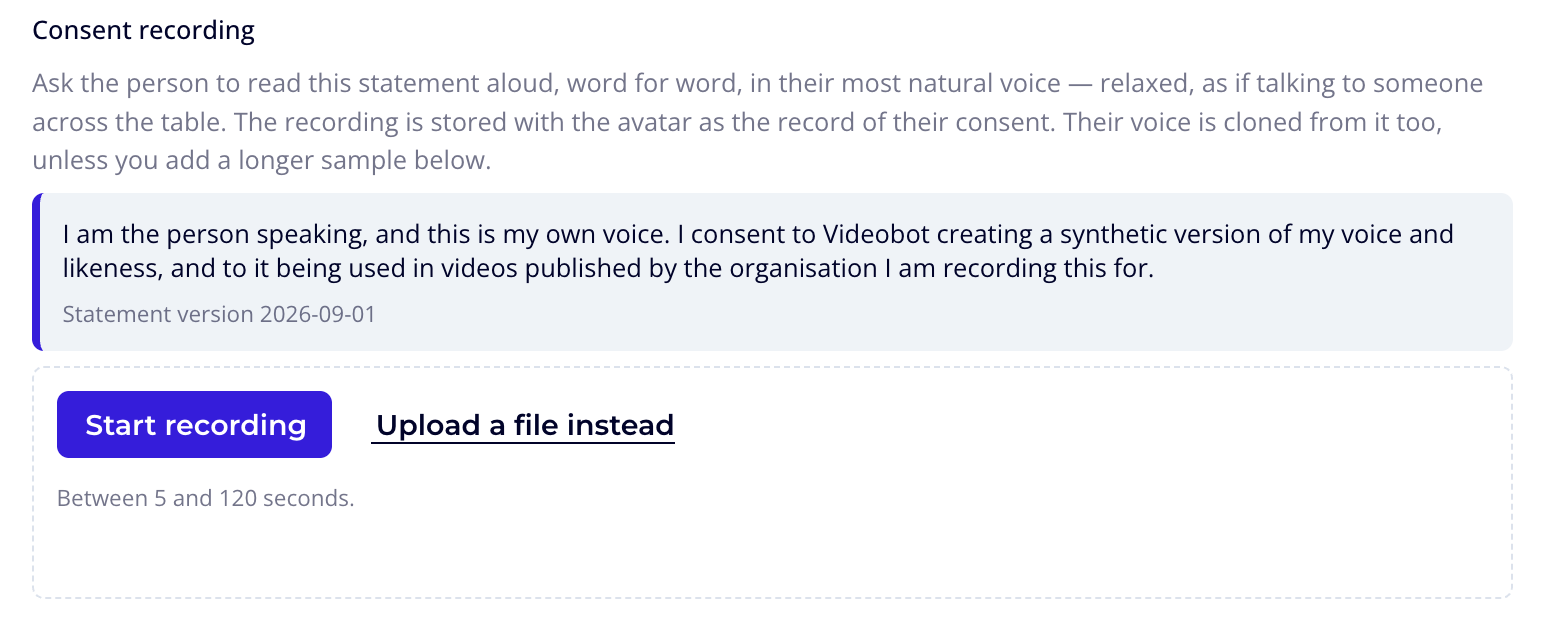
- Under Consent recording, ask the person to read the statement aloud, word for word, in their most natural voice: relaxed, as if talking to someone across the table.
- Choose the Microphone, then click Start recording. A Microphone level meter shows that the microphone hears them. If nothing is heard for a few seconds, the recorder says We can't hear anything — check the microphone isn't muted, or stop and pick another one.
- Click Stop recording. The recording is checked. If it is silent, you see We couldn't hear anything in this recording. Check the right microphone is selected and not muted, then record it again. and you cannot continue with it. The recording also has to be within the length shown under the recorder.
- Not happy with the take? Click Record again. You can also Upload a file instead.
Then record a second sample of them talking:
- Longer voice sample (optional): for a clone that sounds even more like the person, record a longer sample of them talking in their everyday tone, about their work, a recent trip, anything. A longer, more natural sample makes a better clone. If you skip it, the consent recording is used.
- Voice sample: some cloning options always need a separate sample. Record the person speaking naturally in a quiet room, for the length shown. What they say doesn't matter; how they sound does.
After you click Create avatar, the status is Cloning voice. This usually takes a few minutes, and you can leave the page. If cloning fails, click Retry voice clone; nobody needs to record anything again.
Play back the stored consent
An avatar made from a photo shows Consent on record on its page: the Person, when it was Recorded and who Submitted by. Open Statement read aloud to see the exact words. Owners, Admins and Editors can click Play recording to listen to the consent recording. Viewers see that a recording is on file.
Create a video
- Open an Active avatar and click Create video, or click Create new video in the studio and pick the avatar under Which avatar presents this video?
- Script: enter the Video name and, under What should they say?, the exact words the avatar speaks. Nothing is added or reworded. The summary shows how long it takes to say.
- Scene (optional): Describe the scene, for example where they are and how it looks, and choose the Format: Portrait (9:16) or Landscape (16:9).
- Click Generate first frame + voice.
Check the first frame and voice
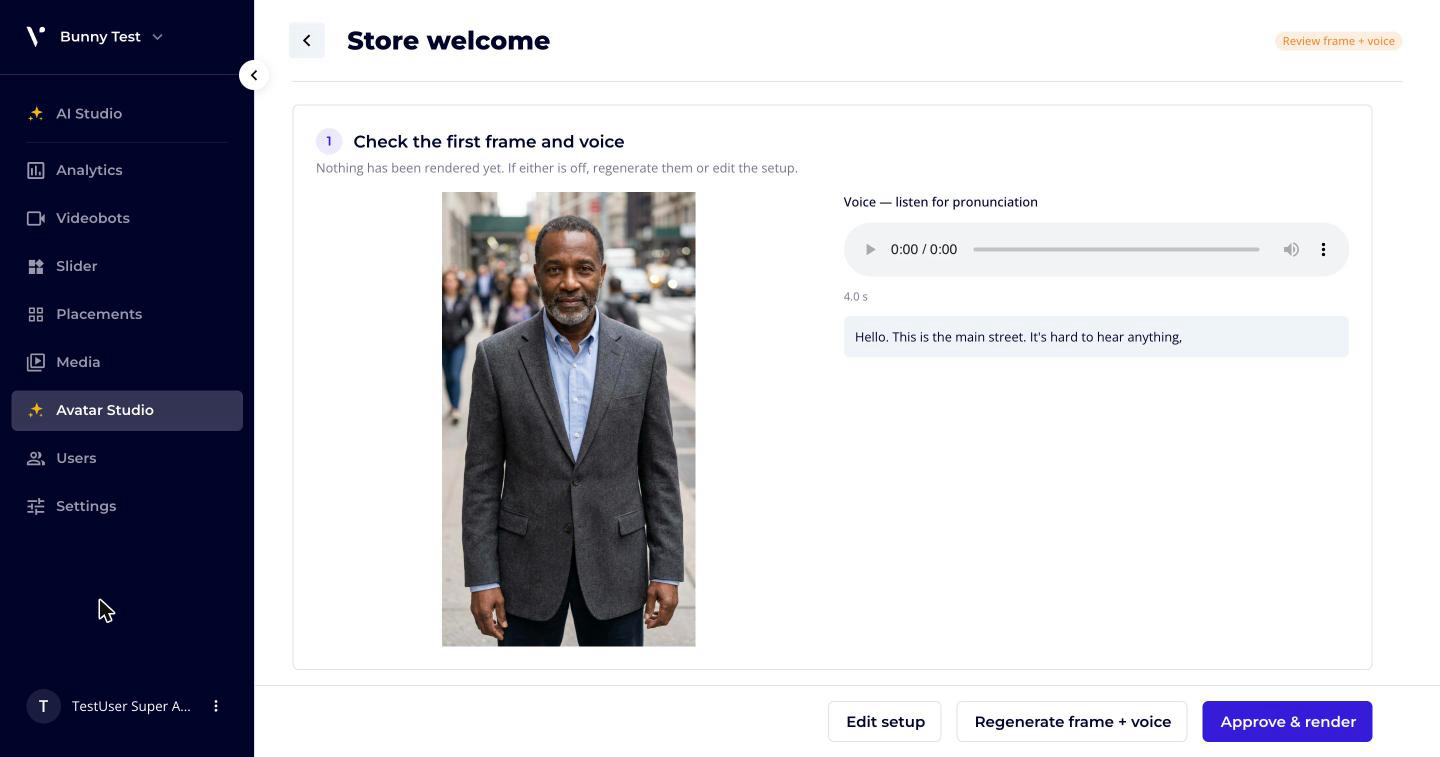
Nothing has been rendered yet. Avatar Studio first makes the opening frame of the video and the voice, so you can check them before you spend credits on the render.
- Look at the first frame and listen to the voice. Listen especially for pronunciation.
- If either is off, click Regenerate frame + voice, or Edit setup to change the script, scene or format.
- Under Choose how it renders, choose a Video model and a Lip-sync model. The options differ in quality, price and where the data is processed. Premium marks the higher-quality options, and Data handling shows how each option processes and retains your data. The best default for your account is selected for you.
- Check the price at the bottom. It is shown in credits for the combination you chose, together with the length of the video and the number of clips it is made of.
- Click Approve & render.
Rendering can take 10–20 minutes. You can leave the page; the video's status shows in Avatar Studio.
A long script is filmed as several clips that are joined together. For longer scripts, the clips are filmed from two angles, a medium shot and a close-up, and the video cuts between them at natural pauses. That way the presenter looks the same at the end of a long video as at the start. The price is the same.
Review and publish
When the render is ready, the status is Review video. Watch it, then:
- Publish to media library adds it to your media library, ready for videobots and placements. The status becomes Published.
- Not yet keeps it in Avatar Studio for later.
- Create another language makes a redub (see below).
From a published video you can also Make another from this, which starts a new video with the same setup.
If a video fails, Retry tries the same setup again, and Edit setup lets you change the script, scene or format.
Videos in other languages
You can redub a finished video into another language. The footage stays as it is; only the voice and the lip movement are made again, so it usually costs less than a new render.
- Open a video in the Review video or Published status and click Create another language.
- Script in the new language: enter the Video name and your translated Script. It is spoken word for word; nothing is translated for you. Keep it about as long as the original when spoken, because the footage cannot get longer.
- Voice: keep the Same voice as the original or pick another. An avatar with a cloned voice speaks in that voice in every language.
- Lip-sync model: choose one. Each option shows its price in credits, and the summary compares it with the price of a fresh render.
- Click Render this language.
Redubbed videos show Another language in the video list. If the new script is too long for the footage, the video shows Script too long. Shorten it with Edit script and render it again.
Manage avatars
Use the ⋯ menu on an avatar to Open, Rename or Delete it. Deleting an avatar removes it and its videos from Avatar Studio. Videos already published to the media library stay there.
Consent and responsible use
- Only create an avatar of a real person, and only clone their voice, with that person's permission.
- For an avatar from a photo, you confirm that you have the person's permission to use their likeness. If you clone their voice, the person reads a consent statement aloud.
- The consent recording, the statement they read, and who submitted it are stored with the avatar. You can check them at any time under Consent on record.
- Write scripts the person would agree to say, and tell your viewers when a video is AI-generated where your local rules require it.