

Getting Started with Adaptive Videobots
An adaptive videobot asks questions, keeps score, and lets the viewer's answers decide what plays next. You build it with the same slides and buttons as any other videobot, then add three things on top:
- Questions: slides where the viewer picks one or more options and submits them.
- Scoring: points, a correct flag, and tags on the options and buttons a viewer can pick.
- Rules: conditions on a button or a question that send the viewer somewhere different depending on what they have done so far.
A typical adaptive videobot can be a quiz, a training check, a product finder, or a qualification flow that ends on a completion slide showing the viewer's result.
Note: If you do not see the Adaptive videobot section in the videobot's Settings tab, the feature is not enabled for your account yet. Contact your Customer success specialist.
Key Concepts
| Concept | What it means |
|---|---|
| Slide role | Every slide is a Content, Question, or Completion slide. The role decides what the viewer does on it. |
| Option | Something the viewer can pick on a Question slide. The viewer selects one or more options, then submits them. |
| Points | What picking an option or pressing a button adds to the viewer's score. |
| Correct | A flag on an option or button that marks it as one of the right answers. A question's Grading judges the viewer's picks against these flags. |
| Tags | Labels on an option or button, such as pricing or safety. Rules can count how often the viewer picked options with a tag. |
| Section | A group of slides, such as "Part one". The completion slide reports a result per section, and a review slide can show the viewer's progress in each. |
| Rule | A condition and a destination: "when the score in percent is at least 70, go to the Passed slide". Rules are checked top to bottom. |
| Score card | The result a Completion slide shows: the viewer's score and, for each section, whether they completed it and how many questions they answered correctly. |
How an Adaptive Videobot Works
- The viewer opens the videobot and it plays like any other, starting from the intro slide.
- The viewer answers questions and presses buttons. Answers and buttons that carry points add to the score. What the viewer can do on each slide depends on its role.
- Whenever the viewer presses a button or submits a question that has rules, the rules are checked from the top. The first rule whose condition holds decides where the viewer goes next. If none holds, the viewer continues to the default destination.
- The journey ends on a Completion slide, which records the result and can show the score card.
The score is only shown where you choose: on a Completion slide or, with Score during the journey switched on, on any slide whose text uses it.
The Viewer's Session
The answers and the score belong to one session:
- A session lasts as long as the browser tab. Reloading the page in the same tab keeps the viewer's answers. A new tab or a new browser visit starts over.
- Closing the videobot ends the session. The next time the viewer opens it, they start again with a score of 0.
- Once the viewer reaches a Completion slide, the result is final. The questions stay visible but can no longer be answered. A button whose rule leads to Start over begins a new attempt.
- If built-in analytics is off for the viewer, nothing is remembered between page loads, so every reload starts a new session. That is the case when the viewer has not given analytics consent, or when analytics or cookies are turned off for the videobot. Rules still work within the visit.
Step 1: Turn On Adaptive Mode
- Open the videobot in the Videobot Builder.
- Go to the Settings tab and find the Adaptive videobot section.
- Switch on Adaptive mode.
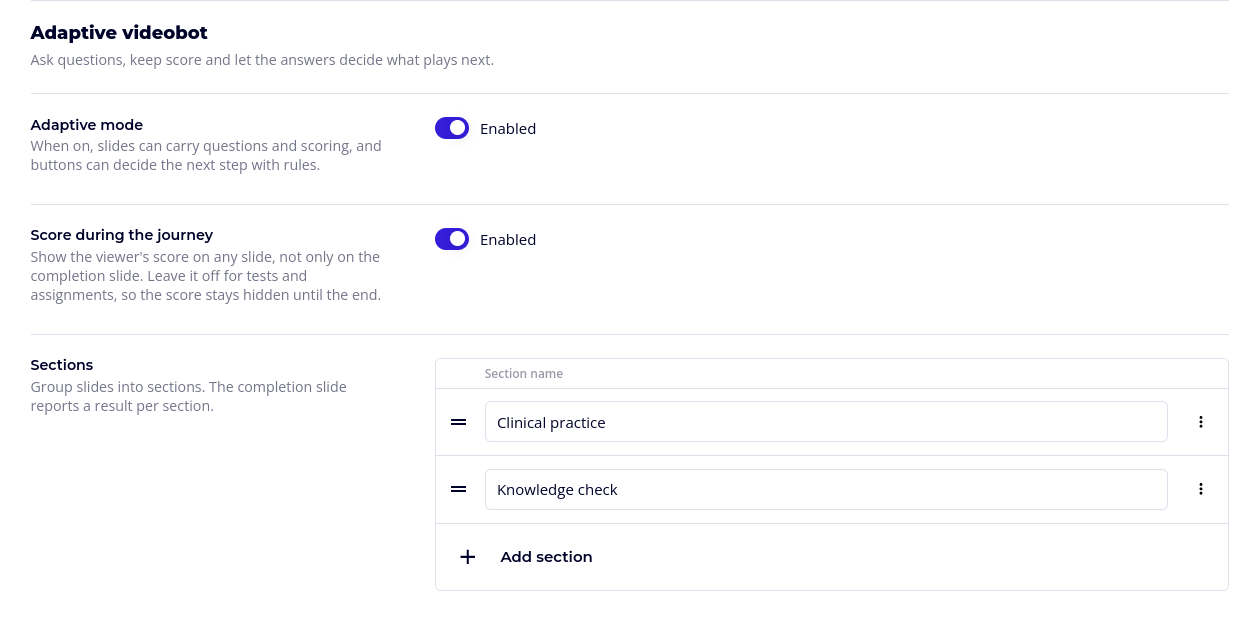
Once it is on, slides get an Adaptive block in their edit panel and buttons get one in theirs. Turning Adaptive mode off again keeps everything you set up. The videobot simply plays as a normal videobot until you switch it back on.
The section has two more settings, shown once adaptive mode is on.
Score During the Journey
By default, the viewer's score only reaches their browser on the Completion slide. That keeps the score private until the end, which is what you want for an assignment or a test.
Switch on Score during the journey if you want to show the score so far on other slides, for example You have {{score}} points so far. With it off, the {{score}} and {{maxScore}} placeholders only work on Completion slides. On other slides the viewer sees them exactly as typed, and the section warns you if a slide uses them.
Sections
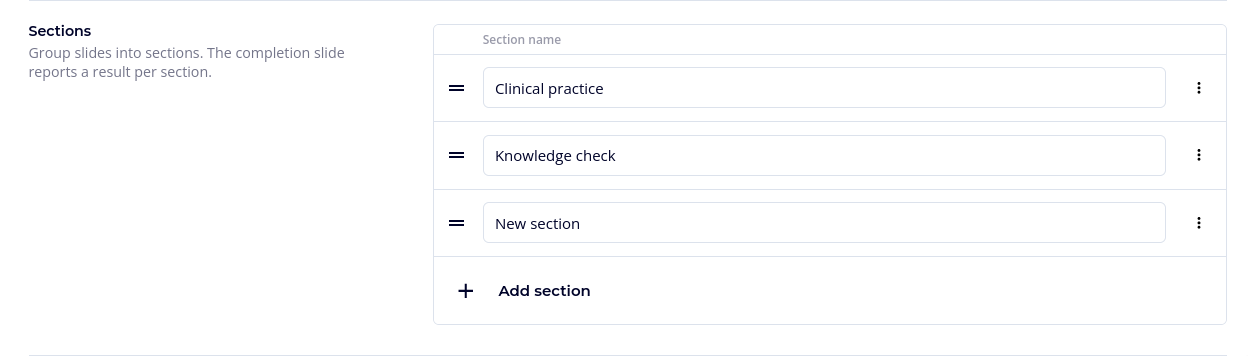
Sections group slides so the score card can report a result per part of the journey, such as "Basics" and "Advanced".
- Under Sections, click Add section and give it a Section name.
- Drag sections to change their order.
- Open a slide and pick its section under More settings. See Sections.
Removing a section also removes it from every slide that used it.
Step 2: Set Up the Slides
Give each slide a role and set up its question, scoring and panel in the slide's Adaptive block. See Questions, Scoring and Completion.
Step 3: Add Rules Where the Path Should Branch
Rules are added where the decision happens: on a button, in its When this button is clicked list, or on a Question slide, in its When the question is answered list. See Branching with Rules.
Step 4: Save, Preview and Publish
Adaptive settings are saved with the videobot:
- Changes in the Settings tab are part of the videobot form, like any other setting.
- Changes in a slide's or a button's Adaptive block are kept in that panel until you click Save in the panel, just like the slide's other fields.
- Open the Save menu for the videobot and choose Save Draft, or Save & Publish when you are ready.
The dashboard points out problems as you build, in the slide's Adaptive block and on rule rows. Saving always keeps your draft, problems included. Publishing checks the whole adaptive setup: if something would not work, for example a rule without a destination, nothing is published and a Can't publish yet window lists each problem with its slide. See Saving and Fixing Problems.
Tip: The Preview plays your changes before you save the videobot or publish it: questions, scores, rules and the score card all work there. It picks up a slide's or a button's changes once you click Save in that panel. Nothing you do in the Preview is recorded or counted in analytics. To start a test run over, press a button that leads to Start over, or close the Preview and open it again.
A rule whose destination you have not chosen yet is skipped in the Preview, so the viewer gets the default destination instead. Other problems can stop the Preview's rules and score from working at all: every rule falls back to its default destination and the score card shows "Something went wrong. Please try again later." Fix the problems shown in the slides' Adaptive blocks first. Viewers of the live videobot always get the published version.
After you publish, viewers who are already in the middle of the videobot finish their session on the version they started with. New sessions get the new version, which can take a couple of minutes to reach every viewer.
For a complete walkthrough, see Example: Building a Quiz.