

Branching with Rules
Rules let the viewer's answers decide what plays next. A rule has a condition, such as "the score in percent is at least 70", and a destination, such as the "Passed" slide. Without rules, an adaptive videobot follows its buttons like any other videobot.
Where Rules Live
Rules are added where the decision happens:
| Where | List | When the rules are checked | Default destination |
|---|---|---|---|
| A button | When this button is clicked | The viewer presses the button, or the video ends on a button set to Open automatically after video ends. | The button's own Link to target. |
| A Question slide | When the question is answered | The viewer submits their answer. | The slide chosen in Otherwise, continue to. |
A button's rules are in the Adaptive block of the button's edit panel. A question's rules are in the slide's Adaptive block, below the question.
The options of a question do not have rules of their own, because the question decides where the viewer goes. Add the rules on the question instead. The other buttons on a Question slide, such as a skip button, can still have rules. When they are checked, the question on that slide has not been answered, so it does not count towards the Highest possible score and Answered correctly matches neither Yes nor No.
How Rules Are Checked
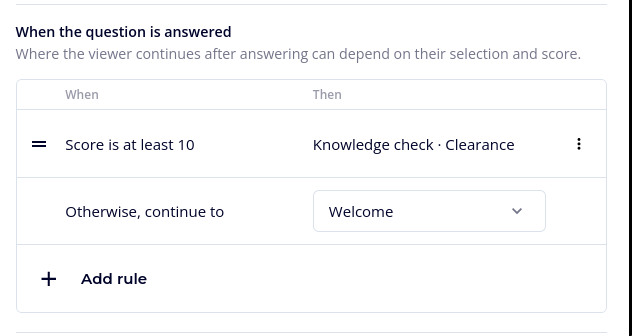
- The rules are checked from the top of the list down.
- The first rule whose condition holds decides where the viewer goes. The rules below it are not checked.
- If no rule holds, the viewer continues to the default destination in the last row, Otherwise, continue to.
So the order is the priority. Put the most specific rule first and drag rules to reorder them. A rule with the Always condition matches everyone, so rules below it never run. On a button, the Otherwise, continue to row then disappears, because every viewer matches the Always rule. The button's Link to is still used if the rules cannot be checked in time.
When a question is submitted, the answer being submitted already counts: its points are in the Score, and Answered correctly refers to it.
Example: A question has two rules. The first says Score in percent is at least 90 → "Excellent". The second says Score in percent is at least 50 → "Good". A viewer on 95% matches both, but the first rule wins and they see "Excellent". A viewer on 30% matches neither and continues to the slide in Otherwise, continue to.
The rules are checked on Videobot's servers, and the player waits for the answer for about a second at most. If the answer does not arrive in time, for example on a very slow connection, the viewer gets the default destination. So always give it a sensible value:
- For a button, set the button's Link to target before adding rules. The editor reminds you if it is missing.
- For a question, choose a slide in Otherwise, continue to. A question that has rules must lead to a slide.
Once the viewer has reached a Completion slide, their result is final and rules only run on that Completion slide's buttons. Everywhere else, buttons and questions lead straight to their default destination.
Adding a Rule
- In the rules list, click Add rule.
- In the New rule panel, set the condition under When.
- Choose the destination under Then.
- Click Save in the rule panel. Save stays disabled until the condition and the destination are complete.
- Click Save in the button or slide panel to keep the change.
To change a rule, click it in the list. To delete it, use Remove in its row menu or Delete in the rule panel.
Simple Conditions
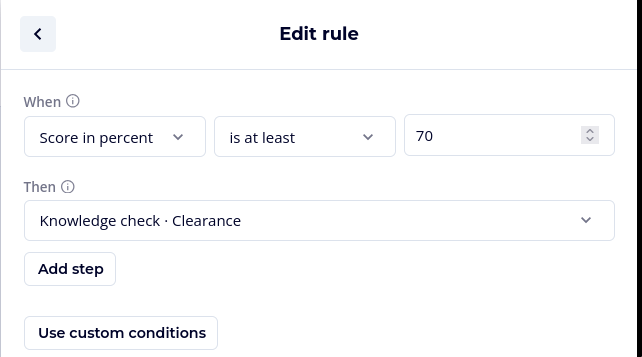
A new rule starts with a simple condition, a single sentence you complete from dropdowns:
| Condition | Reads as | Available |
|---|---|---|
| Score | Score is at least / is below a number | Always |
| Score in percent | Score in percent is at least / is below a number from 0 to 100 | Always |
| Picked option | The viewer picked a given option | On a question's rules |
| Answered correctly | The question was answered correctly: Yes or No | On Question slides |
| Has tag | The viewer has picked an option with a given tag | Once any option or button in the videobot has a tag |
| Always | Matches every viewer | Always |
In the rules list, simple conditions are summarized in plain words, such as "Picked Wood" or "Answered correctly".
Custom Conditions
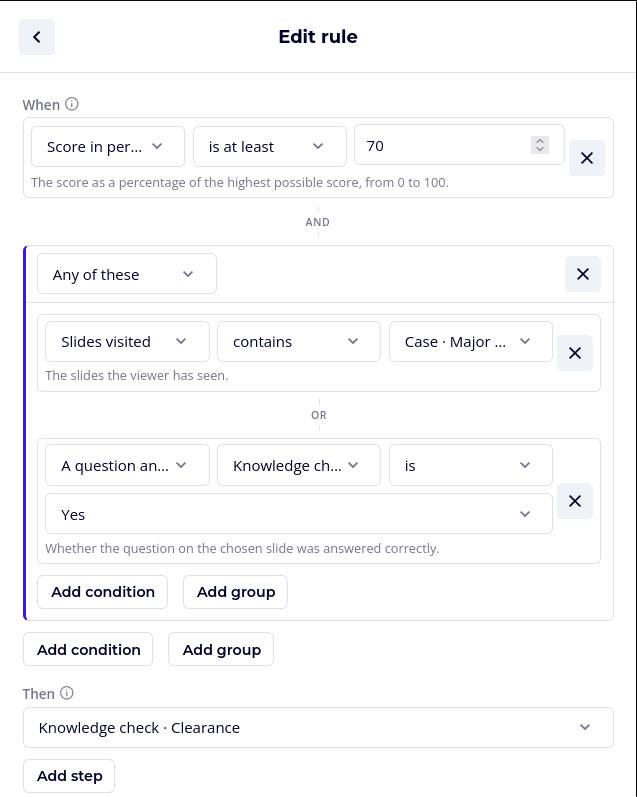
When one condition is not enough, click Use custom conditions in the rule panel. You can then combine several conditions:
- Add condition adds a row. Each row has a field, an operator and a value, and a line under it says what the field counts. Fields about tags offer only the tags you have already added to options or buttons, so add tags first.
- Add group adds a group of conditions. Choose how the group combines its conditions in its header: All of these, Any of these or None of these. Groups can contain further groups.
- The conditions at the top level must all hold for the rule to match.
- Remove a condition or a group with its cross icon.
A rule with no conditions at all is the same as the simple Always condition: it matches everyone.
If your custom conditions still fit a simple condition, Use a simple condition switches back.
Fields
Fields are grouped in the field dropdown:
| Group | Field | Holds | Compare with |
|---|---|---|---|
| Score | Score | The viewer's score so far. | A number |
| Highest possible score | The most the viewer could have scored on the slides they have been through so far. Branches they have not taken are not counted. | A number | |
| Score in percent | The score as a percentage of the highest possible score, from 0 to 100. | A number | |
| Progress | Answers given | How many questions the viewer has answered, plus the Content slides where they pressed a button with scoring. | A number |
| Correct answers | How many of those answers were correct. | A number | |
| Missed topics | The tags behind the viewer's wrong answers: options and buttons they picked that are not marked correct and, on Exact and Ordered questions, the correct options they left out. On an Ordered question answered in the wrong order, the tags of every picked option count. | A tag, with contains | |
| Slides visited | The slides the viewer has seen. | A slide, with contains | |
| This answer | Picked buttons | The options in the answer being submitted, or the button being pressed. | An option, with contains |
| Number of picks | How many options are in the answer being submitted. | A number | |
| Tags | Times a tag was picked | How many options with the tag chosen in Which tag the viewer has picked, right or wrong. | A number |
| One question | A question answered correctly | Whether the question on the slide chosen in Which slide was answered correctly. | Yes or No |
| A question's score | The points the viewer scored on the question on that slide. | A number | |
| A question was answered | Whether the question on that slide has been answered. | Yes or No |
Important: A condition about a question the viewer has not answered is never true, whatever the operator. "A question's score is not 5" does not match a viewer who skipped that question. Likewise, Score in percent matches nothing until the viewer has been through at least one slide that carries points. To check whether a question was skipped, use A question was answered is No.
Operators
The operators on offer depend on the field:
| Field holds | Operators |
|---|---|
| A number | is, is not, is below, is at most, is above, is at least, is one of, is not one of |
| Yes or No | is, is not |
| A list | contains |
For is one of and is not one of, type the numbers separated by commas, for example 1, 2, 3. Points and pick counts are whole numbers.
Destinations
Under Then, choose where the viewer goes when the rule matches:
| Group | Destination |
|---|---|
| Slides | Any other slide in the videobot. A rule cannot lead back to its own slide. |
| Contact Forms | Opens one of the videobot's contact forms. |
| External Links | Opens one of the videobot's external links. The viewer is asked to confirm before they leave. |
| Post Messages | Sends one of the videobot's post messages to the page the videobot is embedded on. |
| Other | Close the videobot, Start over, Open the company profile (when the company profile is enabled), or Stay where the viewer is. |
Close the videobot also ends the viewer's session, so the next time they open the videobot they start again from a score of 0.
Start over begins a new attempt without closing the videobot: the answers and the score are cleared and the viewer returns to the intro slide. If the viewer had already reached a Completion slide, that attempt keeps its result. Use it for a "Take the quiz again" button on a Completion slide: open the button, expand its Adaptive block, add a rule, choose Always under When and Start over under Then. Set the button's Link to to the intro slide as well, which is where the viewer goes if the rule cannot be checked in time.
Stay where the viewer is keeps the viewer on the slide: the video carries on and the options stay open.
Playing Several Steps
A rule can play up to three steps in a row. Click Add step under Then to add another destination.
The first step happens straight away. Each further step happens when the video of the slide before it ends, in place of whatever that slide would normally do at the end of its video. So a rule can play a short "Let's recap" slide and then continue to the next question.
If the viewer presses a button or submits a question before the steps have finished, the remaining steps are dropped and the viewer's choice wins.
Limits
| Limit | Maximum |
|---|---|
| Rules per button or question | 20 |
| Conditions at the top level of a rule | 10 |
| Conditions in one group | 10 |
| Conditions and groups in a rule, in total | 40 |
| Groups inside groups | 4 deep |
| Steps per rule | 3 |
| Buttons and questions with rules, per videobot | 100 |
The Add rule button disappears when a list is full.
When a rule has a problem, for example a destination that was deleted, the rules list shows an issue badge on its row and the rule panel explains what is wrong. See Saving and Fixing Problems.