

Configuring Blueprint Content
A blueprint defines the slides, actions, and settings that every derived bot inherits. The difference from a normal videobot is that a blueprint does not always point at one fixed video. Instead, its slides can use media slots that select media by tag, so each derived bot ends up with media specific to the page it was created for.
This page covers the Content, Settings, and Preview tabs of the blueprint editor.
The Content Tab
The Content tab is where you add slides and actions. You can switch between Grid and List views using the view toggle.
Adding a Slide
- In the Content tab, click Add slide.
- In the Create new slide dialog, set:
| Field | Description |
|---|---|
| Name | A label for the slide, used inside the editor. |
| Slide type | Video or Image. |
| Description | An optional note about the slide. |
- Save the slide. It appears in the slide list, where you can open it to configure its media slot.
Media Slots
A media slot tells the blueprint how to choose the media for a slide when a derived bot is created. Rather than picking one specific video, you describe the media you want using tags, and Videobot fills the slot from your media library.
A media slot is configured with:
| Setting | Description |
|---|---|
| Required tags | Media must have all of these tags to fill the slot. For example, service. |
| Optional tags | Used to break ties when more than one media item matches. Media with more matching optional tags is preferred. |
| When multiple match | How to choose when several media items still match. Pick the most recently added selects the most recently added media. Pick alphabetically selects by name (A to Z). |
The instance tags read from the URL are always required alongside the slot's own tags. This is what makes each derived bot page specific, and it is built in rather than a separate setting in the slot editor.
Important: For a slot to fill, your media library must contain media tagged to match. Tag your videos and images consistently before publishing the blueprint. See Media Library for how to tag media.
Example: A slot with the required tag
service. When a placement passes the instance tagconsulting, the slot is filled with the media tagged bothserviceandconsulting. If two match, Pick the most recently added wins.
Actions
Below the slides you can add actions, such as buttons, contact forms, and links. These behave the same way as in the standard videobot builder, and every derived bot inherits them. See Actions for the full list of action types and their options.
The Settings Tab
The Settings tab controls how the blueprint is identified and the look and behaviour shared by every derived bot.
Blueprint Identity
| Field | Description |
|---|---|
| Name | A short, recognisable name for the blueprint. Shown in the blueprint list and on derived bots. |
| Description | An optional note describing what this blueprint is for. |
Derived Bot Name Template
The Derived bot name template decides how the bots produced by this blueprint in a placement are named.
- Use the names of the extractions the placement defines, wrapped in double braces. For example,
ServiceorGuide. - A live Preview shows how the name will render.
- Leave it empty to fall back to the blueprint name followed by the instance tags, for example
Service page: consulting. - An explicit name set when creating a bot manually overrides this template.

Shared Configuration
The rest of the Settings tab mirrors the standard videobot settings, and every derived bot inherits these values. They include:
- Privacy and access control
- Business name and SEO metadata
- Global colors and gradient
- Tags, captions, and language
- Analytics integrations
- Slider and advanced options, such as custom CSS
For details on each of these, see Builder Settings.
The Preview Tab
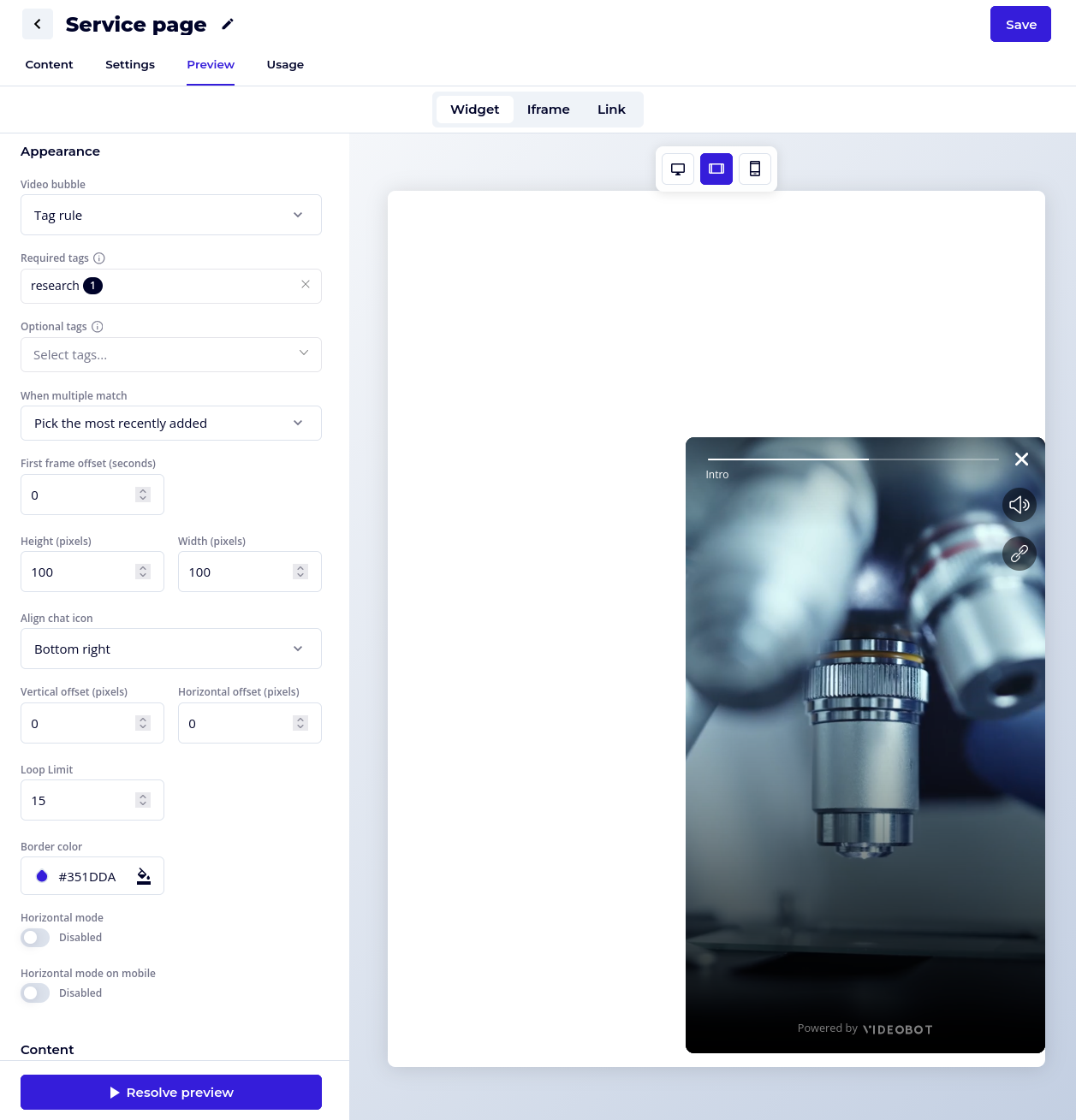
The Preview tab lets you check how the blueprint resolves before you use it in a placement.
- In the Tags field, enter sample instance tags, for example
service/consultingorconsulting. - Click Resolve preview.
- The preview renders the blueprint as if a visit had supplied those tags.
The Slots readout shows each slot as Fillable or Not fillable for the tags you entered. If a required slot cannot be filled, you will see a hint that some required slots cannot be filled with these tags. That usually means there is no media tagged to match, so add or tag media and resolve again.
You can preview each delivery type and switch between Desktop, Tablet, and Mobile views.
Once your slides resolve correctly, publish the blueprint and continue to Using Blueprints in Placements.