

Using Blueprints in Placements
A blueprint on its own does not appear on your website. You connect it to your site through a placement. The placement matches page URLs, reads values from them, and uses the blueprint to produce one derived bot per page.
Important: Only Published blueprints create bots automatically. Publish your blueprint before adding it to a placement. See Managing Blueprints for how to change status.
Adding a Blueprint to a Content Rule
Blueprints are one of the content types available on a placement content rule, alongside Direct, Scheduled, and A/B Test. To use one:
- Open your placement and go to the Content Rules tab.
- Add or edit a rule, and set its URL Pattern so it matches the pages you want. See Configuring Content Rules for the available match types.
- Under content type, choose Blueprint. Its description reads "Instantiate a tag-driven blueprint from the URL".
Blueprint Configuration
Once you select Blueprint as the content type, configure the following.
Select Blueprint
- Choose the published blueprint to instantiate for matching URLs.
- Published blueprints appear normally; Draft blueprints are marked (Draft). Selecting a draft shows a warning, and the placement cannot be saved until the blueprint is published.
- Deactivated blueprints cannot be newly selected. If a selected blueprint is later deactivated, it stays in the picker and a warning is displayed: "This blueprint is deactivated. Publish it before using it in a placement."
- If the selected blueprint has slots that cannot be filled with the available media, or has no slides, a warning appears in the Instance tags section and the placement cannot be saved until the blueprint is fixed.
Display Type
Choose how each derived bot is displayed on your website:
- Widget: Appears as a floating widget on the page.
- Iframe: Embeds as an inline element where you place the container.
Extractions
Extractions map parts of the URL and configured parameters to the tags that fill the blueprint's media slots. Each extraction produces one instance tag.
There are two sources you can read from:
| Source | Description |
|---|---|
| URL segment | A named part of the matched URL path. The rule's URL pattern must capture it, using a Wildcard or Regex pattern with a named segment. |
| Parameter | A custom parameter the site passes to the placement through the embed snippet. |
Each extraction can also apply a prefix, which is prepended to the extracted value before it becomes a tag. Use a prefix to keep tags from different extractions distinct, for example language/. The prefix is optional; without one, the extracted value itself becomes the tag.
If a URL segment extraction names a segment the rule's pattern does not capture, a warning appears under the extractions list with the captures the pattern defines, and the placement cannot be saved until the extraction and pattern agree.
Example: A rule with the Wildcard pattern
/services/{slug}captures the service slug asslug. An extraction reads that segment and produces the instance tagconsultingfor the page/services/consulting. The blueprint'sserviceslot is then filled with the media taggedserviceandconsulting.
For background on how the widget reads the page URL and sends parameters, see Configuring Content Rules.
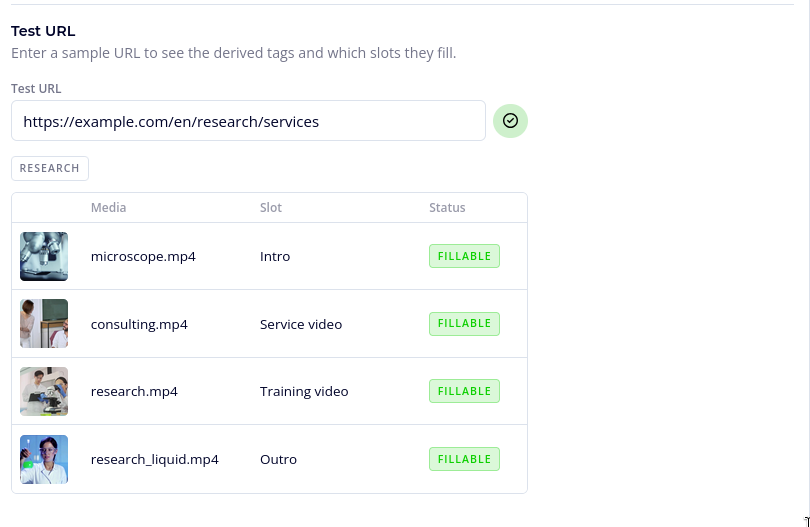
Test URL
Use the tester to confirm your setup before publishing:
- Enter a sample URL to see the derived tags and which slots they fill.
- Check that the tags you expect are produced and that each required slot is fillable.
Fallback Content
A fallback is optional content shown when no derived bot exists yet for a URL, for example on the very first visit to a new page while the bot is being created. Click Add fallback content and configure it the same way as Direct content. Use Remove fallback to clear it.
How Resolution Works at Runtime
When a visitor opens a page that matches the rule:
- The placement reads the instance tags from the URL using your extractions.
- Videobot looks for a published derived bot that matches those tags.
- If one exists, it is served immediately.
- If none exists, and every required slot can be filled, Videobot creates a bot from the blueprint in the background, fills its slots with matching media, and publishes it. The visitor who triggered this is served the fallback (or nothing) in the meantime. If a required slot cannot be filled, no bot is created and the fallback keeps showing.
- Once the bot is published, the next visit and every later visit to that page are served the derived bot.
The first request for a new page triggers background creation but is not served the new bot itself. That visitor sees the fallback (or nothing), and the derived bot appears on the next load. This happens only once per unique set of instance tags.
Publishing
Save and publish the placement the same way as any other. See Publishing and Embedding for the embed snippet and the publish flow. The embed code is the same whether a placement serves direct content or a blueprint.
Continue to Managing Blueprints and Derived Bots to track the bots a blueprint produces and to handle status changes.