

Creating a Blueprint
Blueprints let you define one reusable videobot template and turn it into many videobots automatically, one per page, without building each bot by hand. Instead of creating a separate videobot for every service, location, or guide page, you build a single blueprint and let a placement generate a tailored bot for each URL.
Blueprints work hand in hand with Placements. The blueprint describes what each bot looks like, and the placement decides which pages it runs on and how to read values from the page URL.
Key Concepts
- Blueprint: A reusable template that describes a videobot's slides, actions, and settings.
- Media slot: A slide whose video or image is chosen automatically from your media library based on tags, instead of being fixed.
- Instance tags: Values read from the page URL, or from parameters the site passes through the embed snippet, that pick the right media for each slot. For example, a page slug such as
consulting. - Derived bot: A real videobot that the blueprint produces for a specific set of instance tags. Each unique set of instance tags gets its own derived bot.
- Status: A blueprint is Draft, Published, or Deactivated. Only Published blueprints create bots automatically in a placement.
Note: If you do not see Blueprints in your dashboard sidebar, the feature is not enabled for your account yet. Contact your Customer success specialist.
How Blueprints Work
There are two routes to turn a blueprint into bots: a placement creates them automatically, one per matching page, or you create a bot manually from the Blueprints list. The automatic flow looks like this:
- You build a blueprint with one or more slides, links, forms, and other actions. Typically, at least one slide uses a media slot that selects its media by tag.
- You add the blueprint to a placement and define extractions that map parts of the page URL to instance tags.
- When a visitor opens a matching page, Videobot reads the instance tags from the URL and looks for a derived bot that already matches them.
- If a matching bot exists, it is shown right away. If not, Videobot creates one from the blueprint in the background, fills each media slot with media that matches the tags, publishes it, and serves it on the next visit.
The first visit to a brand new page is served the fallback (or nothing) while the derived bot is created in the background. Once it is ready, every later visit to that page is served the bot instantly.
A derived bot is created only if every required media slot can be filled. If any required slot has no matching media, no bot is created and the page keeps showing the fallback. Use the Preview tab to check which slots can be filled before you go live.
Example: A company site has dozens of pages under
/services/. You build one Service page blueprint with a media slot taggedservice. A placement reads the service slug from each URL (for exampleconsultingortraining) and passes it as an instance tag. The blueprint then produces one bot per service, each showing the video tagged for that service.
Getting Started
To open the Blueprints section:
- Navigate to your dashboard.
- Click Blueprints in the sidebar menu.
- You will see a list of all your blueprints.
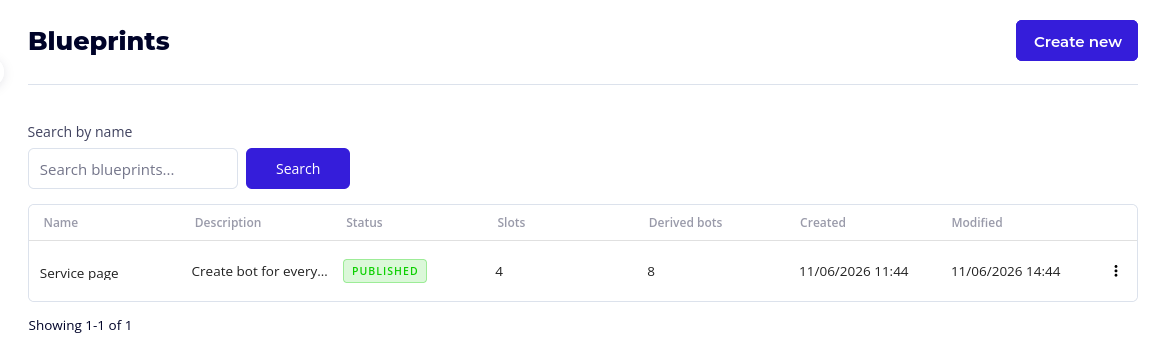
Each row in the list shows:
| Column | Description |
|---|---|
| Name | The blueprint's name. |
| Description | The optional note describing what it is for. |
| Status | Whether the blueprint is Draft, Published, or Deactivated. |
| Slots | How many media slots the blueprint defines. |
| Derived bots | How many bots this blueprint has produced. |
| Created | When the blueprint was created. |
| Modified | When it was last changed. |
Use the Search by name field to filter the list when you have many blueprints.
Step 1: Create a Blueprint
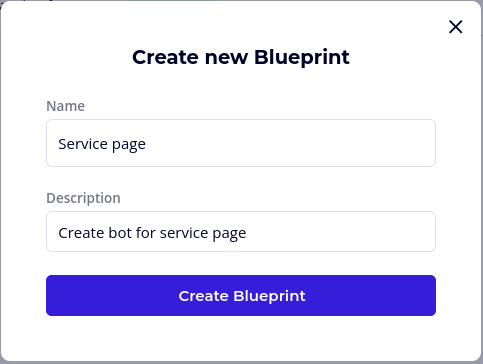
- On the Blueprints list page, click Create new.
- In the Create new Blueprint dialog, fill in the fields below.
Name (Required)
- A short, recognisable name for the blueprint. It is shown in the blueprint list and on the bots it produces.
- Example: "Service page", "Guide page".
Description (Optional)
- A note describing what the blueprint is for.
- Click Create Blueprint. You are taken straight to the blueprint editor.
The Blueprint Editor
The blueprint editor is organised into four tabs:
| Tab | Purpose |
|---|---|
| Content | Add slides and actions, and choose how each media slot is filled. |
| Settings | Set the name, description, derived bot name template, and the look and behaviour shared by every derived bot. |
| Preview | Enter sample instance tags and check how the blueprint resolves and which slots can be filled. |
| Usage | See the derived bots this blueprint has produced. |
A new blueprint starts in Draft status, so it does not create bots yet. Continue to Configuring Blueprint Content to build it out, then publish it when you are ready.