

Flow View 🧭
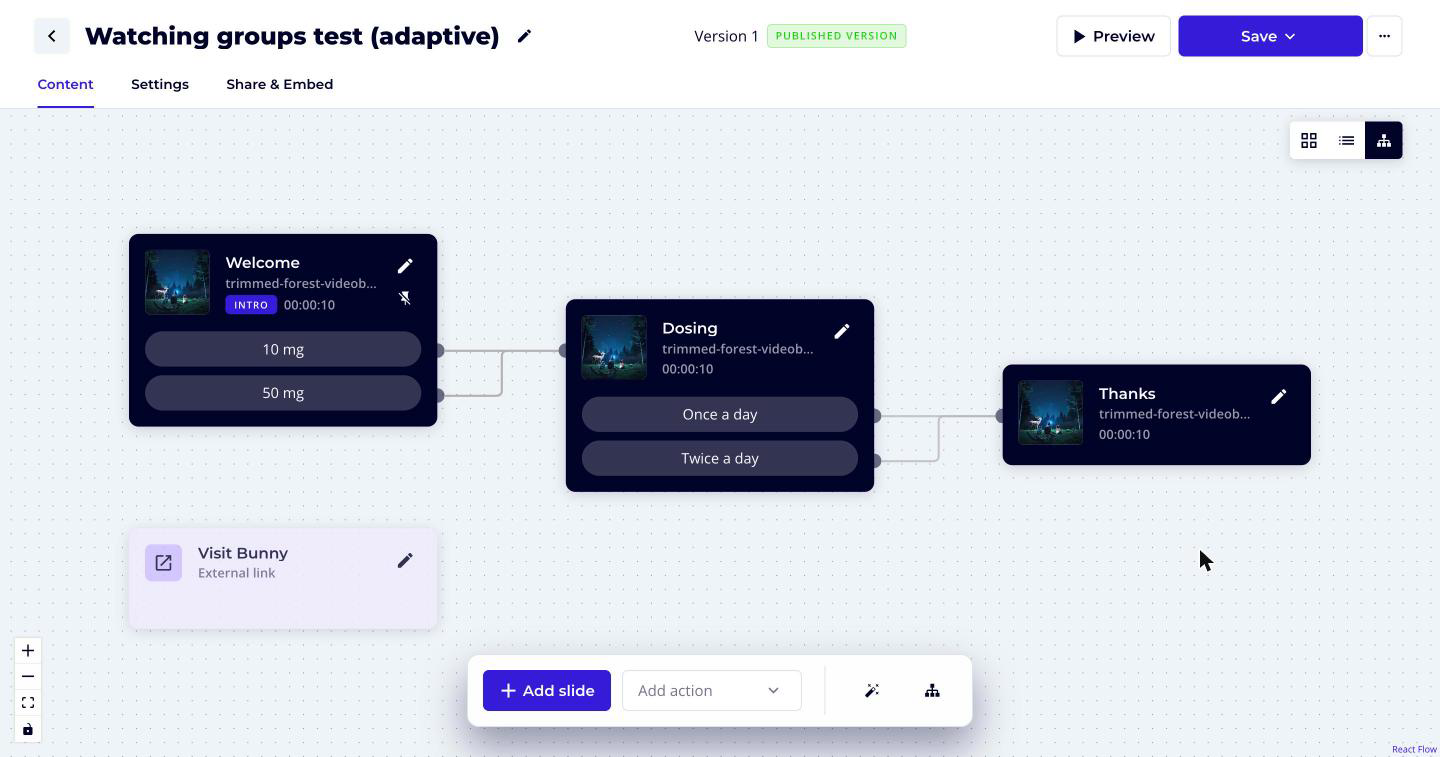
The Content tab has three views: Grid, List, and Flow. The Flow view shows your whole Videobot as a map. Every slide and action is a card, every button is a connection point on its card, and every link between them is a line. It is the quickest way to see how viewers move through a Videobot and to rewire it without opening each slide.
The Flow view is available both in the Videobot Builder and in the blueprint editor.
Opening the Flow View
- Open your Videobot and go to the Content tab.
- In the view toggle at the top of the tab, click the Flow icon (the third icon, next to Grid and List).
Your browser remembers the view you used last, so the Content tab opens in the Flow view next time.
Reading the Canvas
- Slide cards show the slide's thumbnail and name, and for video slides, the video's length. The intro slide carries an Intro badge.
- Action cards, such as contact forms and external links, are shown in their own colour.
- Buttons are listed on the card they belong to. A button that has no target yet shows Not linked, and a button whose target has been deleted shows Target no longer exists.
- Lines run from a button to the slide or action it opens. Dashed lines show links that lead back to an earlier slide, buttons that open automatically after the video ends, and a slide's back button target. A back button target line is shown only for the focused slide and the slides on the path leading to it.
One card is always in focus. When you open the Flow view, this is the intro slide. Click a card to focus it. The path that leads to it and the cards that can be reached from it stay highlighted, while the rest of the canvas dims.
Use the controls in the bottom left corner to zoom in, zoom out, fit the whole Videobot on screen, and lock the canvas. While the canvas is locked, you can look around but cannot move or change anything, and the toolbar is hidden.
The Toolbar
The toolbar at the bottom of the canvas has these tools:
| Tool | What it does |
|---|---|
| Add slide | Opens the Create new slide dialog and places the new slide on the canvas. |
| Add action | Lets you pick an action type and create a new action. |
| Auto layout | Arranges all cards neatly from left to right, following the flow, and fits them on screen. |
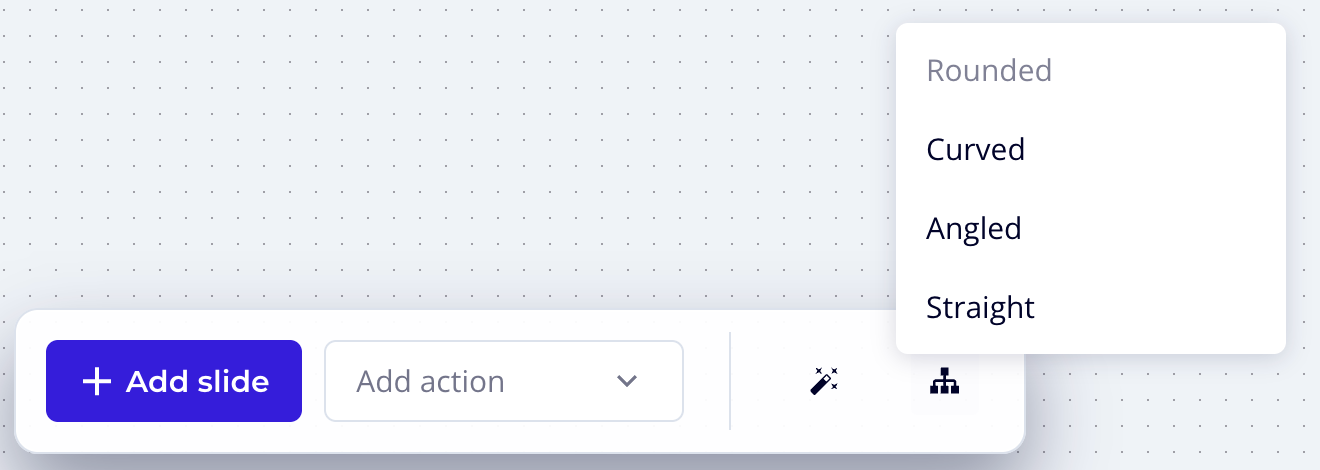
| Line style | Changes how lines are drawn: Rounded, Curved, Angled, or Straight. |
| Edit | Opens the selected card for editing. Shown when exactly one card is selected. |
| Delete | Deletes the selected cards and lines. Shown when something is selected. |
Good to know: The line style is a personal display preference. It is remembered in your browser and does not change the Videobot for anyone else.
Editing in the Flow View
Editing a Slide or Action
- Hover over a card and click the Edit (pencil) icon, or
- Select the card and click Edit in the toolbar.
The familiar Edit slide panel or action editor opens. Close it to return to the canvas.
Linking a Button
Hover over a card to reveal its connection dots.
- Drag from the dot next to a button.
- Drop it on the slide or action the button should open.
To create a new button, drag from the dot at the top right of a card and drop it on another card. The new button is named after the card it links to, and you can rename it in the edit panel.
To change where an existing link goes, drag the end of its line onto a different card.
Adding a Linked Slide or Action
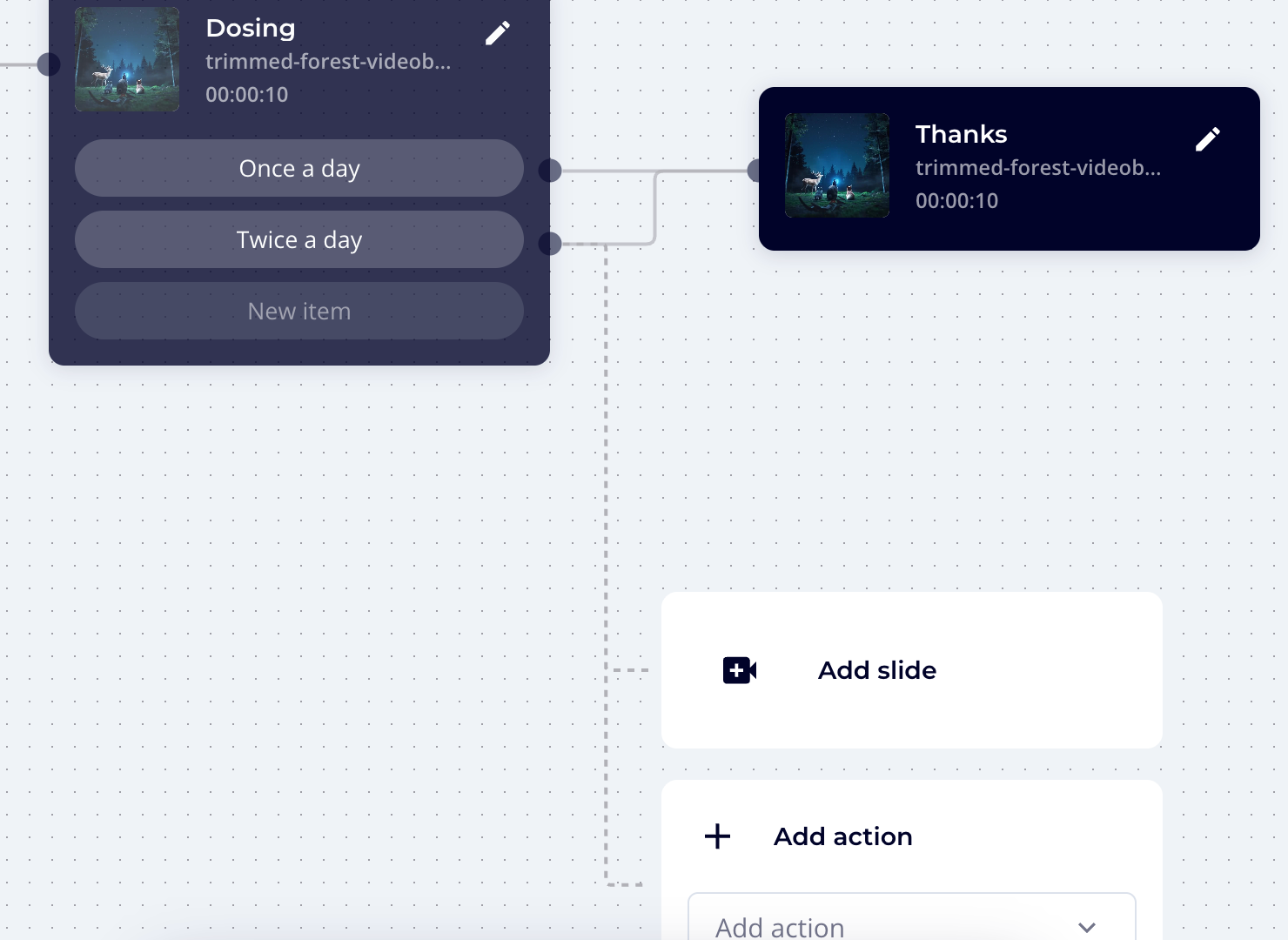
Drag from a button's dot and drop it on an empty part of the canvas. Two cards appear: Add slide and Add action. Pick one and the new slide or action is created already linked to that button.
Moving a Button to Another Card
Focus the card, then drag a button from its list and drop it on another card. The button, with its target, moves to that card.
Deleting
- Click a card or a line to select it. To select several, hold Shift and drag a box around them.
- Click Delete in the toolbar.
Deleting a button's line removes that button. A back button target line cannot be deleted here. Switch off Override back button target in the slide's settings instead. The intro slide cannot be deleted. Choose another intro slide first.
Setting the Intro Slide
By default, the Flow view keeps the intro slide in step with how your slides are linked: when you rewire the Videobot so that it starts from a different slide, that slide becomes the intro.
To choose the intro yourself:
- Hover over a slide card and click the pin icon (Set as intro).
- The slide becomes the intro and stays pinned, however you rewire the rest of the Videobot.
To keep the current intro slide as it is, click the pin icon on it (Pin this slide as the intro). To let the Flow view decide again, click the pin icon on a pinned intro slide (Unpin this slide as the intro). Choosing an intro slide in the Grid or List view pins it in the same way.
Arranging Cards and Lines
- Move a card by dragging it.
- Reroute a line by clicking it and dragging the handles that appear. With Rounded and Angled lines, each straight segment has its own handle. With Curved and Straight lines, drag the midpoint to bend the line through that point. Drag a segment back in line with its neighbours to remove the bend.
- Reset a line by double-clicking a handle.
Custom routes follow their cards when you move them. Clicking Auto layout arranges every card again and clears all custom routes.
Saving the Layout
Card positions and line routes are saved with the Videobot. Moving a card or rerouting a line counts as a change, so click Save to keep the new arrangement. Everyone on your team sees the same layout, and a Videobot created from a blueprint starts with the blueprint's layout.
Good to know: If you leave the editor without saving, your latest card positions are still shown the next time you open the Flow view in the same browser, ready to be saved.
Product Cards
If your Videobot uses product cards, they appear on the canvas as their own cards.
- To show a product card on a slide, drag a line from the slide to the product card.
- To move it to another slide, drag the end of the line onto that slide.
- To remove it from the slide, select the line and click Delete.
Note: If you do not see product cards in the Flow view or Product cards in the Add action list, the feature is not enabled for your account yet. Contact your Customer success specialist.
Copying Slides and Actions to Another Videobot
Copying and pasting slides and actions is done in the Grid view. See Copying Slides and Actions to Another Videobot.
Good to know: If you have view-only access to a Videobot, the Flow view opens in read-only mode. You can explore the flow, but cannot change it.