

Questions, Scoring and Completion
Every slide in an adaptive videobot has a role. This page covers the three roles, how to score options and buttons, and the settings that control the text panel, the score card and sections.
All of it lives in the Adaptive block of the slide's edit panel, below the Buttons list. The block starts collapsed, and its summary line tells you what the slide does, for example "Question, 4 options, 2 rules". Turn on adaptive mode first if you do not see the block.
Slide Roles
Open a slide from the Content tab and expand its Adaptive block. The Role group decides what the viewer does on the slide:
| Role | What the viewer does |
|---|---|
| Content | Plays like a normal slide. Buttons navigate as usual, and any of them can carry points. |
| Question | Picks one or more options and submits them. |
| Completion | Reaches the end of the journey. The result is recorded, and a panel can show the score card. |
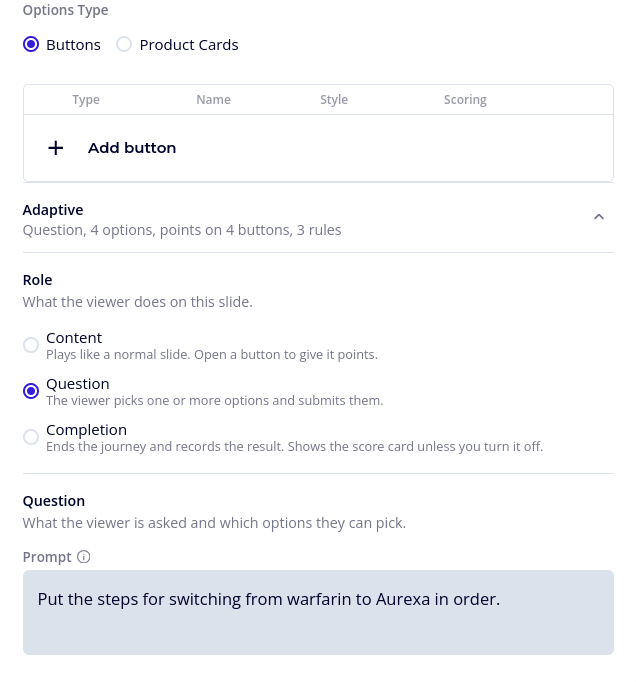
You can change a slide's role at any time. If you switch a Question slide to another role and then back again before saving the slide, its question and rules come back as they were.
Scoring a Button
A button can carry points, count as correct, and add tags. This is how a Content slide scores a single press, such as a "Yes, I have done this before" button that is worth 5 points. On a Question slide only the options score, and on a Completion slide the result is already final, so scoring on the other buttons there has no effect.
A Content slide is answered once: if it has several buttons with scoring, only the first one the viewer presses counts, and pressing buttons again later adds nothing. The buttons keep navigating as usual.
- Click the button in the slide's Buttons list to open it.
- Expand the Adaptive block at the bottom of the button panel.
- Under Scoring, set any of these:
| Field | Description |
|---|---|
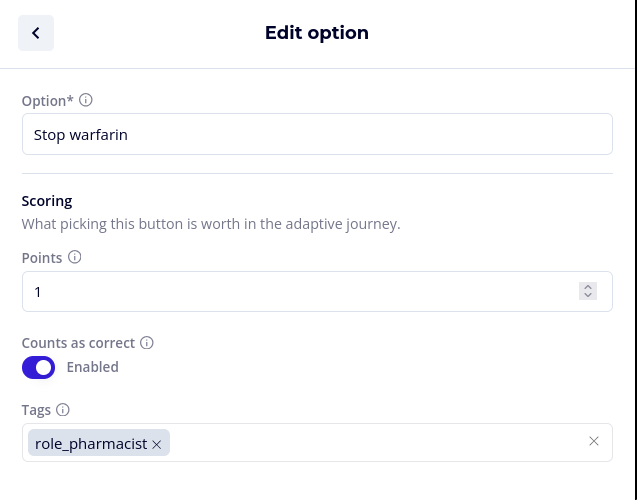
| Points | Added to the viewer's score when they pick this button. Whole numbers only. Use a negative number to take points away. |
| Counts as correct | Marks this button as one of the right answers. |
| Tags | Labels that rules can count, such as safety or pricing. Type a tag and press Enter. Tags are saved in lowercase, with spaces and other characters turned into underscores, so Site Safety becomes site_safety. Up to 10 tags per button, each up to 48 characters. |
- Click Save in the button panel, then Save in the slide panel.
The slide's Buttons list has a Scoring column, so you can see at a glance which buttons carry points, which count as correct, and which decide the next step with rules:
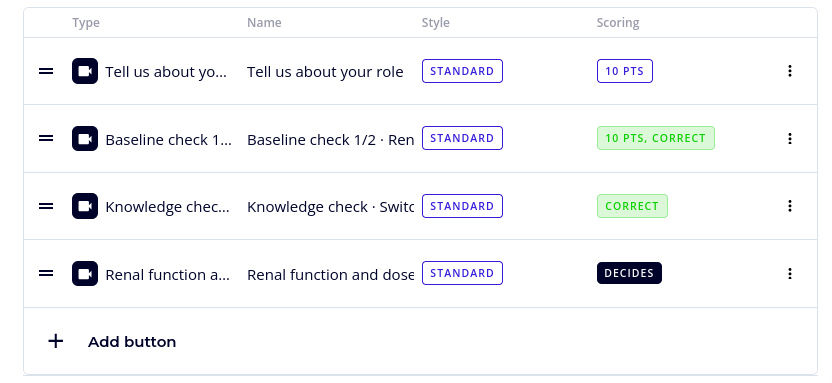
| Badge | Meaning |
|---|---|
| 10 pts | Picking the button adds 10 points. |
| 10 pts, correct | The button adds 10 points and counts as a correct answer. |
| Correct | The button counts as correct but adds no points. |
pricing safety +3 | The button's tags. The first two are shown by name, and +3 stands for the rest: point at it to see them all. |
| Decides | The button has rules that can change where it leads. |
The same block holds the button's rules. See Branching with Rules.
Question Slides
Set the slide's role to Question to ask the viewer something. Any buttons on the slide that lead to another slide become the question's options, so you can turn an existing slide into a question without re-entering its buttons. Links, forms and other actions stay buttons.
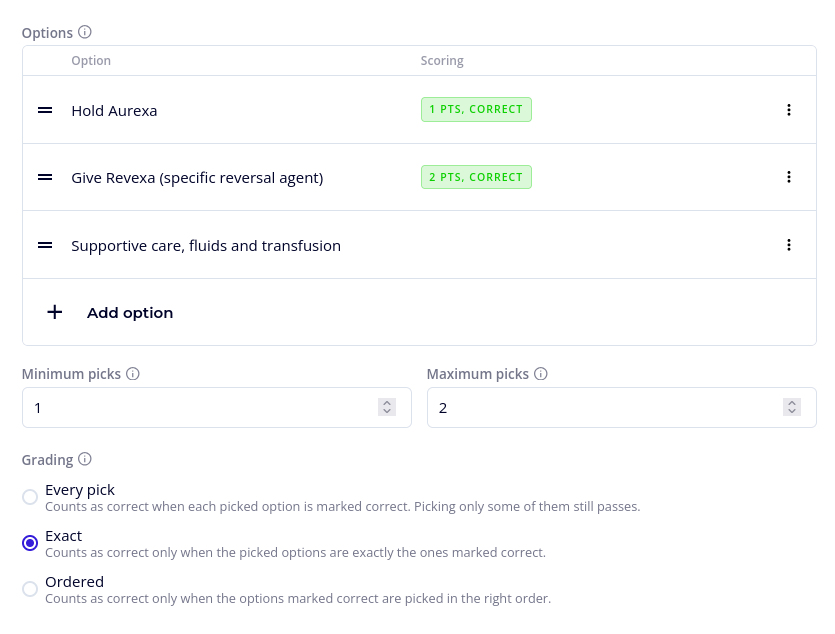
The Question group has these settings:
| Field | Description |
|---|---|
| Prompt | The question, shown under the panel text, above the options. Up to 500 characters. |
| Options | What the viewer can pick. See Options below. |
| Minimum picks | The fewest options the viewer has to pick before they can submit. Defaults to 1. |
| Maximum picks | The most options the viewer can pick. Leave it empty for no limit. |
| Grading | How the viewer's picks are judged. See Grading below. |
| Hint | A short line above the submit button, such as "Choose two or three". Leave it empty to show an automatic hint. See What the Viewer Sees. Up to 200 characters. |
| Submit button label | The text on the button that submits the answer. Defaults to "Submit". |
| Viewer can change the answer later | Lets the viewer come back to this question and pick again. Off by default. See Answering Again. |
Below the question, When the question is answered decides where the viewer goes after submitting. Its last row, Otherwise, continue to, is the slide the viewer continues to when no rule applies. By default it is Stay on this slide: after submitting, the video carries on and the options stay open. See Branching with Rules.
Tip: For a single-choice question, set both Minimum picks and Maximum picks to 1.
Options
The Options list shows each option's text and its Scoring badges.
- Click Add option to add one. A question can have up to 20 options.
- Click an option, or choose Edit from its row menu, to set its text and scoring. The option panel has an Option text field and the same Scoring group as a button: Points, Counts as correct and Tags.
- Drag options to change the order the viewer sees them in.
- Turn into a button moves an option out of the question. It stays on the slide as an ordinary button.
- Remove deletes the option.
A question always keeps at least one option, so the last one cannot be removed or turned into a button.
Buttons on a Question Slide
On a Question slide, the Buttons list only shows the buttons that are not options. These navigate right away, without a submit, which makes them useful for a "Skip this question" or "Back" button.
To move a button that leads to another slide into the question, choose Turn into an option from its row menu. The button's own rules are removed, because the question decides where the viewer goes.
Grading
Grading decides when the viewer's answer counts as correct. Mark the right options first, with Counts as correct on each of them.
| Grading | Counts as correct when |
|---|---|
| Every pick | The viewer picked at least one option and every option they picked is marked correct. Picking only some of the correct options still passes. This is the default. |
| Exact | The picked options are exactly the ones marked correct, no more and no fewer. |
| Ordered | The viewer picks exactly the options marked correct, in the right order. |
With Ordered, a Correct order list appears. Drag the correct options into the order the viewer must pick them in. The Scoring column then shows each option's position, such as 1. and 2.
With Exact or Ordered, you can also set Points for the exact answer. These are added on top of the options' own points when the whole answer grades correct. With Exact or Ordered, the videobot cannot be published until at least one option is marked correct and the number of correct options fits between Minimum picks and Maximum picks.
How Points Add Up
When the viewer submits a question, their score grows by:
- The Points of every option they picked, whether or not the answer counts as correct, and
- The Points for the exact answer, if the question is graded Exact or Ordered and the answer grades correct.
The highest possible score, shown with {{maxScore}}, is what a viewer could have scored on the slides they actually went through. Branches the viewer never took do not count against them, so two viewers on different paths can both reach 100%.
Example: A question graded Exact has three options. "Wood" and "Stone" are marked correct and worth 5 points each. "Plastic" is worth 0, and the exact answer is worth 10. A viewer who picks Wood and Stone scores 5 + 5 + 10 = 20. A viewer who picks Wood only scores 5, and the answer does not count as correct.
What the Viewer Sees
On a Question slide, the panel sits over the lower part of the video. It starts collapsed, showing the panel text and the prompt. The viewer taps it or swipes up to reveal the options. In a wide landscape player, the options appear beside the text instead.
- Each option is a button with a round marker. A picked option shows a check mark or, on an Ordered question, the position the viewer picked it in: 1, 2, 3.
- Once the viewer has picked Maximum picks options, the rest are disabled until they unpick one.
- The submit button becomes active once the viewer has picked at least Minimum picks options. A counter, such as "2/3 selected", sits next to the hint.
- If the question has rules, the video pauses and the submit button shows a spinner while the answer is checked. This takes about a second at most.
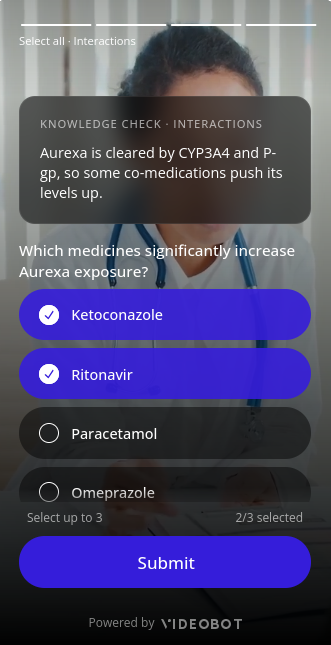
If you leave Hint empty, the player writes one from your pick limits, such as "Select all that apply", "Select 2" or "Select between 2 and 3". On an Ordered question the automatic hint is "Choose in order of preference", so for a question with a correct order, write your own. A custom hint can use these placeholders:
| Placeholder | Replaced with |
|---|---|
{{min}} | The Minimum picks. |
{{max}} | The Maximum picks. Shows "…" when there is no maximum. |
{{selected}} | How many options the viewer has picked. |
{{total}} | How many options the question has. |
For example, Pick up to {{max}} of the {{total}} options.
Answering Again
With Viewer can change the answer later off, each question is answered once. If the viewer comes back to it, their answer is shown but locked, with the note "Your answer has been recorded". The submit button still takes them onward, but nothing new is scored.
With it on, the viewer can change their picks and submit again. The new answer replaces the old one, and every answer the viewer gave after it is cleared, because what came next may have depended on it. The journey then continues from this question.
The slides the viewer saw on their earlier path still count towards the highest possible score, even though their answers there were cleared. So a viewer who changes an answer and then takes a different branch may not be able to reach 100%.
Completion Slides
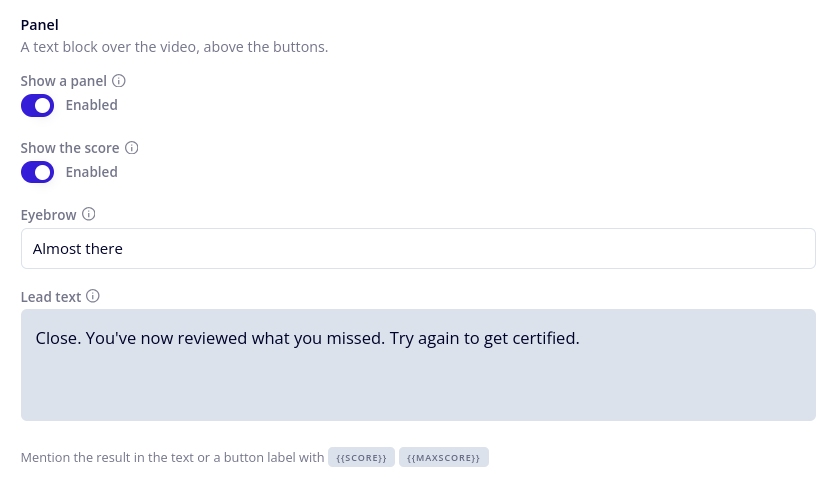
A Completion slide ends the journey and records the viewer's result. By default it shows a panel with the score card. In the Panel group, switch off Show the score for a closing panel without scores, or switch off Show a panel to end on the video and its buttons alone. The result is recorded either way.
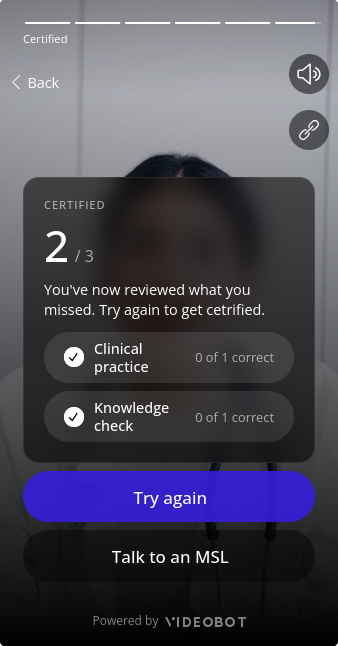
The panel shows, from top to bottom:
- The Eyebrow, such as "Your result".
- The score as a large figure, such as 20 / 35, when Show the score is on.
- The Lead text.
- A row for each section. Every section is listed, including sections the viewer did not reach. A row reads Completed once the viewer has seen every slide in the section, and Not completed otherwise. With Show the score on, it also shows how many of the section's scored slides the viewer answered correctly, such as "2 of 3 correct".
To mention the result in your own words, type these placeholders into the Lead text or into a button label on the slide:
| Placeholder | Replaced with |
|---|---|
{{score}} | The viewer's score. |
{{maxScore}} | The highest possible score on the path the viewer took. See How Points Add Up. |
For example, You scored {{score}} out of {{maxScore}}. The placeholders show "…" for a moment while the result loads. They are not filled in the Eyebrow or in a question's Prompt.
Note: If nothing on the viewer's path carries points, there is no score to show. The large figure is hidden and the placeholders keep showing "…".
A videobot can have several Completion slides, for example one for viewers who passed and one for viewers who did not. Use rules to send each viewer to the right one. Only the first Completion slide a viewer reaches records their result. After that, the result is final for the session.
The Panel
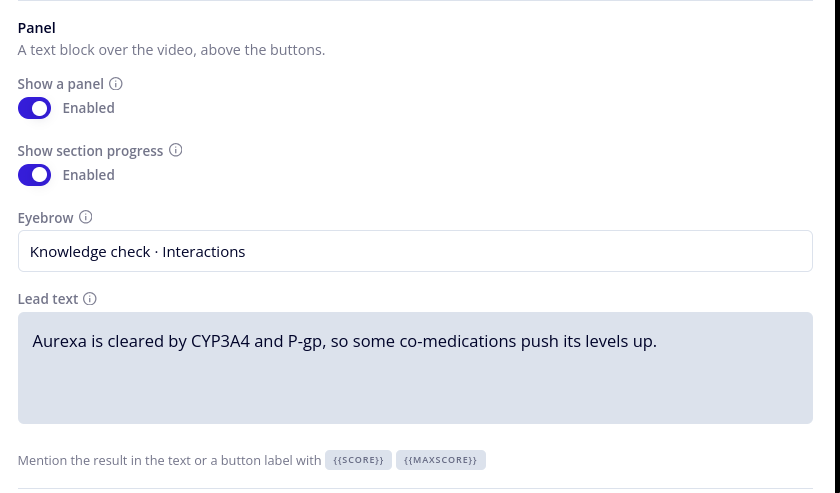
Any slide can put a text block over the video, above the buttons. Switch on Show a panel in the Panel group, then fill in:
| Field | Description |
|---|---|
| Eyebrow | A small heading at the top of the panel, such as "Part one". Up to 80 characters. |
| Lead text | The text in the panel, above the buttons. Up to 500 characters. |
On a Completion slide, the panel is on by default and also holds Show the score. See Completion Slides.
Switching Show a panel off clears both fields.
If Score during the journey is on in the Settings tab, you can use {{score}} and {{maxScore}} in the lead text and button labels of any slide. On those slides, {{maxScore}} counts the slides the viewer has already passed. The slide they are on counts once they have answered it.
Section Progress
When the videobot has sections, the Panel group of a Content or Question slide also offers Show section progress once Show a panel is on. The panel then lists every section, marked Completed or Not completed, with how far the viewer has got, such as "2 of 3 answered". With Score during the journey on, the rows show correct answers instead, such as "2 of 3 correct". Only scored slides are counted, so a section with no points or correct options shows no count. Switching Show a panel off also switches section progress off.
The viewer can tap a section to go back to its first slide, in the order the slides have in the Content tab. That makes a review slide possible before the journey ends: "Here is how you did. Tap a part to try it again, or finish." For this to work:
- Put the review slide before the Completion slide. Once the viewer reaches a Completion slide, the result is final and the questions are locked.
- Switch on Viewer can change the answer later on the questions the viewer should be able to redo. See Answering Again.
- Give the review slide a button that leads on to the Completion slide.

More Settings
The More settings group holds the settings you need less often. It opens by itself when any of them has been changed.
Sections
Section sets which section the slide counts under, on the score card and in section progress. Create sections first in the Settings tab. The first slide of a section, in the order of the Content tab, is where the viewer lands when they tap the section in section progress.
On the score card, each section shows how many of its scored slides the viewer answered correctly. Slides without points or correct options in a section are not counted there, but the section only reads Completed once the viewer has seen all of its slides. So leave a slide that only some viewers see, such as a recap, out of the section.
Picking a section also fills an empty Eyebrow with the section's name, so a slide in the "Basics" section gets "Basics" as its heading. If the slide's panel was off, this switches it on. You can change the eyebrow afterwards, or switch Show a panel off again.
Behaviour
Content and Question slides have two more settings. On a Content slide, they only take effect while Show a panel is on.
| Field | Description |
|---|---|
| Open when the video ends | Reveals the options automatically once the video has played to the end, so the viewer does not have to tap the panel. Off by default. |
| Keep playing while open | When off, the video pauses as soon as the viewer opens the options. On by default. |
Example: For a question you want the viewer to answer only after watching the whole clip, switch on Open when the video ends and switch off Keep playing while open.
Next, decide where each answer leads in Branching with Rules.