

Watching Groups
A watching group is one link for one session. Everyone in the group opens the same link and types their name before the videobot starts, and you see each person's answers and score in the dashboard while they play.
Use a watching group when you run an adaptive videobot with a known audience, for example:
- A training session at a clinic, where every attendee takes the same quiz.
- A webinar or workshop, where you want to see who answered what.
- A cohort of new employees going through an onboarding check.
Viewers who open the videobot in any other way, such as through a widget or the normal link, stay anonymous as before. Only people who join through a group link are shown by name, and only after they agree to it.
Note: If you do not see the Watching groups tab in the videobot's Share & Embed tab, the feature is not enabled for your account yet. Contact your Customer success specialist.
Before You Start
- The videobot must be an adaptive videobot. Groups record each participant's answers and score, so a videobot without adaptive mode cannot have one. The tab tells you if adaptive mode is off.
- The videobot must be published. You can create a group for a draft, but the group link does not play until the videobot is published.
Create a Group
- Open the videobot and go to Share & Embed.
- Choose the Watching groups tab. It lists the videobot's groups with their state and how many participants have joined and finished.
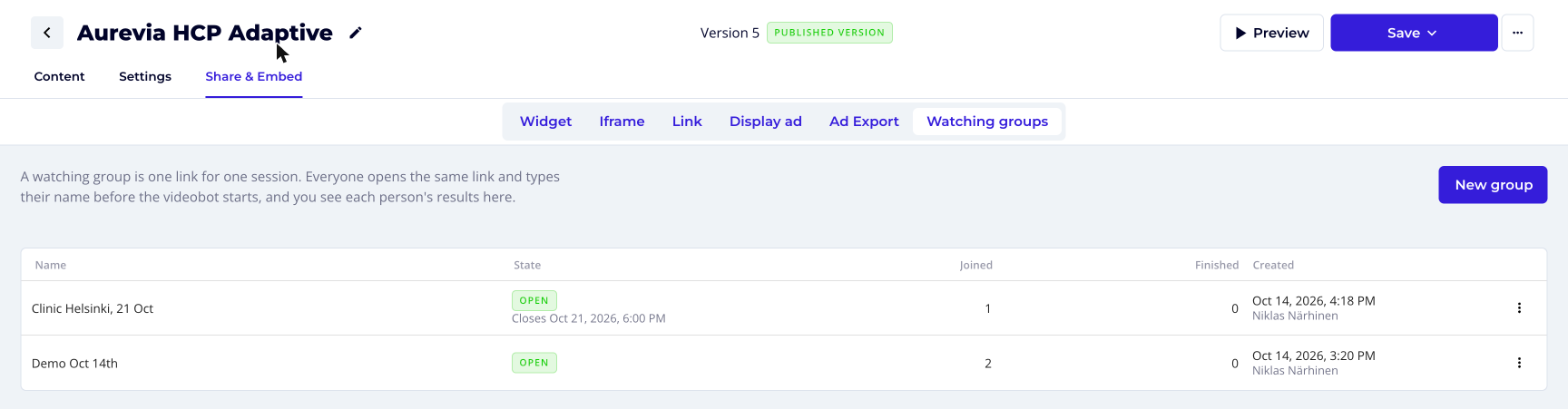
- Click New group.
- Enter a Group name, such as "Clinic Helsinki, 21 Oct". Participants see this name when they open the link, so make it something they recognise.
- Optionally, set Closes at. After this time the link stops accepting participants. The time must be in the future. Leave it empty to keep the group open until you close it yourself.
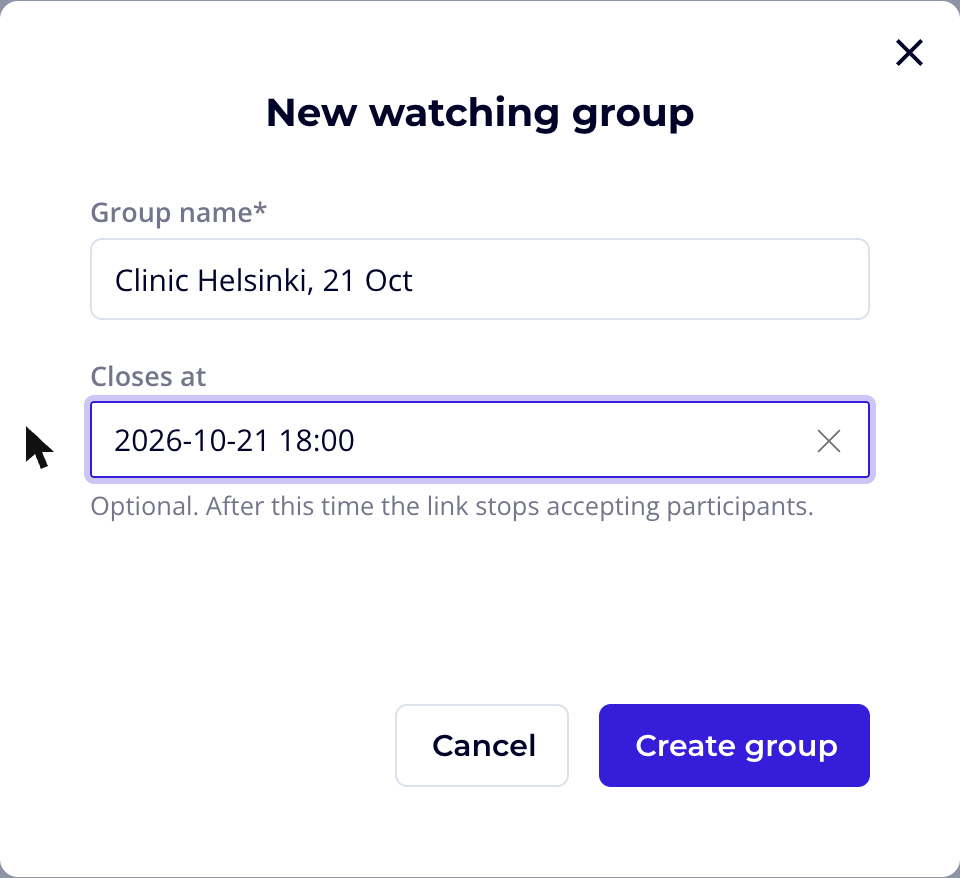
- Click Create group.
Share the Link
Once the group is created, the share window opens. Everyone in the group uses this same link.
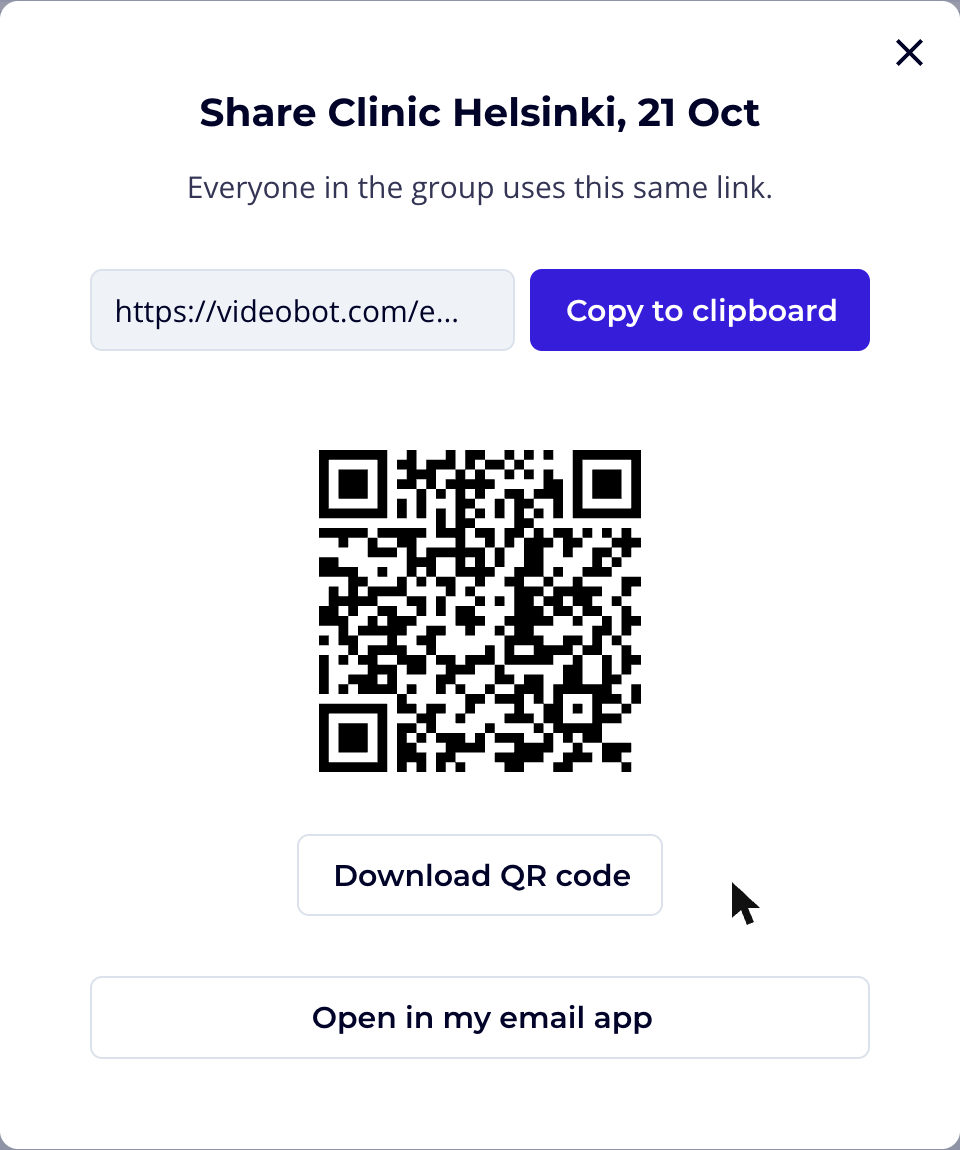
- Copy to clipboard copies the group link, for example to paste into a chat or a presentation.
- Download QR code saves a QR code for the link, handy for showing on a screen in the room.
- Open in my email app starts a new email with the group name as the subject and the link in the body.
You can open the share window again at any time by choosing Share from the group's menu in the list, or from the group's results page.
What Participants See
When a participant opens the group link, the videobot shows the group name and asks for their name before it starts:
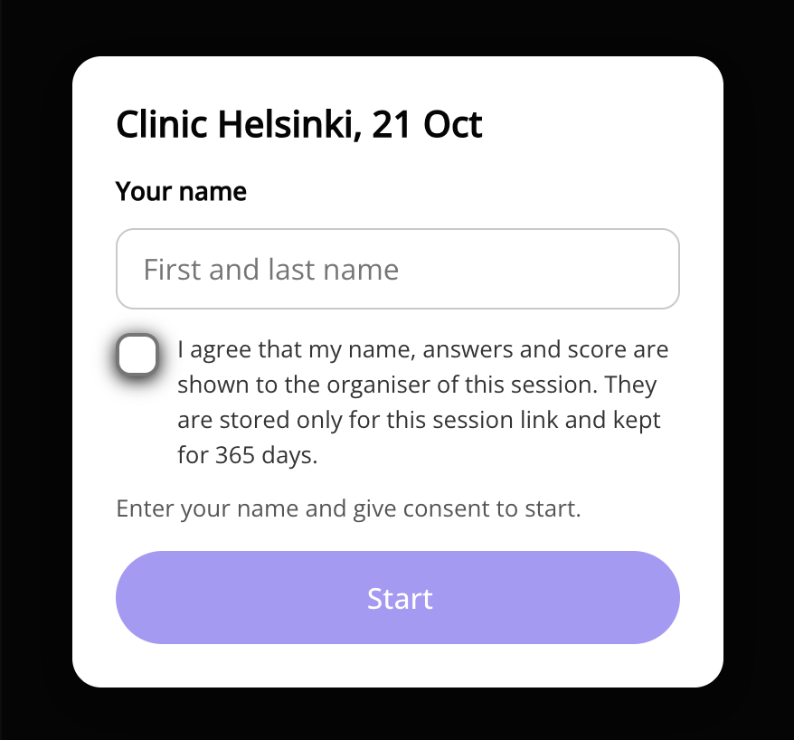
- The participant types their name, up to 80 characters.
- They tick the consent box, agreeing that their name, answers and score are shown to the organiser of the session. The box states how long the name is kept.
- They click Start and the videobot plays as usual.
If the participant reloads the page, they carry on from where they left off in the same session.
If the link cannot be used, the participant sees a message instead of the form:
| Message | When |
|---|---|
| This session is closed | The group was closed, or its closing time has passed. If you reopen it, participants can carry on where they left off. |
| This session is full | The group has reached its participant limit (500). |
| This link is not valid | The group was deleted, or the link was copied incorrectly. |
Follow the Results
To see the results, choose Open results from the group's menu in the list, or click the group's row.
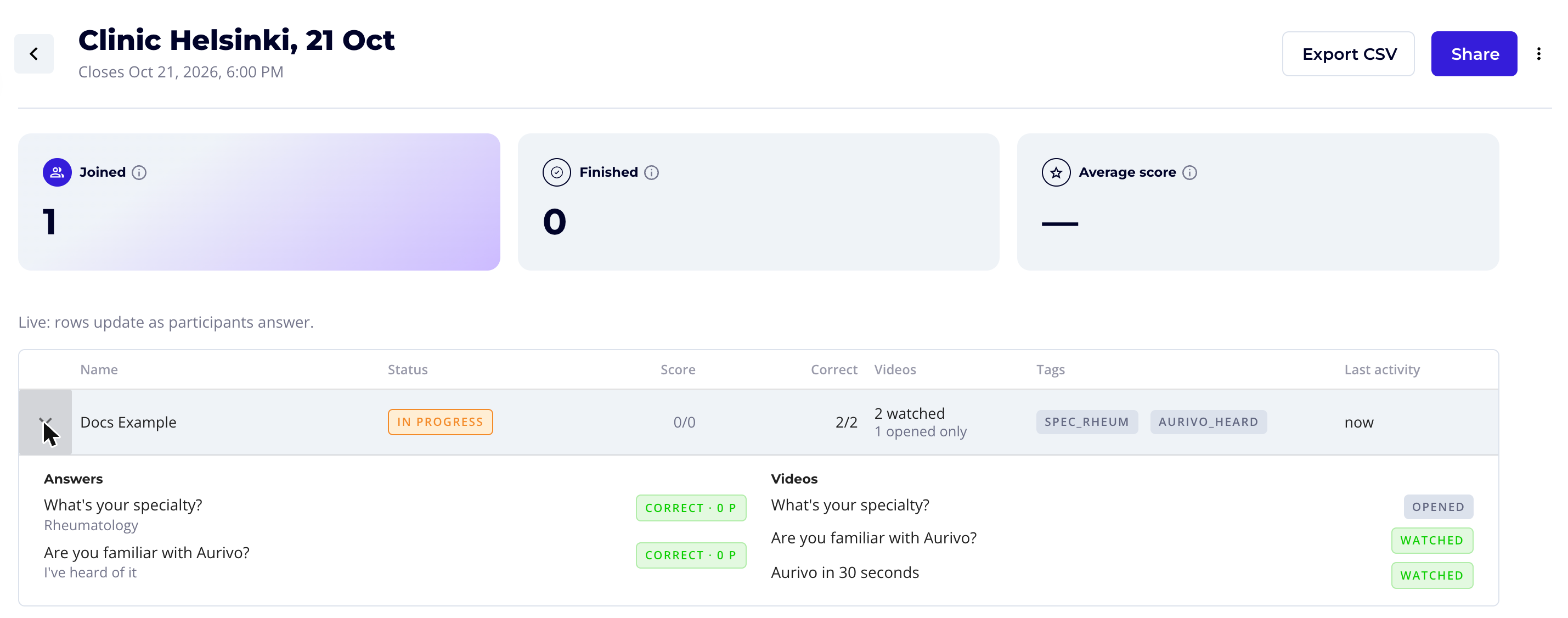
At the top, three figures summarise the group:
- Joined: participants who typed a name and started the videobot. The same person on two devices counts twice.
- Finished: participants who reached the end of the videobot.
- Average score: the average share of the maximum score, across finished participants only.
The table has one row per participant:
| Column | Shows |
|---|---|
| Status | Started, In progress or Finished. |
| Score | Points so far out of the maximum. While the participant is still playing, the maximum grows as they go on. |
| Correct | Correctly answered questions out of the questions answered. |
| Videos | How many videos the participant watched, and how many they only opened. |
| Tags | The tags on the options and buttons the participant picked. |
| Version | The published version the participant played. Shown only when participants played different versions. |
| Last activity | When the participant last did something. |
Click the arrow at the start of a row to see the participant's details: each question with the option they picked and whether it was correct, and each video marked Watched or Opened.
While the group is open, the results update live as participants answer. Once it is closed, they no longer update on their own.
Export the Results
Click Export CSV on the results page to download the results as a spreadsheet, for example to keep a record of a training session.
Groups in Adaptive Analytics
The videobot's adaptive analytics can be filtered by Watching group, so you can compare one group's answers with everyone else's. Participants who declined analytics are not counted there, so the totals can be lower than on the group's own results page.
Manage Groups
Each group in the list has a menu with these actions. The same actions, apart from Open results and Share, are in the menu at the top right of the results page.
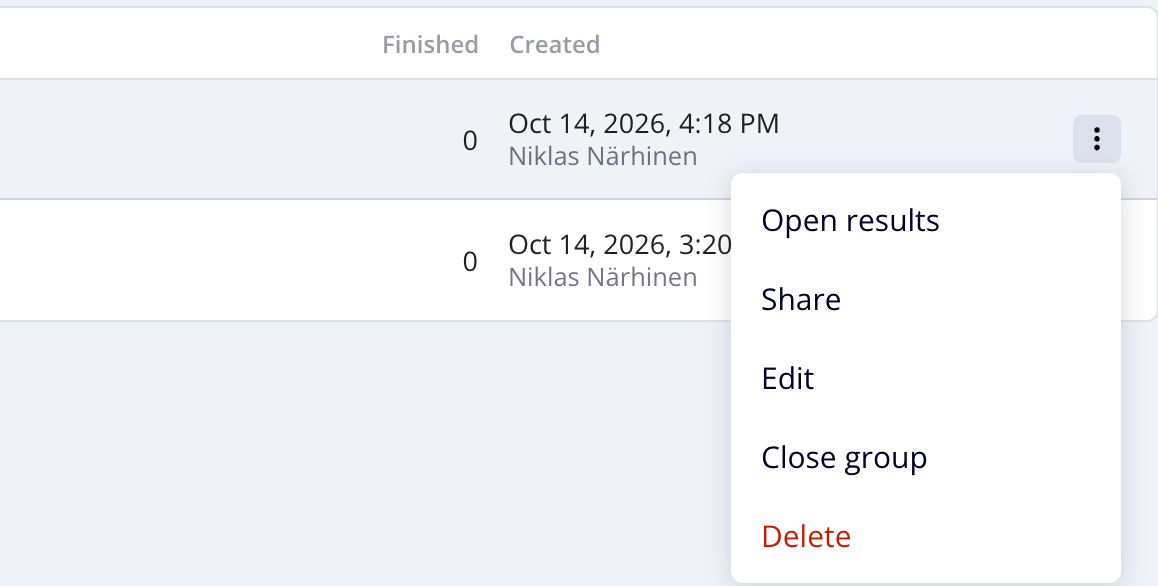
- Open results opens the group's results page.
- Share opens the share window with the link, QR code and email options.
- Edit changes the group's name or closing time.
- Close group stops the link right away. Nobody can join, and anyone still playing is stopped. The results stay available.
- Reopen group opens a closed group again. If its closing time has already passed, reopening removes it, so the group stays open until you close it or set a new time.
- Delete removes the group. The participants' names are erased permanently and the link stops working. Their answers stay in the videobot's analytics without a name. This cannot be undone.
Important: Participants' names are kept for a limited time (365 days by default), as stated in the consent text they agree to. After that, rows show Name removed, but the answers and scores remain.