

AI Studio
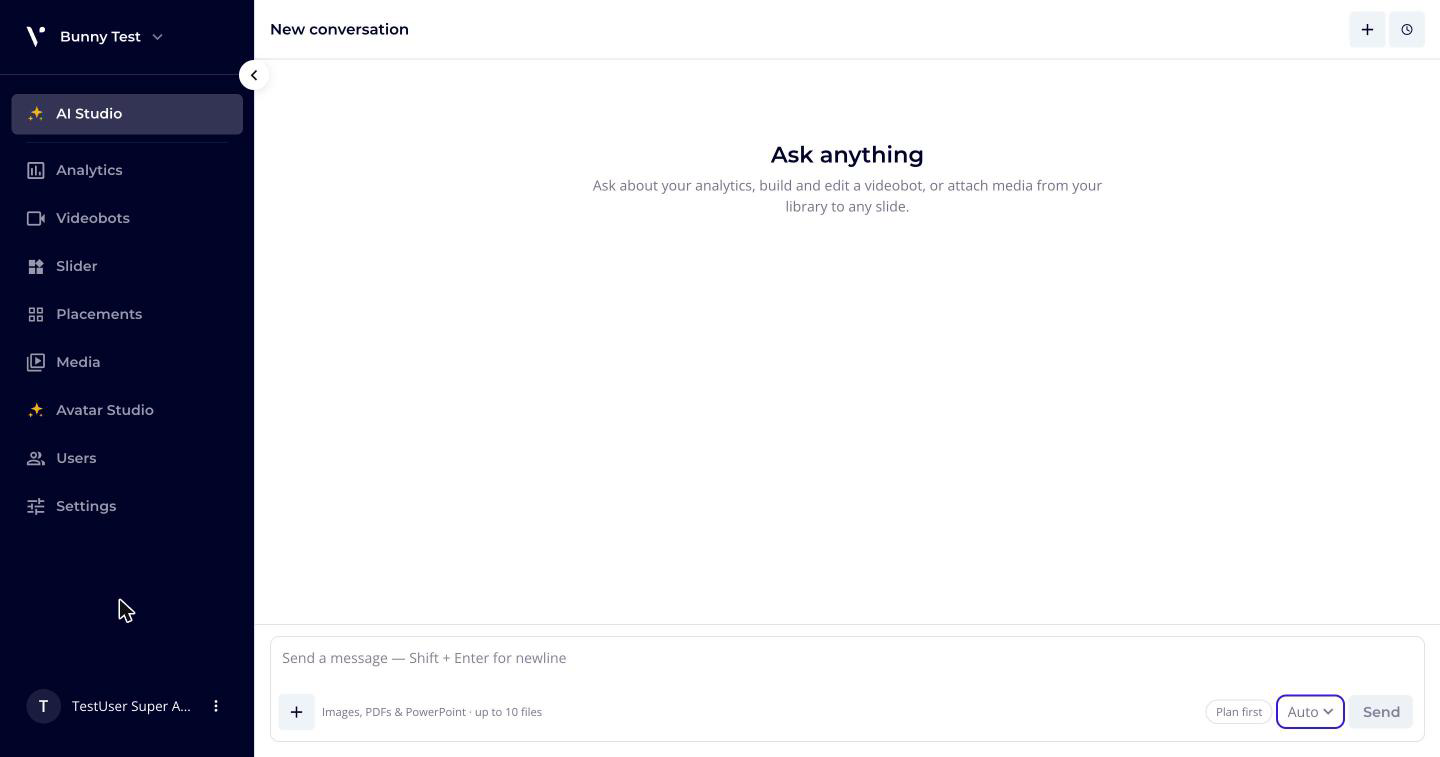
AI Studio is an assistant you talk to in the dashboard. Describe what you want in your own words and it does the work for you: it builds and edits videobots, styles them, turns a brochure or slide deck into a videobot, creates images and short video clips, and answers questions about your analytics.
You find AI Studio at the top of the dashboard navigation.
Note: If you do not see AI Studio in the dashboard navigation, the feature is not enabled for your account yet. Contact your Customer success specialist.
Who can use AI Studio
Users with the Owner, Admin or Editor role can use AI Studio. Viewers do not see it in the navigation. See Users for the roles.
Start a conversation
- Click AI Studio in the navigation.
- Type what you want in the message box and click Send. Press Shift + Enter for a new line.
Each conversation is kept, so you can come back to it later. Your conversations are your own: other users of the account do not see them. Open Conversation history to see your Conversations, switch between them or start a New conversation. From the same list you can Rename or Delete a conversation. Deleting removes it from your list.
Some examples to start with:
- "Make a videobot that introduces our three lunch menus, one slide each."
- "On the Spring campaign videobot, make the second slide's buttons say Book now and Ask a question."
- "Which of my videobots had the most views last month?"
While the assistant works, it shows Thinking… and the steps it takes. Click Show the … steps it took under a reply to see how it got there. Click Stop to interrupt it.
Build and edit videobots
You can ask the assistant to:
- create a new videobot, or change an existing one: add, edit, reorder and delete slides, and add or change buttons
- attach videos and images from your media library to slides
- change the videobot's theme, and add or change its custom CSS
- set up an adaptive videobot: questions, scoring, sections, the completion slide and branching (when adaptive videobots are enabled for your account)
- get the share link or embed code, and publish the videobot
When the assistant works on a videobot, a preview opens next to the conversation. Use Toggle preview to show or hide it, and Open in the videobot editor (new tab) to continue by hand.
Changes are made to the videobot's draft. Publishing and deleting a slide always ask you first (see Approvals and credits).
💡 Tip
You can also chat with the assistant while you create a videobot with the Create new wizard. See Creating a New Videobot.
Attach files
Click Attach a file next to the message box to give the assistant something to work from. You can attach:
| File types | Images (JPEG, PNG, GIF, WebP), PDF and PowerPoint (.pptx) |
| Files per message | Up to 10 |
| Size | Up to 10 MB per image, up to 50 MB per PDF or PowerPoint file |
While the assistant reads your attachments, it shows Reading your files….
Turn a brochure or deck into a videobot
Attach a PDF brochure or a PowerPoint deck and ask for a videobot, for example "Make a videobot from this brochure, one slide per product." The assistant reads the document page by page, including pages that are mostly pictures, and can use its pages and images on the slides or create new images in the same style.
Generate images and video clips
The assistant can create new media for you:
- Images, for example a background for a slide, or a picture that matches the style of an attached brochure.
- Short video clips of 4, 6 or 8 seconds, from a description or starting from an image.
- Voice-overs and narrated videos.
Generating media is not enabled for every account, and video clips are not available when your account's data-residency policy does not allow them. If the assistant tells you it cannot create images or clips, contact your Customer success specialist.
What the assistant makes appears in the conversation and in the Media section of the preview panel. While something is still being made, it shows Creating image… or Creating video…. If something could not be made, click See why.
Video clips and other renders can take a few minutes. You do not have to wait: when the renders are finished, the assistant continues the conversation by itself, for example by putting the clips on the slides it planned for them. This happens while the conversation is open, or the next time you open it.
When a request changes the timeline of a video, the assistant hands it over to Media Studio, if Media Studio is enabled for your account. Click Open in Media Studio to continue there.
Approvals and credits
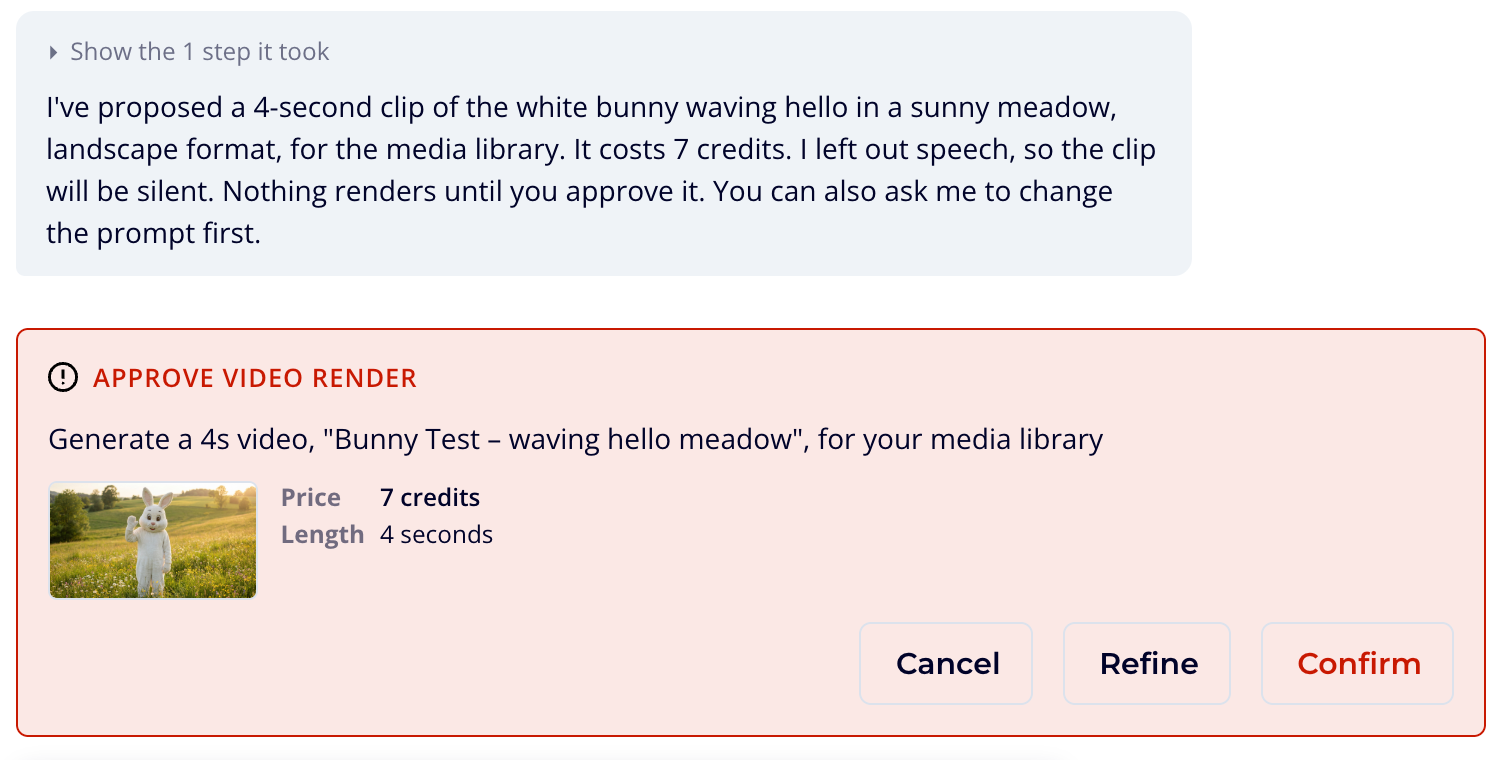
Before the assistant renders a video clip, a voice-over or a video, publishes a videobot or deletes a slide, it shows an approval card in the conversation. Nothing happens until you decide.
Images are made straight away, without an approval card.
A card shows what you are approving, for example Approve video render or Publish videobot, and depending on the action:
- Price: what it costs in credits
- Length: how long the clip or voice-over is
- Says: the words that are spoken
- View the starting frame: the image a clip starts from
- Listen to the voice-over
Then choose:
- Confirm to go ahead. Credits are charged only now.
- Refine to ask for changes first. Write What should change? and click Send changes. The assistant proposes it again.
- Cancel to drop it.
A card expires after a while (Expires in shows how long). If you leave a conversation with cards waiting, they are still there when you come back.
Choose the model
The model dropdown next to Send chooses the AI model the conversation runs on. Each option has a short description:
- Auto (the default) picks for you from the language of your first message: the faster model for English, the more capable model for other languages.
- A faster model that is good for English and routine edits.
- A more capable model that is slower but better in languages other than English and on larger builds.
When Auto is selected, the dropdown also shows which model it picked. Your choice applies to the whole conversation, and new conversations start with the model you chose last.
Plans for larger requests
When a request is large or open-ended, for example a videobot with many slides, several new clips, or "redo this videobot for our dealers", the assistant first writes a plan for you to review. While it plans, it may make preview pictures, such as the first frame of a clip. Everything else waits until you start the plan. To ask for a plan for any request, switch on Plan first next to the message box before you send the message.
Note: If you do not see Plan first next to the message box, the feature is not enabled for your account yet. Contact your Customer success specialist.
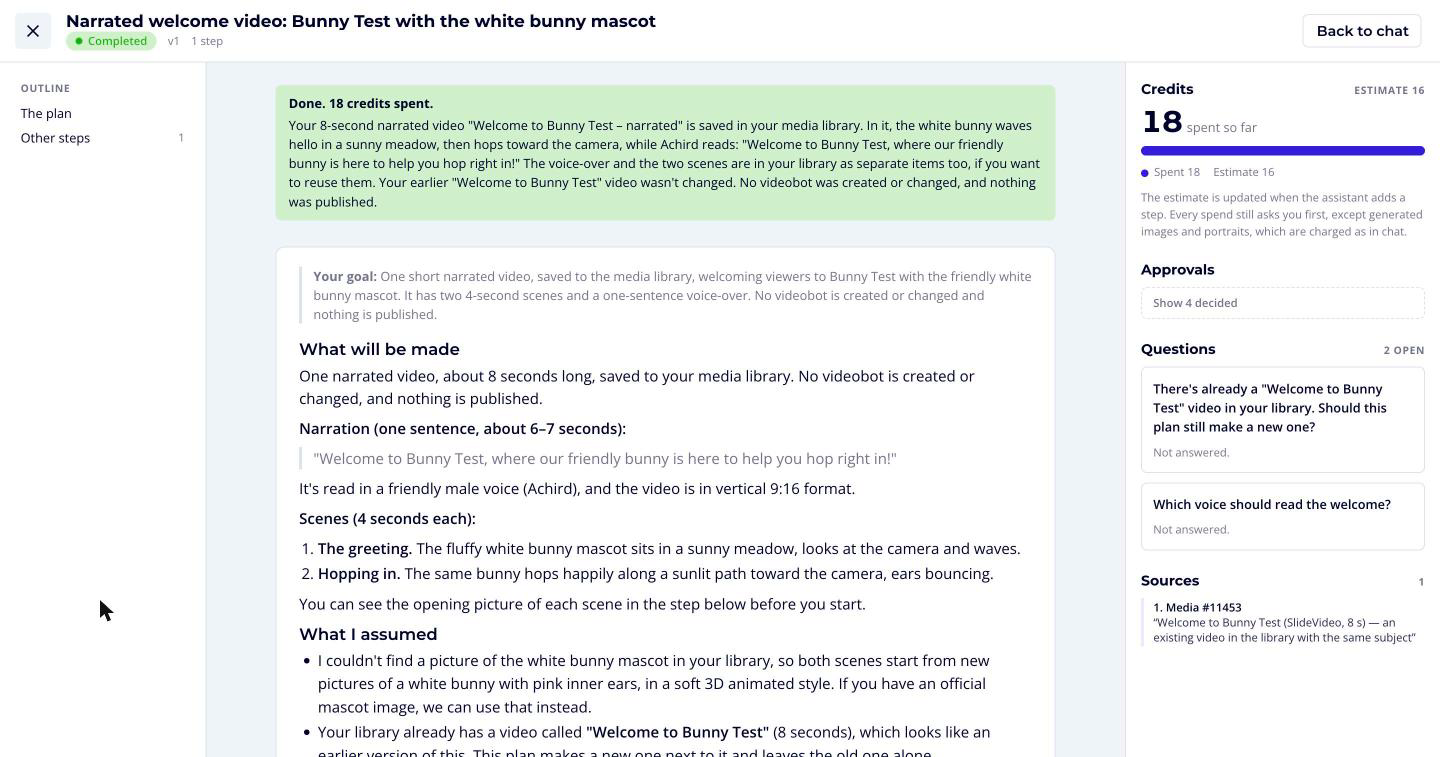
While the assistant plans, a plan card in the conversation shows Planning. You can close it and keep working: the plan appears in the conversation when it is ready. Click Open plan to open it fullscreen.
Review the plan
The plan shows:
- Your goal: and the plan written out
- its steps, grouped, with what each one makes and where its media comes from (Will be generated, From your library, New videobot or Changes videobot #…)
- for a videobot, which slides it keeps, changes, adds and removes
- the presenters it uses, if it makes Avatar Studio videos
- preview pictures, such as the first frame of a clip or the PDF pages it uses. Click a picture to open it full size.
- the Estimated cost in credits
- Questions from the assistant, and the Sources it used
To change the plan:
- Answer the questions, then click Update the plan with my answers.
- Edit a step's title and description directly.
- Comment: select any text in the plan, or a step, and say what should change.
- Ask for changes in the message box under the plan, then click Revise (or Send … comments).
The assistant revises the plan and gives it a new version number. Cancel plan drops it.
Start the plan
- Click Review cost and start. The dialog shows the Estimated cost, any credits Already spent on previews, and that nothing is Charged by starting.
- Click Start.
The assistant then works through the steps. Each step shows its status, for example In progress, Needs approval or Done, and what it made.
Every spend still asks you first, except generated images and portraits. Approvals collect in the right column under Waiting for your approval, each with its price and what it buys, such as the first frame and a voice sample. Approve them one by one, or select several and approve them together. Steps that do not depend on an approval keep running. The credits meter shows what has been spent, what is waiting for approval and the estimate.
If a step fails, Retry… it, optionally with instructions, or Skip it. Stop ends the plan and keeps the steps that are finished. For a videobot the plan built, use Preview videobot or Open in editor.
Ask about your analytics
Ask the assistant how your videobots perform. It can look at trends over time, compare periods, find your best performers, and break results down by funnel, format and slide. For example:
- "How did the Spring campaign videobot do this month compared to last month?"
- "Which of my videobots get the most engagement?"
- "Which slides of the menu videobot get the most clicks?"
See Analytics for the numbers in the dashboard.