

Consent Banner
The Consent tab in account Settings lets you configure the consent banner shown on standalone videobots — videobots shared as direct links rather than embedded in a website.
Overview
When a videobot is shared as a standalone link and analytics consent is required, a consent banner is shown to visitors before any analytics tracking begins. This helps you meet GDPR and ePrivacy requirements for standalone videobot pages.
Iframes and widgets
The consent banner only appears for standalone videobots (shared as a link). For videobots embedded as iframes or widgets, your website's existing Consent Management Platform (CMP) handles consent. See Analytics Consent and Iframe Consent for details.
Step 1: Enable Required User Consent
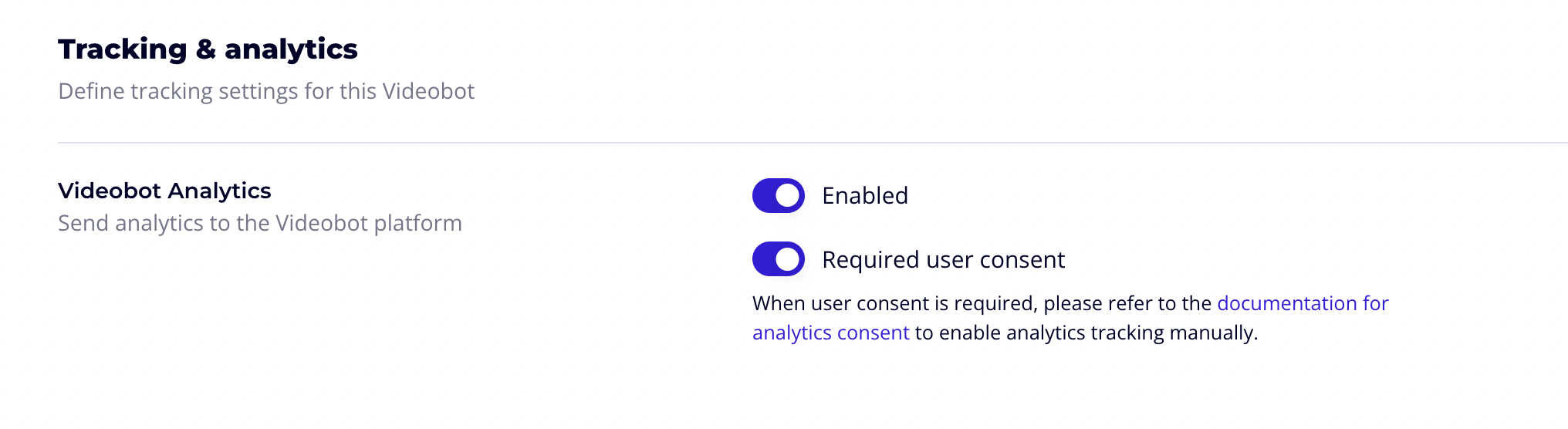
First, enable the Required user consent toggle on the individual videobot whose standalone link requires consent collection.
Navigate to the videobot's settings and open the Tracking & analytics section:
- Enabled — turns Videobot Analytics on or off for this videobot.
- Required user consent — when enabled, analytics tracking is blocked until the visitor accepts the consent banner.
Step 2: Configure the Consent Banner
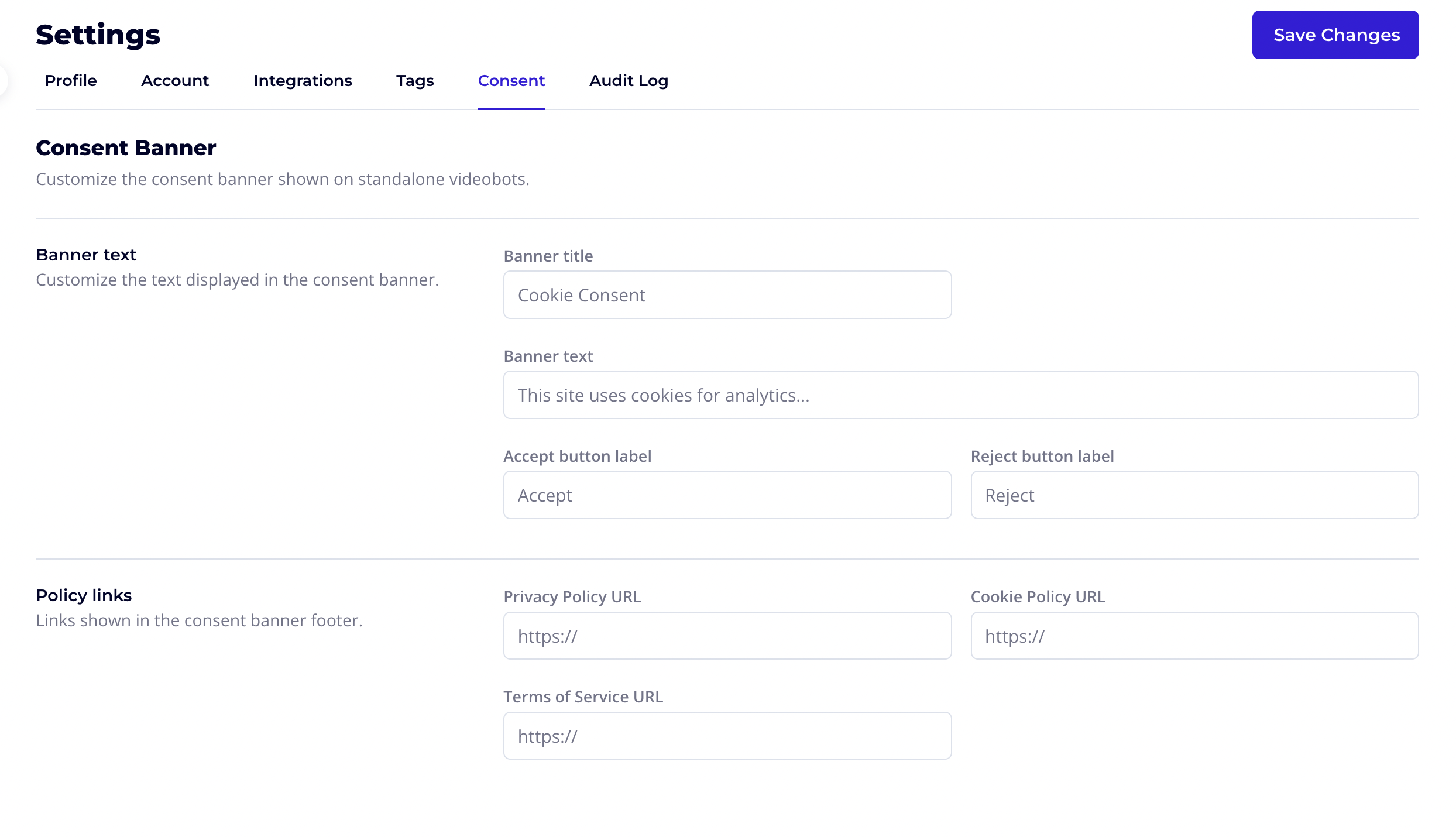
Go to Settings → Consent in the account dashboard to customize the banner shown to visitors.
Banner Text
Customize the text displayed in the consent banner:
| Field | Default | Description |
|---|---|---|
| Banner title | Cookie Consent | Heading shown at the top of the banner |
| Banner text | This site uses cookies for analytics... | Body text explaining what cookies are used for |
| Accept button label | Accept | Label for the accept button |
| Reject button label | Reject | Label for the reject button |
Policy Links
Optionally add links to your legal documents in the banner footer:
| Field | Description |
|---|---|
| Privacy Policy URL | Link to your privacy policy |
| Cookie Policy URL | Link to your cookie policy |
| Terms of Service URL | Link to your terms of service |
When provided, these links are shown at the bottom of the consent banner.
Once you have configured the banner, click Save Changes in the top right corner.
How It Works
- The banner is displayed when a visitor opens a standalone videobot link and Required user consent is enabled on that videobot.
- Analytics tracking is blocked until the visitor clicks Accept.
- If the visitor clicks Reject, analytics remain disabled for their session.
- The visitor's consent preference is stored in the browser and persists across page loads.
Already using a CMP?
If your website uses a CMP such as Cookiebot or OneTrust, the consent banner handles standalone videobot links on the Videobot domain. Your CMP continues to handle consent for videobots embedded on your own website. No additional configuration is needed.